 AppVerz
Blog / 4 November 2026
The orange triangle: what SweepyMac does when it cannot see something
Every scanner meets folders it cannot read. The dishonest ones leave them out and show you a clean total. SweepyMac marks incomplete lists, lists the locations it could not scan, skips health checks it cannot measure, and labels space a deletion would not actually free.
Every scanner on a Mac runs into things it cannot see. macOS protects some folders from every app, some locations are only readable by the system's root user, some files exist in iCloud but not on the disk, and some sizes cannot be measured without reading things a normal app is not allowed to read.
There are two ways to handle that. One is to leave the unreadable parts out and present what remains as the whole answer: a clean total, a green tick, "no threats found". The other is to say what you could not see. SweepyMac takes the second approach everywhere, and because it shows up in several modules in slightly different forms, this post collects them in one place.
The orange triangle
The most common form is a small orange triangle. It means some folders could not be read, so a list may be incomplete. You will see it on a category card in Smart Scan or Cleanup, next to the category whose folders were partly out of reach.
In the screenshot on SweepyMac's page, Saved App State carries the triangle and reads zero KB. That zero is not "you have no saved state". It is "this is all I could read", and the triangle is there so you do not mistake one for the other.
The usual cause is that Full Disk Access is off. Without it, macOS asks about folders one at a time and quietly declines some, and the scanners say so instead of pretending. A banner on the scanners offers the permission again. The other cause is a folder macOS protects regardless of permissions, and for those the triangle stays: there is nothing to grant, and nothing to pretend about.
Malware: the locations it could not scan
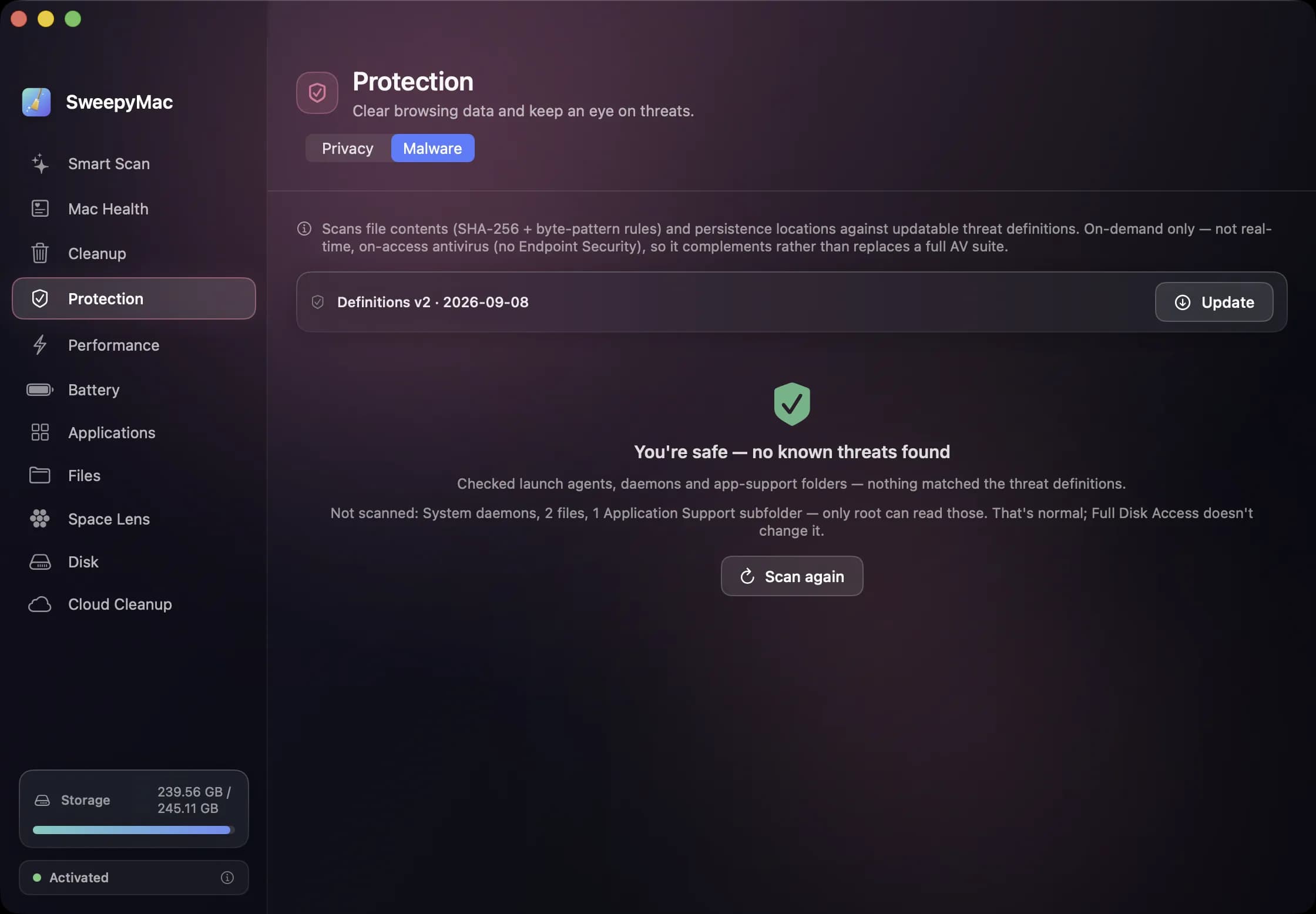
The malware scanner has its own version, and it matters more there. Some locations on a Mac can only be read by the root user, and an app running as you cannot open them. A scanner that skipped those and then announced "no known threats" would be telling you something it does not know.
So SweepyMac's result lists them. The green "no known threats found" result in the screenshot sits above a list of locations that could not be scanned. You may not need to do anything about them, and the scanner sits beside macOS's own protection rather than replacing it. But you know exactly what the green result does and does not cover, which is the point of a result.
Mac Health: skipped, never "fine"
The Mac Health score is built from storage, memory, battery and startup items, and each check produces a recommendation when something is wrong. If a check cannot read its data, it is skipped, not reported as fine.
The difference is subtle and important. "Fine" is a claim; skipped is an absence. If the battery check cannot read battery data, a desktop Mac being the obvious case, a score that counted it as healthy would be inflated by a check that never ran. On a desktop Mac, the Battery screen itself simply says no battery was detected.
Disk and Space Lens: no invented numbers
The Disk module draws the whole volume to scale, divided into Applications, Photos, Movies, Music, Downloads, Documents, Desktop, App Data and System & Other. Some of the used space on any Mac cannot be measured by an app: system files, snapshots, other users' folders. Rather than estimating it, or stretching the measured categories to fill the bar, Disk folds the unmeasurable remainder into System & Other and labels it as that.
Space Lens does the same while it measures live. When something cannot be fully measured, it says so instead of inventing a number. We would rather show a folder as partly measured than show you a confident size that is wrong.
Space a deletion would not free
Some files look like they take space and do not. A hard link is a second name for the same data; an APFS clone is a copy that shares its storage with the original until one of them changes. Delete either and you get nothing back.
The Duplicates and Large & Old scanners both know this. In Duplicates, hard links and APFS clones are labelled as freeing no space, so a set of five identical files does not promise four times the size when it cannot deliver it. In Large & Old, a hard link is listed as freeing nothing for the same reason.
Files that are not on the disk at all
iCloud Drive can keep a file in the cloud with only a placeholder on your Mac. A scanner that opened every file to measure it would trigger a download of each one, filling the disk in the act of checking it. Large & Old skips iCloud files that are only online, so scanning never triggers a download.
Cloud Cleanup has the reverse problem: it frees space by removing the local copies of files already in iCloud. It only touches files that are fully uploaded, and its result reports what was actually freed rather than what it expected to free.
Why this matters more than it looks
A cleaner's whole job is to tell you about things you cannot easily see yourself. If it rounds its uncertainty up into confidence, every number it shows becomes something you have to take on trust, and trust is exactly what a tool that deletes files should not ask for. A triangle, a list of unscanned locations or a "frees no space" label costs us a slightly less impressive screen. It gets you numbers you can act on.
The same thinking runs through the rest of the app: everything removed goes to the Trash, and every group opens up before you press anything. SweepyMac is on its page, with a three-day free trial.
Questions people ask
- What does the orange triangle in SweepyMac mean?
- That some folders could not be read, so the list beside it may be incomplete. The most common cause is Full Disk Access being off; another is a folder macOS protects from every app.
- Why does the malware scan list locations it did not scan?
- Because some locations can only be read by the root user, and an app running as you cannot open them. Listing them is more honest than reporting a clean result that silently left them out.
- Why does a duplicate show that deleting it frees no space?
- Because it is a hard link or an APFS clone, which share their storage with the original. Removing one does not give any space back, and SweepyMac labels them so you are not misled by the total.
Related reading
- Annual, monthly or once: choosing a SweepyMac plan, and moving a licence between MacsThree ways to pay, for one, two or five Macs, after a three-day trial with no account. What each plan costs, where the break-even points are, how a key activates and moves to a new Mac, and what the licence check sends.
- What a Mac cleaner should never doMost cleaning apps ask you to trust them. SweepyMac is built so you do not have to: everything it removes goes to the Trash, every clean has an Undo, and every group opens up before you press anything.
- Full Disk Access: what you are actually granting, and why SweepyMac asks onceThe macOS prompt everyone clicks through. What Full Disk Access unlocks, what it does not, how to check which apps have it, and why a scanner is one of the few tools that has a real case for it.
Have a question about any of this?
Write in. The person who built the apps reads every message and replies within two working days.