 AppVerz
Blog / 26 October 2026
The Mac Health score, explained: every number, every threshold
SweepyMac sums up your Mac as one score out of 100. This is what goes into it, exactly when each recommendation fires, and why a check that cannot read its data is skipped rather than marked fine.
A health score is an easy thing to fake and a hard thing to make honest. The temptation is a big green number that reassures everyone, with a few scary ones to sell an upgrade. SweepyMac's Mac Health score is built the opposite way: every input is something you can check yourself, every threshold is published, and a check that cannot read its data is left out rather than counted as a pass. Here is the whole thing.
The score and its bands
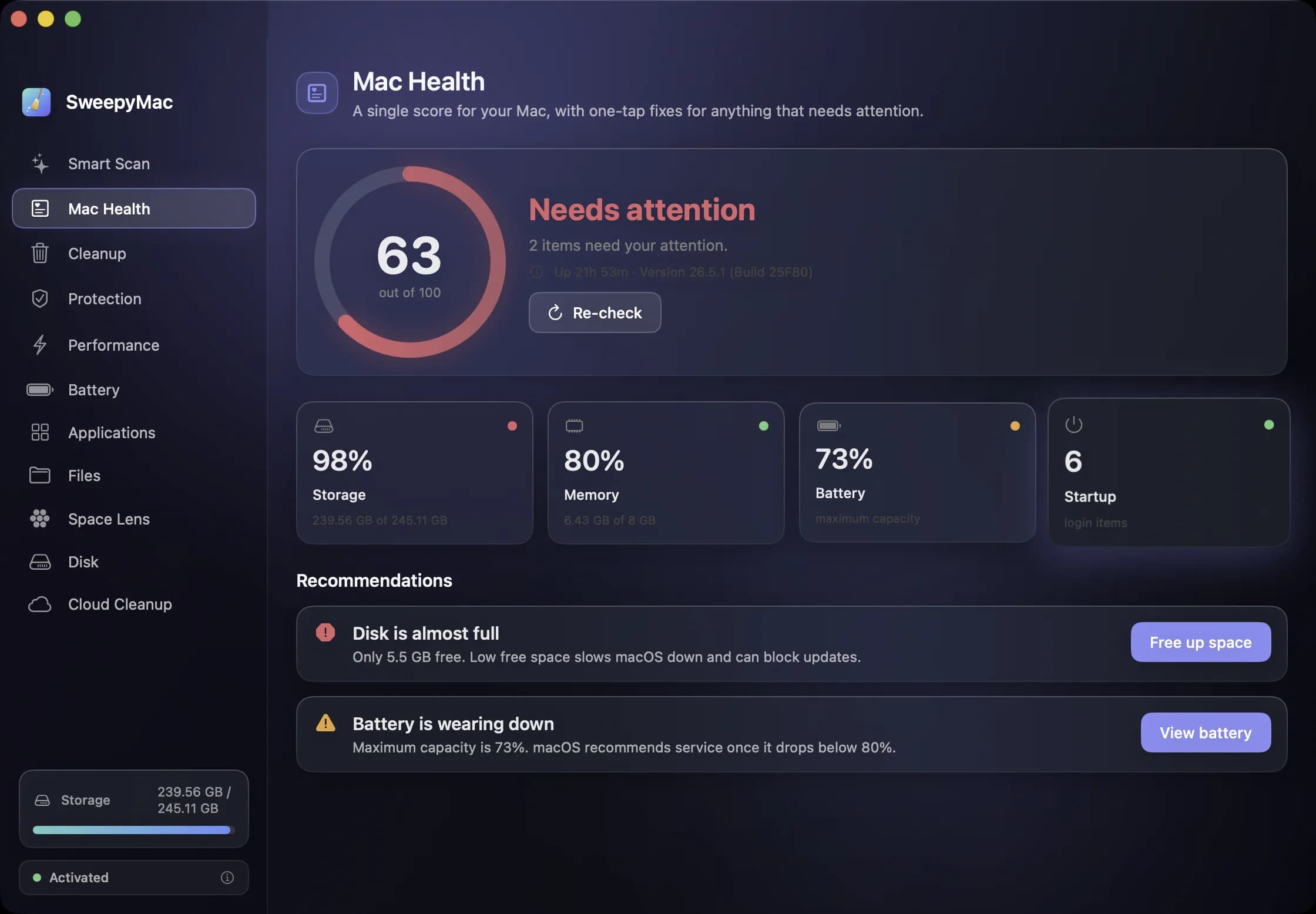
The ring shows a number from 0 to 100 and a rating. 85 and above is Excellent. 70 to 84 is Good. 50 to 69 is Fair. Below 50 is Needs attention. Underneath, either "No issues found" or "N items need your attention", plus your uptime and macOS version.
Four things feed the score: storage, memory, battery and startup load. Each has a tile under the ring showing its current value, and the tiles are read directly from macOS. Storage is the percentage of the boot volume used. Memory is the share of RAM in use. Battery is maximum capacity, or charge level if capacity is not available, and "No battery" on a desktop Mac, which then drops out of the calculation. Startup is the number of login items in your account.
Every recommendation, and when it fires
The recommendations are where the score becomes actionable. Each one is a sentence with a button that jumps to the module that fixes it, or a dismiss. These are the triggers, exactly as the app applies them.
| Recommendation | Fires when | Button goes to |
|---|---|---|
| Disk almost full (critical) | 90% or more used, or under 8 GB free | Cleanup |
| Disk filling up | 80% or more used | Cleanup |
| Memory under pressure | 90% or more of RAM in use | Performance |
| Battery worn out (critical) | Maximum capacity under 70% | Battery |
| Battery wearing down | Capacity under 80%, or macOS reports Service Recommended | Battery |
| Lots of startup items | More than 8 login items | Performance |
| Several startup items (info) | More than 4 login items | Performance |
| Time to restart | Up for 14 days or more | Dismiss |
| Consider a restart (info) | Up for 7 days or more | None |
The two marked critical are the ones that hurt the score most, and for good reason. A boot volume with under 8 GB free is the point where macOS itself starts struggling: swap has nowhere to go, updates fail to download, and apps that write temporary files begin to misbehave. A battery under 70 percent of its original capacity is one Apple's own diagnostics would flag for service.
What is deliberately not in it
Nothing about junk files. A Mac with 20 GB of caches and a half-empty disk is a healthy Mac; the caches are a Cleanup question, not a health one. Nothing about malware either, because a signature scan is a yes-or-no answer that should never be averaged into a number. And nothing subjective: no "optimisation level", no "performance index". If a value is not something macOS reports, it is not in the score.
Skipped, not passed
This is the rule we care most about. If a check cannot read its data, it is skipped. The disk check that gets a permission error does not report a clean disk; it reports nothing, and the score is computed from the checks that did run. A Mac with no battery is not marked as having a perfect battery. The alternative, treating "could not read" as "fine", is how a health score ends up lying with a straight face.
The same rule runs through the rest of the app. Scans that could not read a folder show an orange triangle. Space Lens labels what it could not measure. We wrote about why in what a Mac cleaner should never do.
Where else it shows up
The score also appears on Smart Scan, in the "Your Mac at a glance" tiles under the scan results, and the recommendations appear there as cards. Tapping one jumps to the fix. If everything is fine you get "You're all caught up", and the Health tile just reads the score and its rating.
Re-check at the top of Mac Health re-runs everything and brings back any recommendation you dismissed. Dismissing is for cards you have read and chosen to ignore, such as a restart reminder on a Mac that is deliberately up for a month; it does not change the score, only what is shown.
Reading a bad score
Start with the critical items, because one of them is usually the whole story. In the screenshot on the SweepyMac page, a score of 53 comes from a disk at 3 GB free and a battery at 75 percent capacity with Service Recommended. Free the disk and the score climbs into Good on its own; the battery is a hardware fact that only a replacement changes, and the app says so rather than offering to fix it with software.
Questions people ask
- Why is my score low when my Mac feels fine?
- Usually one critical check. A disk over 90 percent full or a battery under 70 percent capacity pulls the score down on its own, and the recommendations list will name it. Fix the one thing, press Re-check, and the score moves.
- Can I make the score go up by dismissing a recommendation?
- No. Dismissing hides the card until the next Re-check, which brings dismissed recommendations back. The score reflects the state of the Mac, not which cards are showing.
- Does the score send anything to AppVerz?
- No. It is computed on your Mac from values macOS exposes, and the result stays there.
Related reading
- Getting disk space back from iCloud Drive without deleting a single fileFiles you downloaded from iCloud Drive keep a local copy on your Mac. Evicting that copy frees the space, keeps the file in iCloud, and leaves it one click from coming back. Here is how it works and when it is worth doing.
- Uninstalling a Mac app completely: the eleven places it leaves things behindDragging an app to the Trash removes the app and nothing else. Its preferences, caches, containers and launch agents stay. Here is where they live, how SweepyMac finds them, and why some apps need a password to remove.
- What starts when you log in, and the three chores you used to need Terminal forSweepyMac's Performance module lists your login items with a Disable button, shows the system agents macOS manages, and runs three maintenance tasks with one click. How the background helper makes that silent, and why it needs a signed build.
Have a question about any of this?
Write in. The person who built the apps reads every message and replies within two working days.