 AppVerz
Blog / 8 October 2026
What starts when you log in, and the three chores you used to need Terminal for
SweepyMac's Performance module lists your login items with a Disable button, shows the system agents macOS manages, and runs three maintenance tasks with one click. How the background helper makes that silent, and why it needs a signed build.
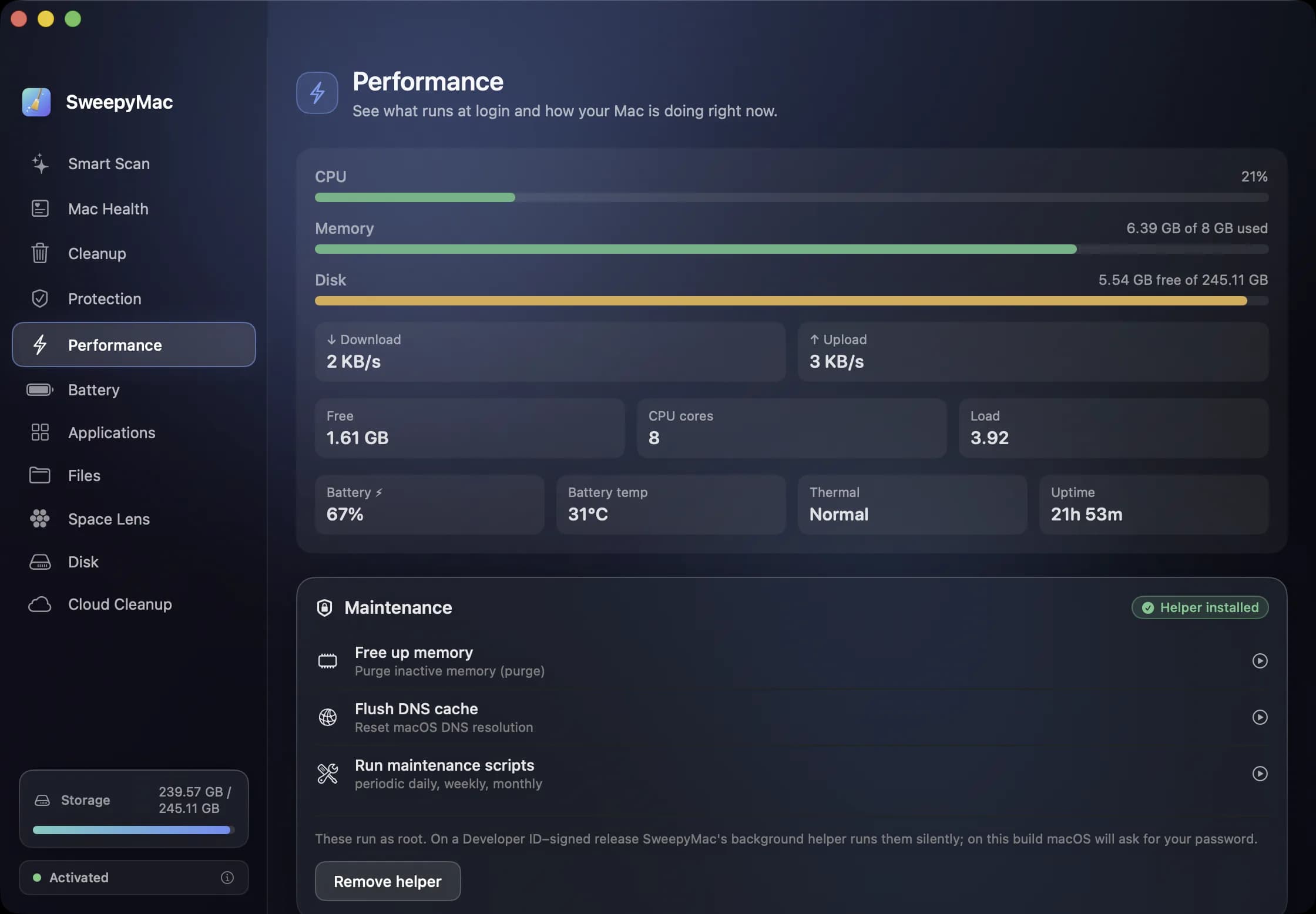
Two questions people ask about a slow Mac are "what is running right now" and "what started without my asking". The Performance module answers both on one screen, and then offers the three maintenance jobs that otherwise mean opening Terminal and typing a command you half remember.
The live card
The top of the screen refreshes every three seconds. Bars for CPU, memory and disk, with memory shown as "X of Y used" and disk as "X free of Y"; they turn to a warning colour above 85 percent for CPU and memory and 90 percent for disk. Beneath them, tiles for download and upload throughput, free memory, CPU cores, load, battery percentage with a bolt while charging, battery temperature, thermal state and uptime. The battery tiles only appear on a Mac that has one.
This is a monitor, not an optimiser. It shows what macOS reports so you can see whether the fan is spinning because of a stuck process or because the room is warm.
Login items
Under the heading "Login items (N)" is the list of launch agents in your own account's LaunchAgents folder: the things that start when you log in, each with its name, the program it runs and a Disable button. Disabling moves the agent's file to the Trash, so it does not start at next login, and the result bar offers Undo. If the list is empty, the screen says "Nothing extra launches at login."
Below that, a collapsible section lists the system agents and daemons in the shared Library folders. These are shown with a lock icon and cannot be changed from here, because macOS and the apps that installed them with administrator rights manage them. Showing them read-only is deliberate: you can see what is there without the app offering to pull a thread it cannot put back.
A long list of login items is also one of the inputs to the Mac Health score, which flags more than four as worth reviewing and more than eight as a problem. This is where you fix it.
The three chores
The Maintenance card has three buttons, each of which does one thing that needs administrator rights.
Free up memory purges inactive memory, the same as the purge command, so more is immediately free for whatever you open next. Flush DNS cache resets the resolver, which is the fix for a site that will not load after its address changed. Run maintenance scripts runs the daily, weekly and monthly scripts that macOS schedules itself but can skip on a laptop that is asleep at the scheduled hour.
None of these is magic, and the app does not pretend otherwise. macOS manages memory well without help, DNS problems are rarer than forum posts suggest, and the periodic scripts mostly rotate logs. They are here because when you do need them, the alternative is Terminal and a password prompt anyway.
The helper, and why it needs a signed build
Each of the three actions needs administrator rights. Without anything installed, macOS asks for your password every time you press a button. With SweepyMac's background helper installed, they run silently.
The helper is a small privileged service that does exactly those jobs and nothing else. You install it from the Maintenance card; if macOS wants approval, a button opens Login Items in System Settings where you enable it. A status pill shows the state: Helper installed, Needs approval, Not installed or Unavailable. Remove helper uninstalls it again.
It shows Unavailable on an unsigned build, and that is by design. macOS only lets a privileged helper install when it is signed with a Developer ID and matches the app that embeds it, which means a tampered copy of SweepyMac cannot carry a working helper. On a build where it is unavailable, the three tasks fall back to the password prompt. We would rather have that fallback than a helper that could be installed by anything.
What this module does not do
It does not kill processes, change CPU priorities or promise a speed boost. The Performance screen is for seeing clearly and then doing one of three well-understood things. If the real problem is a full disk, the live card's disk bar will say so and the fix is in Cleanup; if it is a worn battery, the fix is on the Battery screen and it is not software.
Questions people ask
- Why does Performance ask for my password every time?
- The background helper is not installed or not yet approved. Install it from the Maintenance card and, if macOS asks, enable it under Login Items in System Settings. After that the three tasks run silently.
- Can I disable a system daemon from SweepyMac?
- No. The system agents and daemons section is read-only, because those are managed by macOS and by the apps that installed them with administrator rights. Only the launch agents in your own account have a Disable button.
- Does freeing memory make my Mac faster?
- Sometimes, briefly. It purges inactive memory so there is more free for the next thing you open. macOS manages memory well on its own, so treat it as a tool for a Mac that is visibly struggling, not a daily ritual.
Related reading
- The Mac Health score, explained: every number, every thresholdSweepyMac sums up your Mac as one score out of 100. This is what goes into it, exactly when each recommendation fires, and why a check that cannot read its data is skipped rather than marked fine.
- Getting disk space back from iCloud Drive without deleting a single fileFiles you downloaded from iCloud Drive keep a local copy on your Mac. Evicting that copy frees the space, keeps the file in iCloud, and leaves it one click from coming back. Here is how it works and when it is worth doing.
- Uninstalling a Mac app completely: the eleven places it leaves things behindDragging an app to the Trash removes the app and nothing else. Its preferences, caches, containers and launch agents stay. Here is where they live, how SweepyMac finds them, and why some apps need a password to remove.
Have a question about any of this?
Write in. The person who built the apps reads every message and replies within two working days.