 AppVerz
Blog / 29 October 2026
Smart Scan or Cleanup? What one click cleans, and what it deliberately leaves alone
SweepyMac has a one-click scan and a full Cleanup module, and they are not the same thing. Here is exactly what each one touches, which categories start unticked and why, and the folders neither will ever offer you.
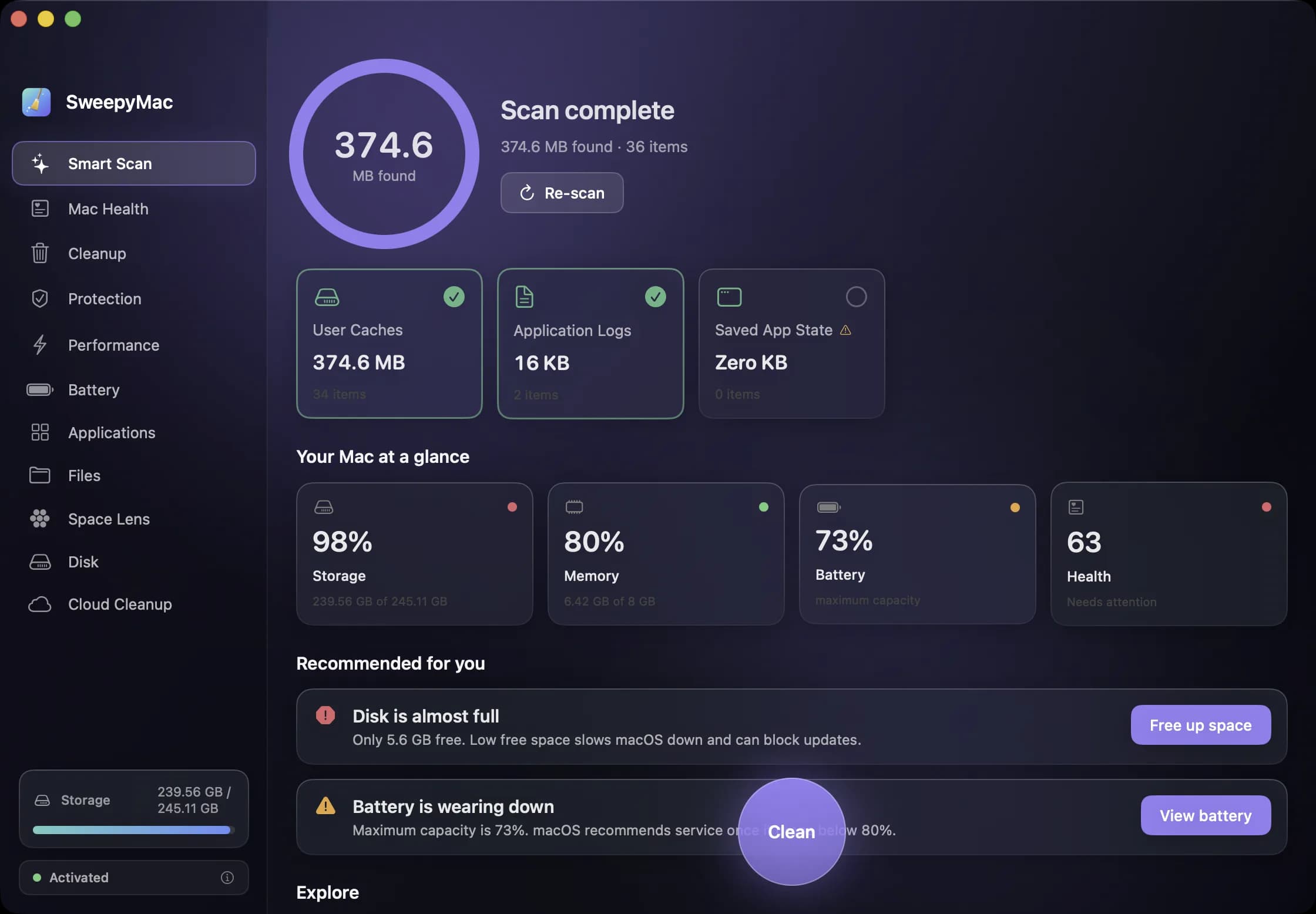
SweepyMac opens on Smart Scan, and the first time you open it the scan starts by itself. It is the fastest route to a cleaner Mac, and for most people most of the time it is the only one they need. But there is also a full Cleanup module in the sidebar, and the difference between the two is worth understanding before you press either Clean button. The short version: Smart Scan is a subset of Cleanup, chosen so that one click can never be a mistake.
What Smart Scan looks at
Three categories, and only three. User Caches are the per-app caches in your Library folder, which apps rebuild the next time they launch. Application Logs are diagnostic logs that nothing needs for normal use. Saved App State is the window layout macOS stores so an app reopens where you left it; it is recreated the moment you reopen the app. All three are safe to clear at any time, which is why they are the ones Smart Scan picks.
The scan shows a ring with the total it found, one card per category that you can tick or untick, and a single round Clean button. Everything selected goes to the Trash, the result bar reads "Freed X" with Undo, and if you have nothing to clean it says so: "Your Mac is tidy."
Smart Scan deliberately does not include the two opt-in categories below, and it does not check for malware. That is Protection's job, and keeping it separate means a one-click clean never has to ask you a security question.
What Cleanup adds
Cleanup scans the same three categories plus two more, and this is where the judgement calls live.
Developer Caches covers Xcode's DerivedData and CoreSimulator caches, and the package caches for npm, pnpm, Yarn, Gradle, Maven, Go modules and Cargo, along with the general ~/.cache folder. These are rebuilt or re-downloaded on demand, which sounds harmless until you remember that "on demand" means your next build is slower and your next install hits the network. For a developer that is a real cost, so the category is listed with its size and left unticked. Tick it on a Friday afternoon, not a Monday morning.
App Leftovers covers the settings, support files and containers of apps that are no longer installed and that nothing has written to for sixty days. macOS does not rebuild these, so clearing them means a later reinstall starts fresh, with your preferences gone. Also opt-in, for the same reason: only you know whether you are coming back to that app.
Every card expands into a per-item list with its own checkboxes, hovering an item shows a note on why it is considered safe, and a warning triangle on a category means part of it could not be read. Cleanup only touches folders inside your own user account, so it never asks for an administrator password.
What neither will ever offer
Some things are never listed, no matter how large. Xcode Archives, because they are your shipped builds. iOS DeviceSupport folders, because Xcode downloads them from a connected device and cannot always get them back. Docker images, because the cost of rebuilding one is measured in hours. Apple's own items. And in App Leftovers, folders that merely share an app's name rather than its bundle identifier, because a name match is not evidence that the folder belongs to the app.
This list is a product decision, not a limitation. A cleaner that offers everything it can technically delete is passing the judgement to you under time pressure. We would rather leave a few gigabytes on the table than have you discover on Monday what Friday's clean actually removed.
The one permanent button
At the top of Cleanup sits the Trash card: how many items are in your Trash, how much they take up, and an Empty Trash button. It is the only irreversible action on the screen, and it is phrased that way: "Permanently delete N items in the Trash? This can't be undone." Everything else in Cleanup lands in the Trash first, which is also why your free space does not move until you empty it. If Full Disk Access is off, the card offers to open the Trash in Finder instead.
Which one to use
Smart Scan weekly, or whenever the storage gauge at the bottom of the sidebar starts looking full. Cleanup when you want to see the developer and leftover categories, or when a project has just shipped and the build caches can go. Both put everything in the Trash with an Undo, and both respect the same rule: nothing moves until you tick it and confirm. The user guide has the full category table if you want it in one place.
Questions people ask
- Why did Smart Scan find less than Cleanup?
- Because Smart Scan only looks at the three conservative categories: user caches, application logs and saved app state. Cleanup also scans developer caches and app leftovers, which are listed but unticked. The bigger number is Cleanup counting things it will not clean unless you ask.
- Will cleaning caches make my apps slower?
- Briefly, for some apps. A cache is rebuilt the next time the app needs it, so the first launch after a clean can take a moment longer. That is the trade, and it is why developer caches, which take real time to rebuild, are opt-in.
- Why did my free space not change after cleaning?
- The items are in the Trash, and the Trash still takes up space until it is emptied. The Trash card at the top of Cleanup shows what is in there and has the only permanent button on the screen.
Related reading
- A monthly Mac routine in fifteen minutes, from the keyboardEleven modules is a lot to remember. This is the order we use them in once a month, with the shortcut for each: scan, check health, look for threats, find the big files, hand space back to iCloud, and only then empty the Trash.
- Your first ten minutes with SweepyMacInstall, one permission, a three-day trial and a first scan. What happens at each step, what to say yes to, what you can safely skip, and how to read the screen that comes back before you press Clean.
- What a Mac cleaner should never doMost cleaning apps ask you to trust them. SweepyMac is built so you do not have to: everything it removes goes to the Trash, every clean has an Undo, and every group opens up before you press anything.
Have a question about any of this?
Write in. The person who built the apps reads every message and replies within two working days.