 AppVerz
Apps / Developer Tools for macOS

Stackyard
Your dev machine, from the menu bar
Stackyard is a menu-bar app for Mac developers. It shows what is eating memory and quits it, finds the node and python processes your terminal left behind, lists every local server with a health dot, starts and stops your projects and Docker containers, and reclaims disk from caches your tools rebuild on their own. Everything runs on your Mac, with no account and no analytics.
Free preview
Free. A build comes by email while the release is notarized.
- No account, no telemetry
- Works with Docker and Homebrew services
- Cleans to the Trash, never deletes
Version 1.0. macOS 14 Sonoma or later.
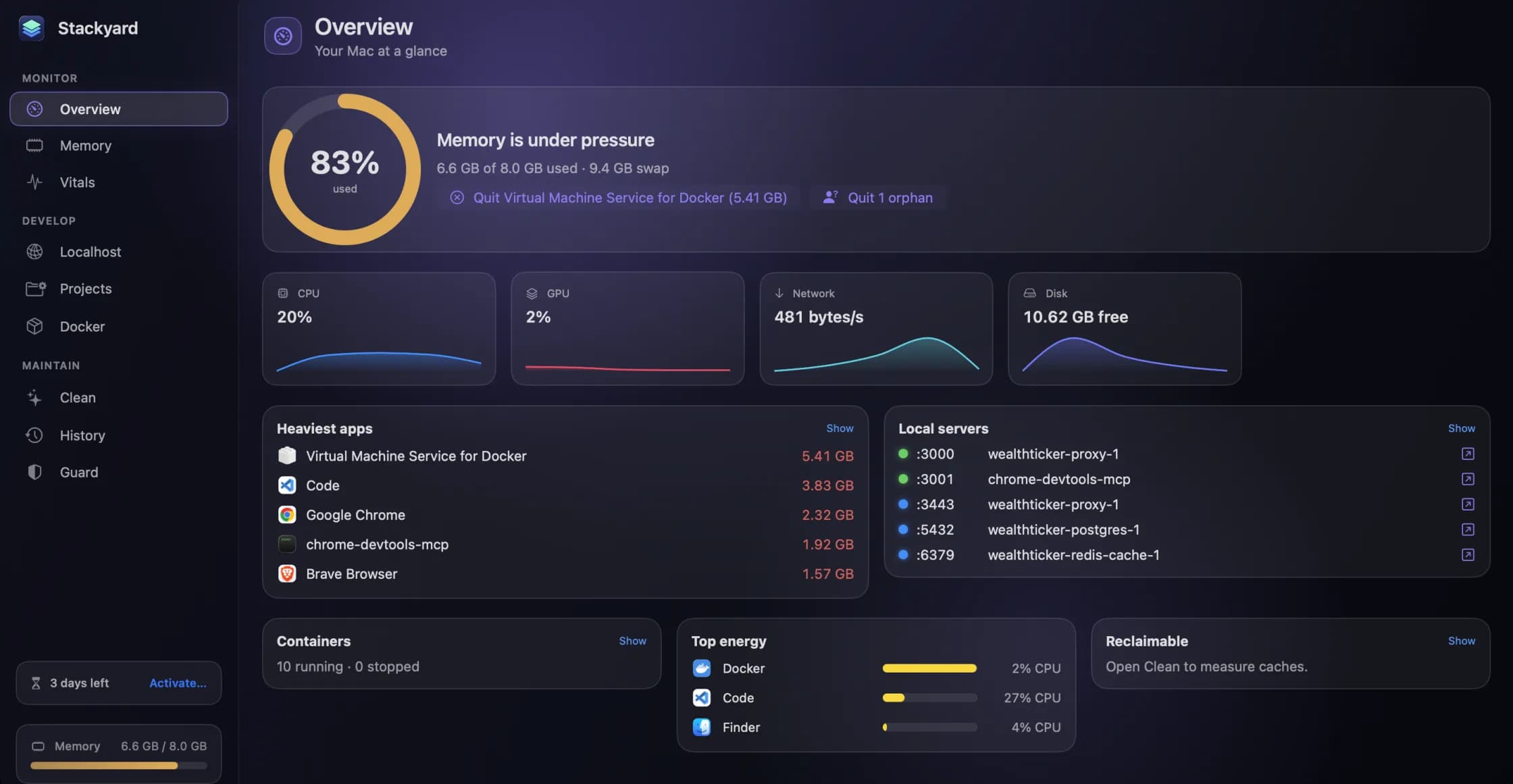
The whole machine on one screen, with the fix for the worst of it one click away.
What’s in it
Memory, grouped the way you think
Used against total, with the pressure macOS reports, and every app's helpers folded under it — Chrome with forty helpers is one row. Filter by High, Medium or Low, then Quit or Force Quit from the same row.
Orphans, and who left them
The node and python processes that kept running after the terminal, editor or AI agent that started them closed. Each shows who left it — Terminal, VS Code, Cursor, Claude Code, iTerm2, Warp, tmux — its folder and its PID. Quit All clears them in one go.
Every local server, with a health dot
Every listening port: green for an HTTP server answering, red for a 5xx or no answer, blue for Postgres, Redis and the rest. Docker ports carry the container name. Open, copy the URL, find the process in Finder, or stop it.
Share on LAN, with a QR code
Open a server that only listens on your Mac to your phone on the same Wi-Fi, on the original port plus 10000. Nothing is exposed to the internet, and sharing stops by itself when the server exits or the network changes.
Projects and containers in one place
Add the folders where you keep code and Stackyard finds dev and start scripts, .claude/launch.json configs and run.sh files. Start and stop them with a live log and a warning before a port clash. Docker containers group by Compose project, and Homebrew services get on/off switches.
Disk back from rebuildable caches
Xcode DerivedData, npm, Yarn, pnpm, Bun, Gradle, CocoaPods, Cargo, Playwright and more, plus each project's node_modules, .next and target folders. Large files, duplicates, old downloads, leftovers, a storage map and an uninstaller. Everything goes to the Trash; cookies, passwords, Archives and your projects are never touched.
Guard, in the background
A notification when memory pressure stays high for thirty seconds, leak detection for apps that grow steadily for forty-five minutes, orphans quit after a time you choose, apps quit when unused, and Meeting Mode to free memory for a call and reopen everything after.
⌘K for everything
Quit any app, open or stop any port, start any project or container, clean any cache, jump to any section — a few letters into the command palette. Two widgets and a stackyard:// link scheme cover the rest.
A look around
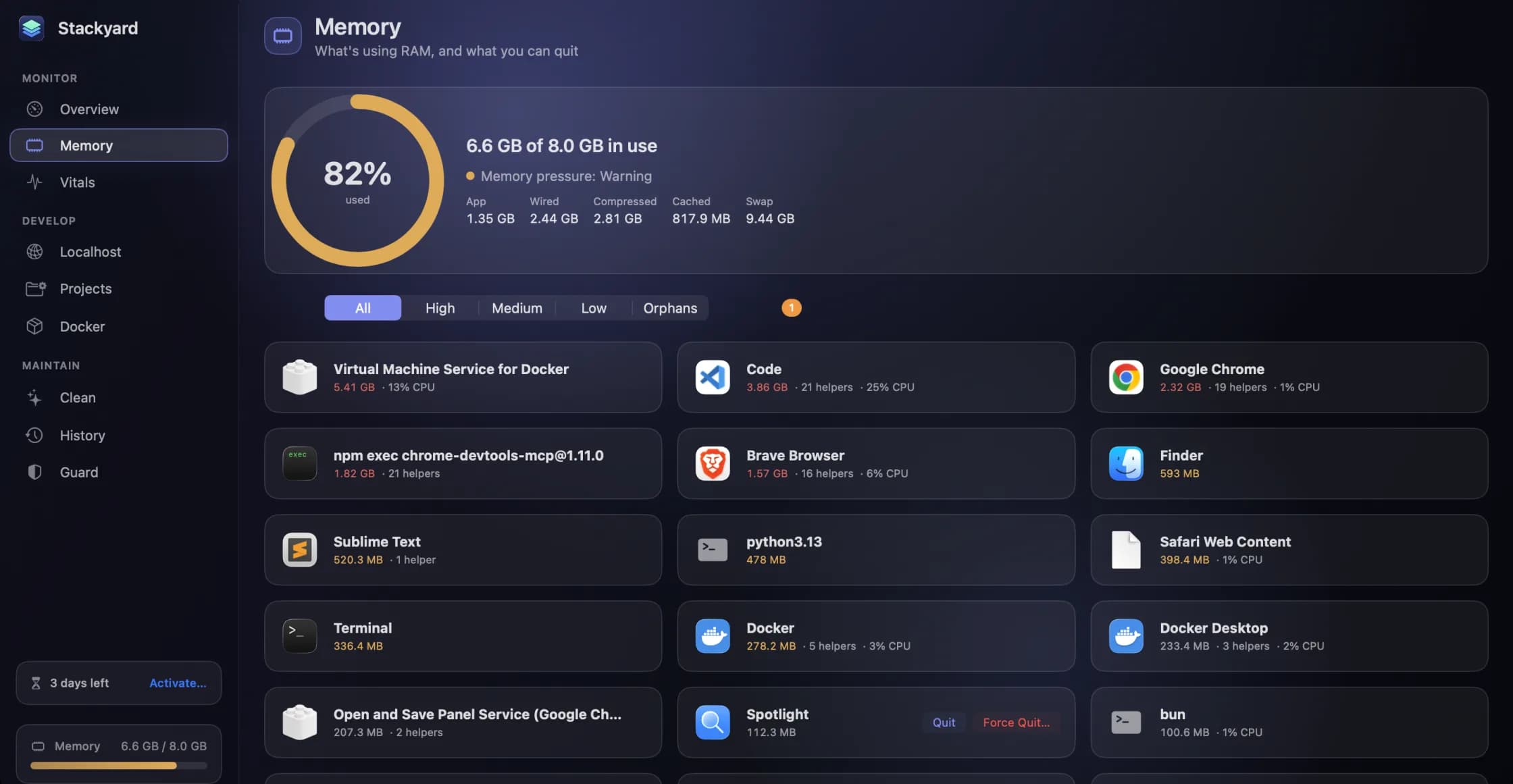
Every app with its helpers folded in, and Quit or Force Quit on the row. 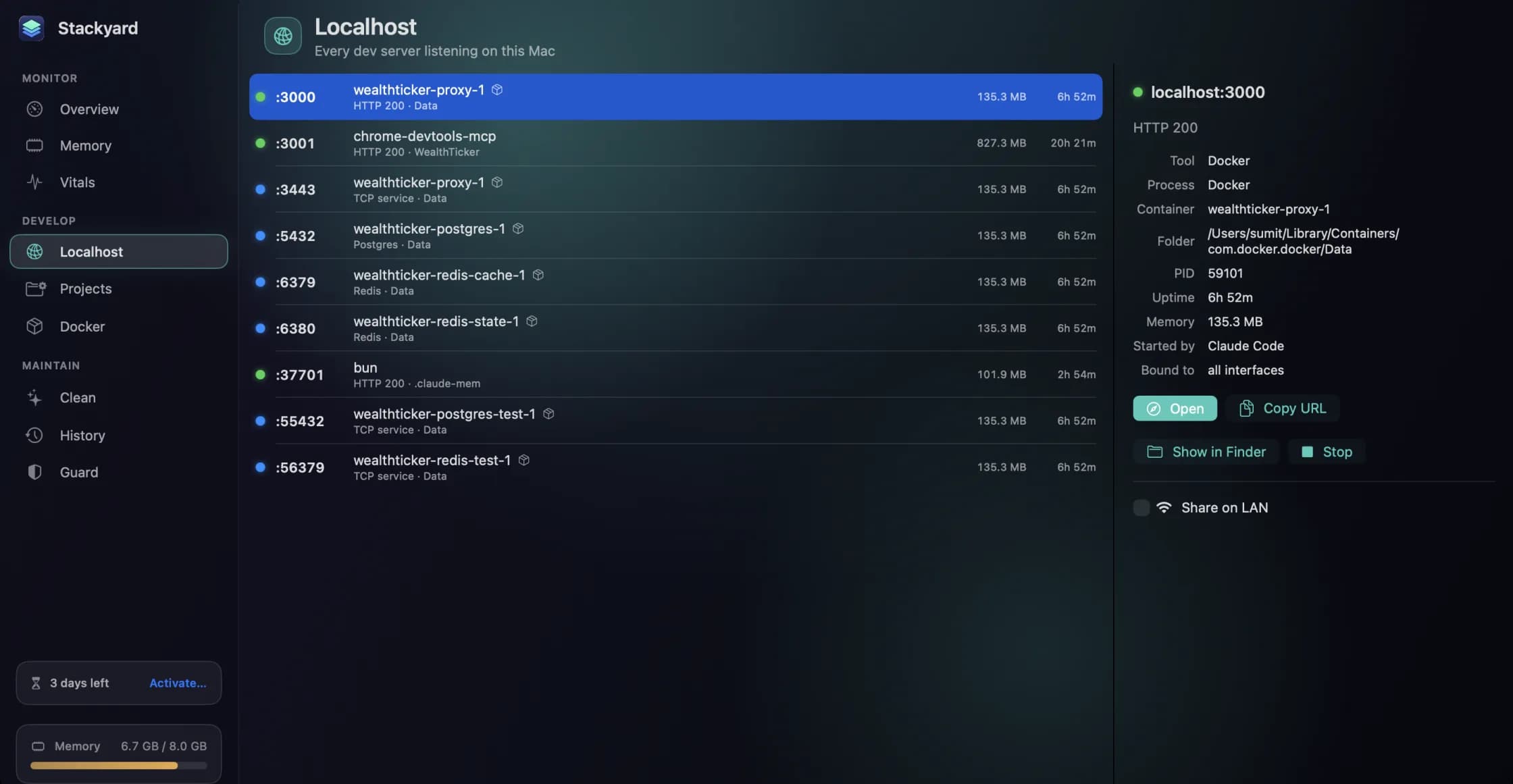
Every server listening on your Mac, what it is, and who started it. 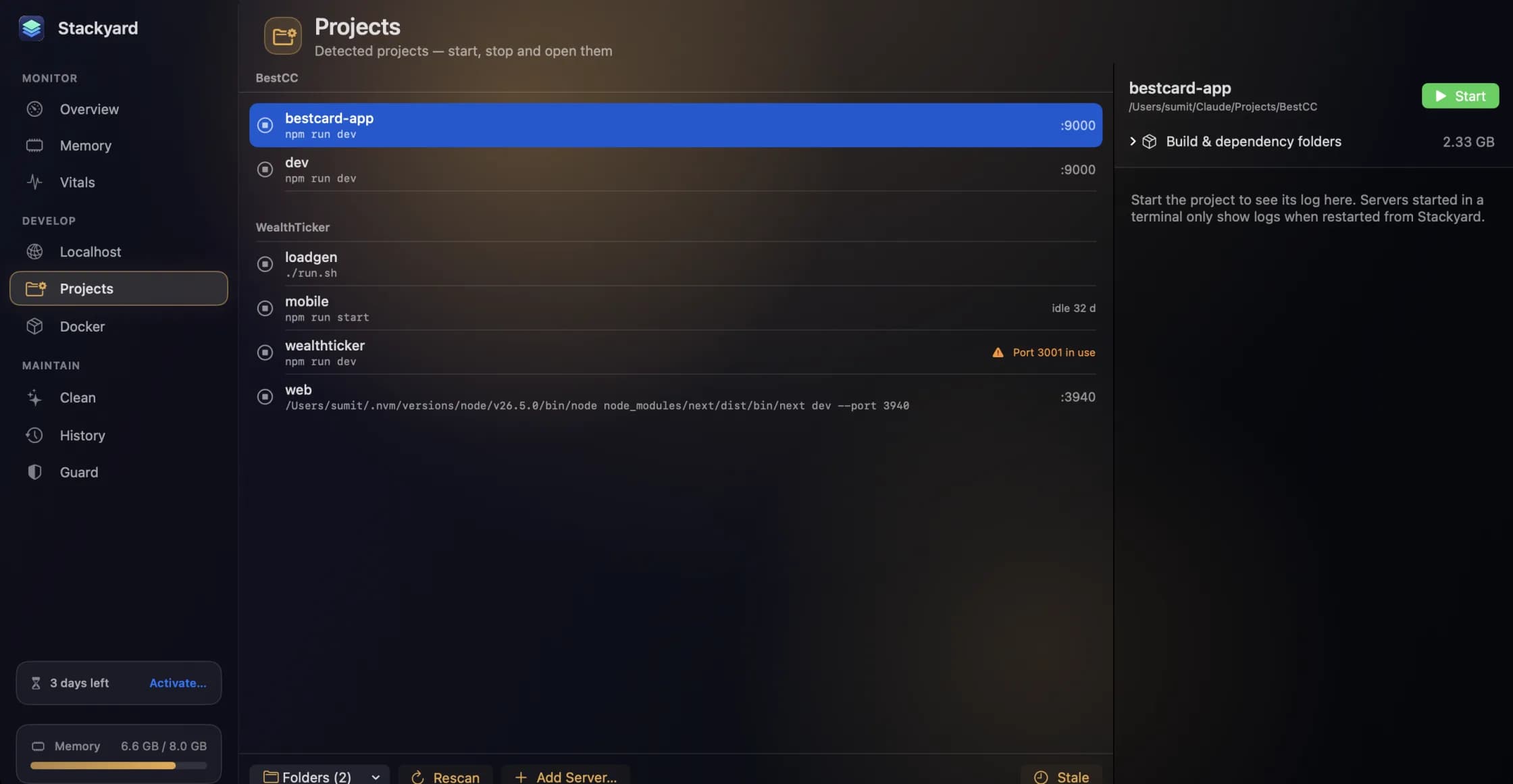
Your projects, started and stopped from one list, with a warning before a port clash. 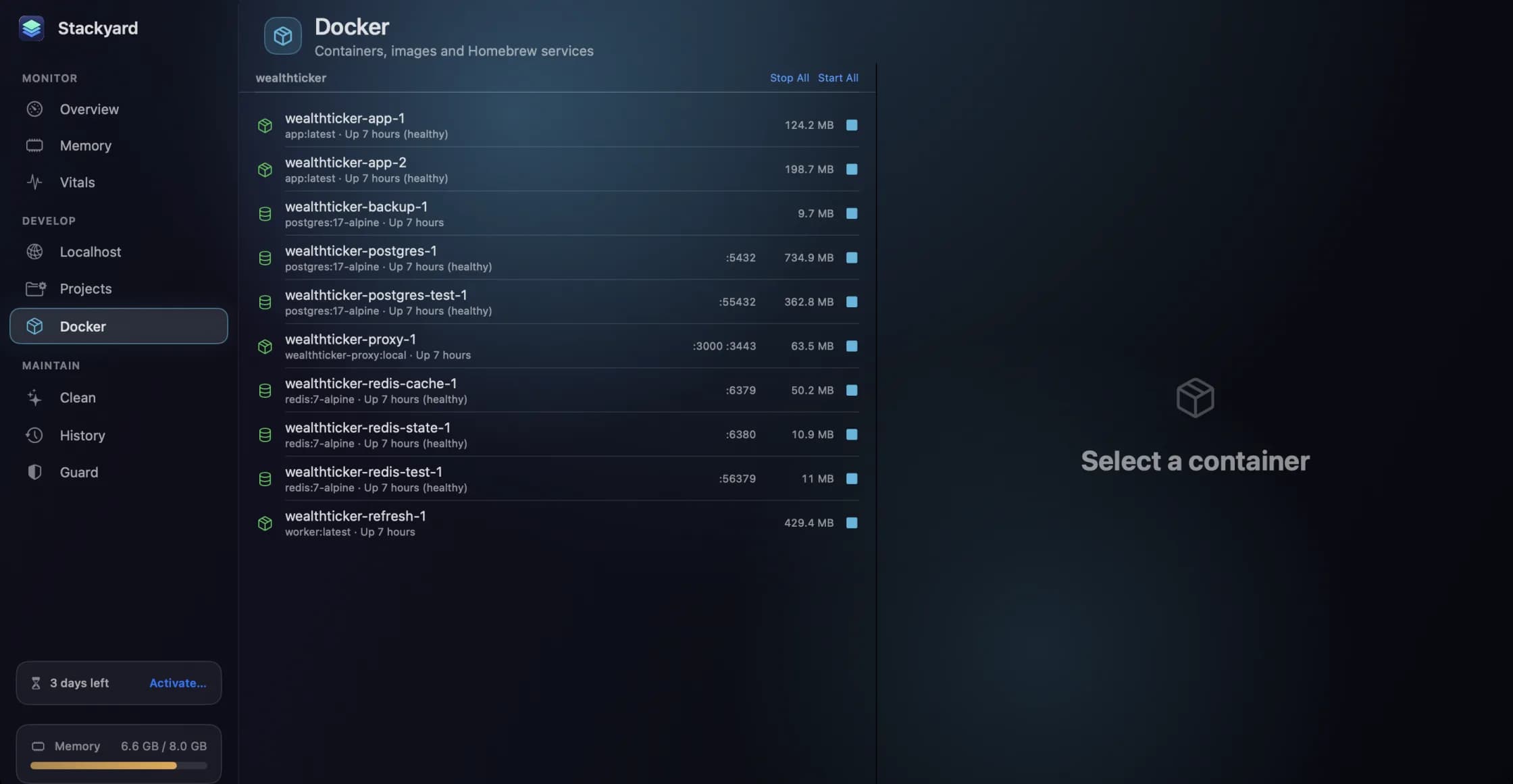
Containers grouped by Compose project, with Start All and Stop All. 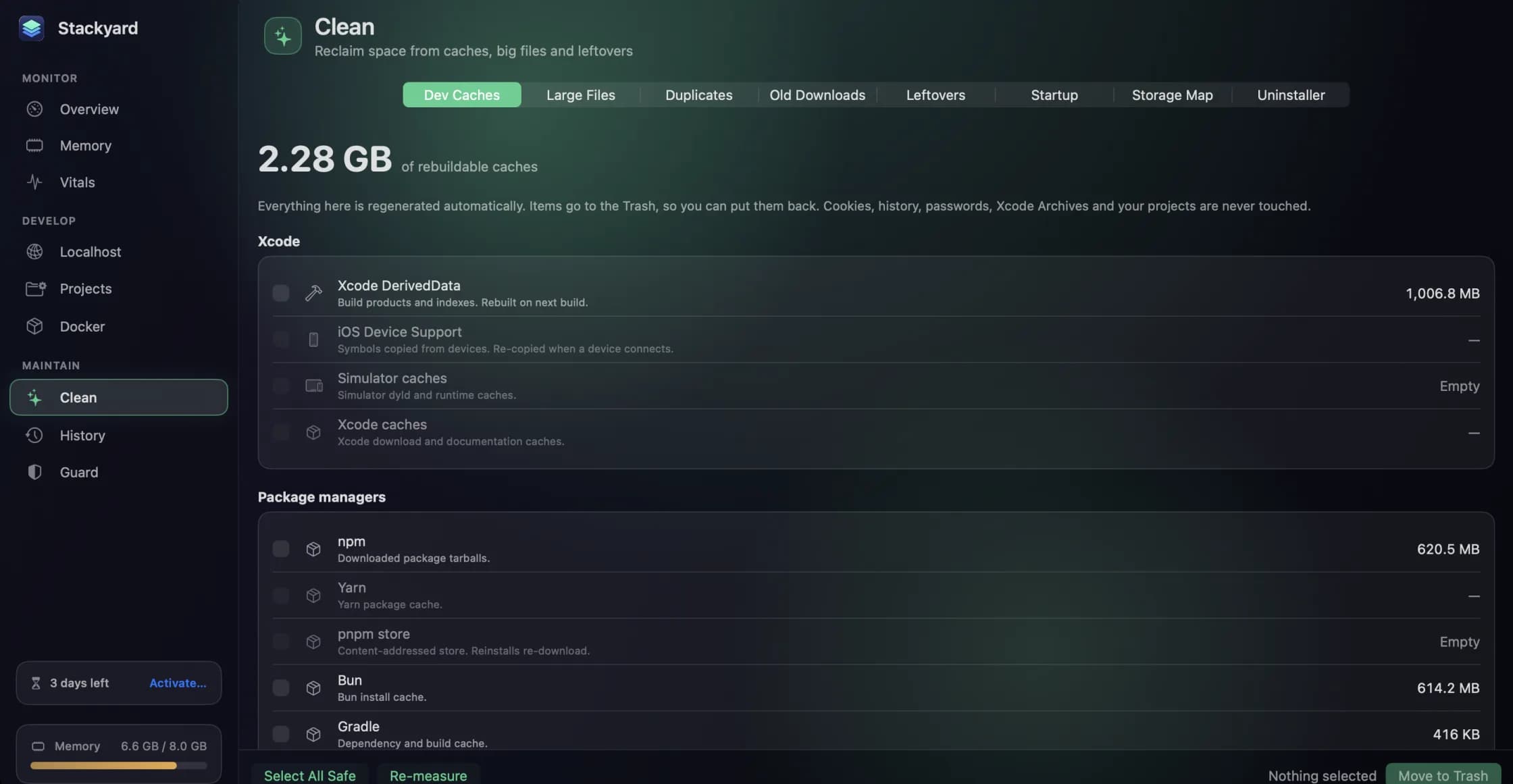
Caches your tools rebuild on their own, measured, and moved to the Trash rather than deleted. 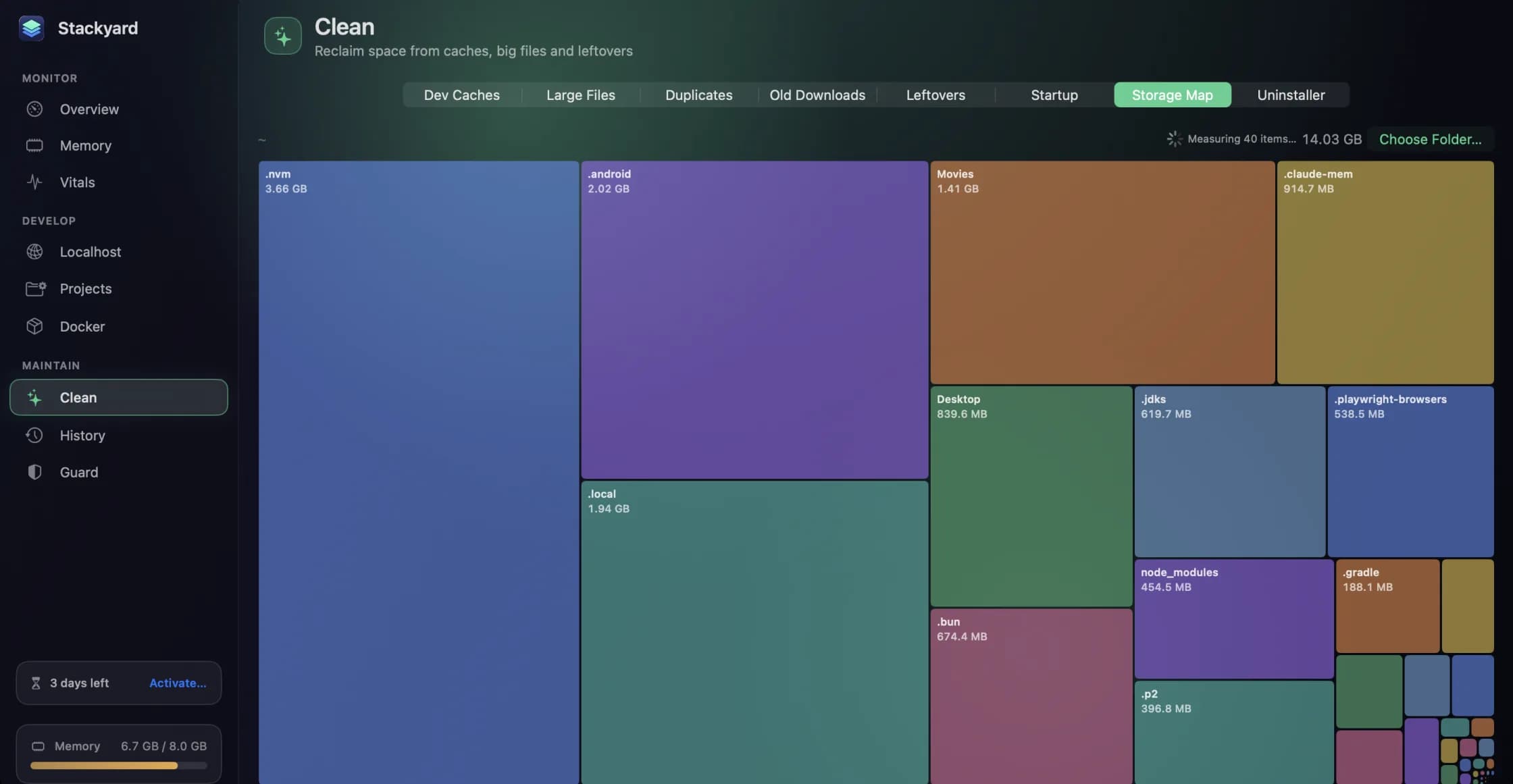
Any folder as tiles sized by what they take. Click one to go inside. 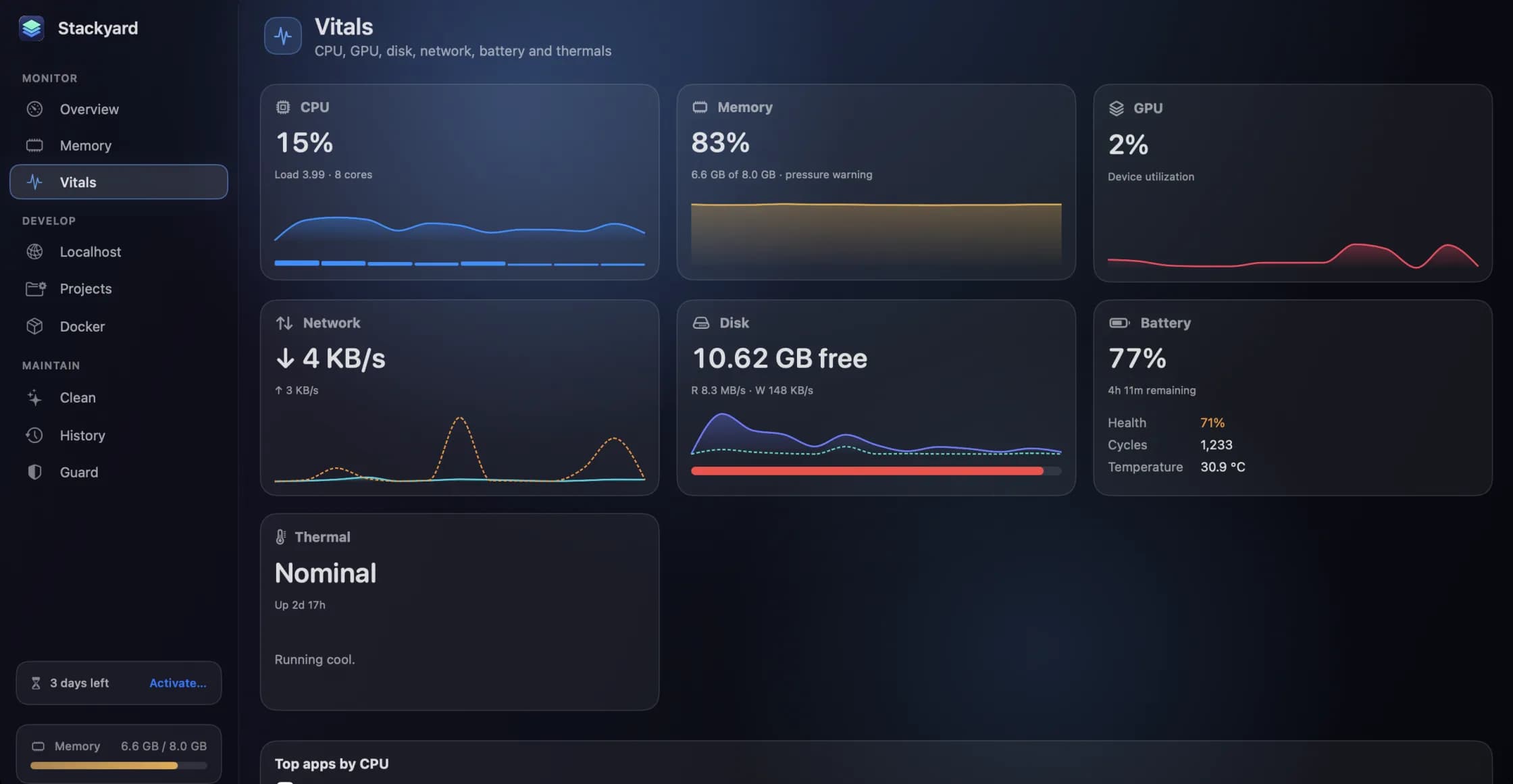
CPU, GPU, network, disk, battery and thermals, live. 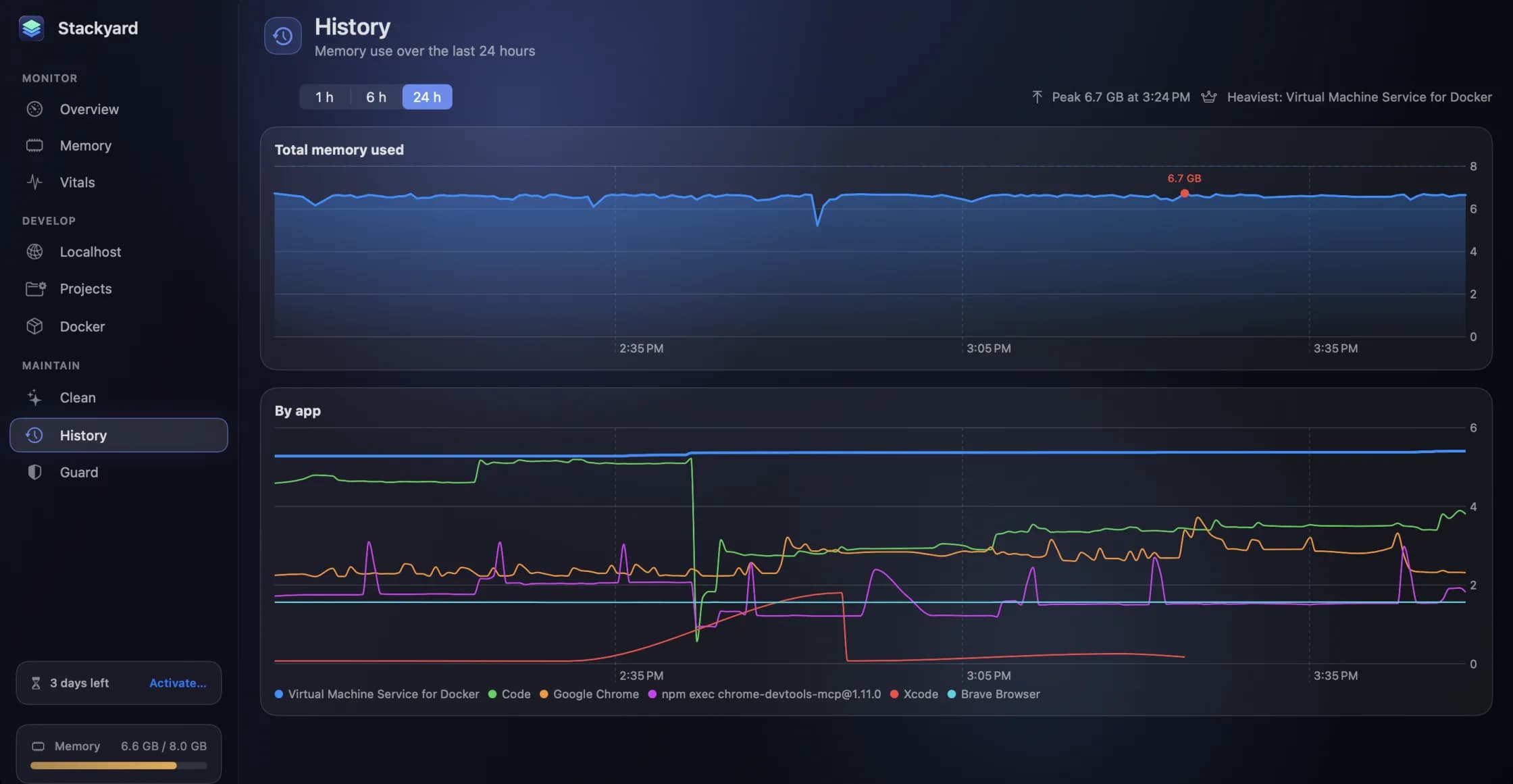
A day of memory, in total and by app, with the peak and the heaviest app named. 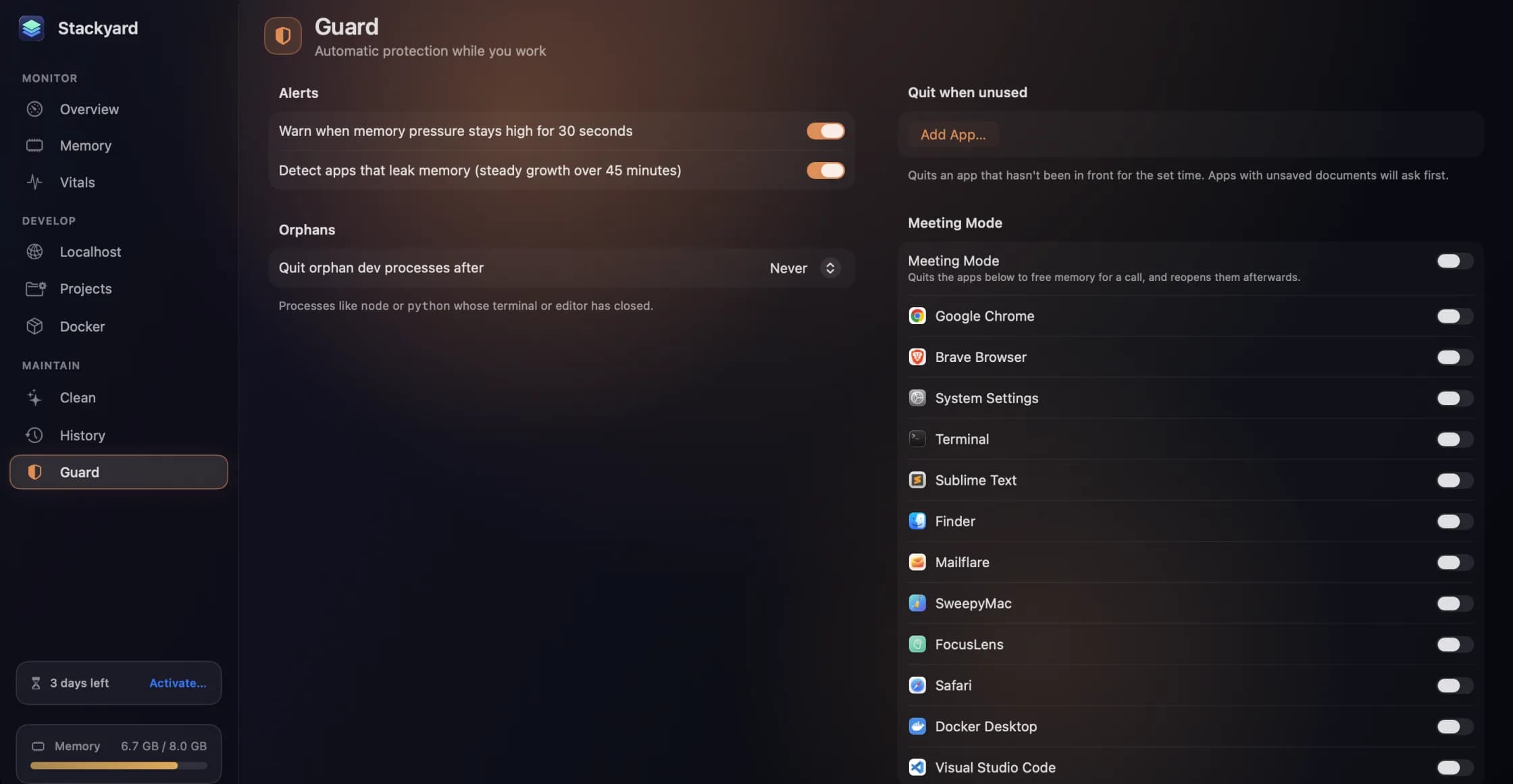
Alerts, leak detection, orphan clean-up and Meeting Mode, running in the background. 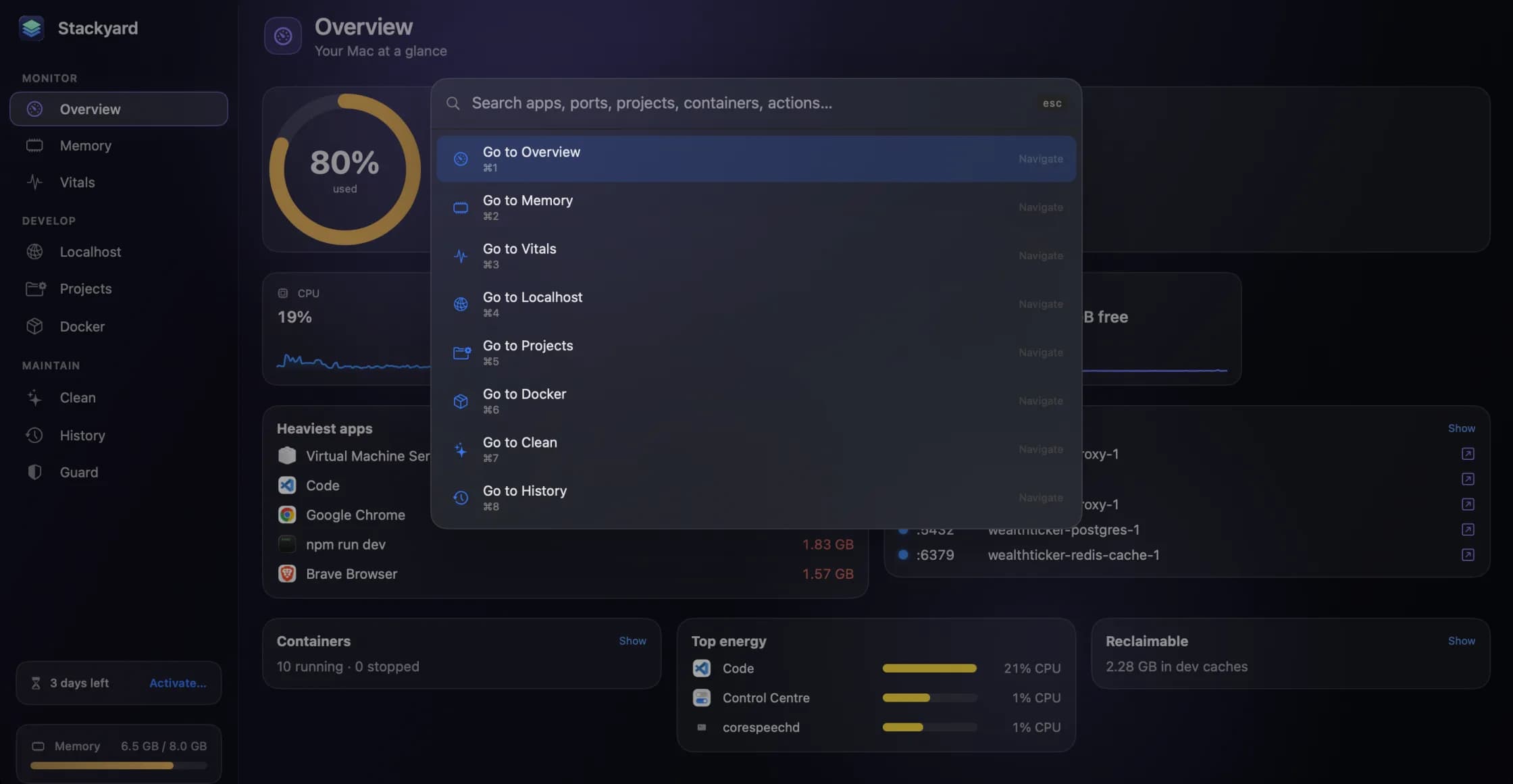
⌘K, then a few letters, for anything in the app.
Runs on
- macOS 14 Sonoma or later
- Apple silicon or Intel
- Full Disk Access is optional — only Safari's cache and protected folders need it
- Price
- Free preview
- Availability
- Limited preview, by email
- Version
- 1.0
Common questions
One person makes this app, and reads every message sent to it. Preview requests, bugs, questions and suggestions all go to the same address.
All Stackyard supportHow do I get it?
Ask on the Stackyard page and a preview build comes back by email. Stackyard is not on sale yet.
Is cleaning safe?
Yes. Everything goes to the Trash, so you can put anything back. Caches and build folders are rebuilt by your tools when needed. Stackyard never touches cookies, history, passwords, Xcode Archives or your projects.
Why can't I quit some processes?
Processes owned by other users or by macOS itself appear as one read-only row. Stackyard only quits processes that belong to you.
Why can't Stackyard measure Safari's cache?
macOS protects it. Give Stackyard Full Disk Access in System Settings › Privacy & Security › Full Disk Access; the Welcome sheet has a button that opens the right pane.
My phone can't open a shared server.
Check that the phone is on the same Wi-Fi as your Mac and that you are using the shared port, the original plus 10000. If your Mac changed networks, sharing stopped, so choose Share on LAN again.
Need a hand?
Questions, bugs and suggestions go to one address, and the reply comes from the person who built the app. The privacy policy is short, because the app collects nothing.

