 AppVerz
Blog / 24 October 2026
Getting disk space back from iCloud Drive without deleting a single file
Files you downloaded from iCloud Drive keep a local copy on your Mac. Evicting that copy frees the space, keeps the file in iCloud, and leaves it one click from coming back. Here is how it works and when it is worth doing.
Most advice about a full Mac ends with deleting something. There is one large category of space you can give back without deleting anything, and most people do not know it exists: the local copies of iCloud Drive files you have already downloaded.
Two copies of every file you opened
iCloud Drive keeps the canonical copy of each file on Apple's servers. When you open a file on your Mac, macOS downloads it and keeps the downloaded copy on your disk so that the next open is instant. Over months, that adds up. Every attachment you glanced at, every document a colleague shared, every photo you dragged into a folder is now sitting on your SSD as well as in iCloud.
macOS can remove the local copy and leave the cloud one. Apple calls this evicting the file. In the Finder, the file stays in its folder with a small cloud icon next to it; double-clicking downloads it again. Nothing has been deleted. The file is exactly as safe as it was, because the copy that matters was always the one in iCloud.
Why it is awkward to do by hand
You can evict a file manually: right-click it in the Finder and choose Remove Download. The trouble is scale. The option works on one file or one selection at a time, there is no view that lists everything you have downloaded sorted by size, and the Finder does not tell you how much a folder's local copies add up to. macOS has an Optimize Mac Storage setting that evicts automatically when the disk is nearly full, but it picks the files itself and does not say what it chose.
What Cloud Cleanup does
SweepyMac's Cloud Cleanup module does the job in one pass. It looks through iCloud Drive for files that have a local download and shows what that adds up to. When you press the button, it asks macOS to evict them, exactly as Remove Download does, and then reports what was actually freed rather than what it expected to free.
Two rules keep it safe. It only touches files that are fully uploaded; anything still syncing is left alone, so there is never a moment where the only copy is the one being removed. And it never deletes. The files stay in iCloud, the Finder still lists them, and opening one pulls it back.
This is the one module in SweepyMac that is not Trash-based. There is no Trash to put a local copy in, because the copy was never the file. So there is no Undo button either; the undo is opening the file again. The user guide says this in so many words, because we did not want it to be a surprise.
When it is worth doing
Cloud Cleanup pays off when three things are true. You use iCloud Drive for a lot of files. Your Mac's disk is small relative to that, which describes most laptops with a 256 GB or 512 GB drive. And you have a reliable connection, because a file you evict today has to come back over the network when you next open it.
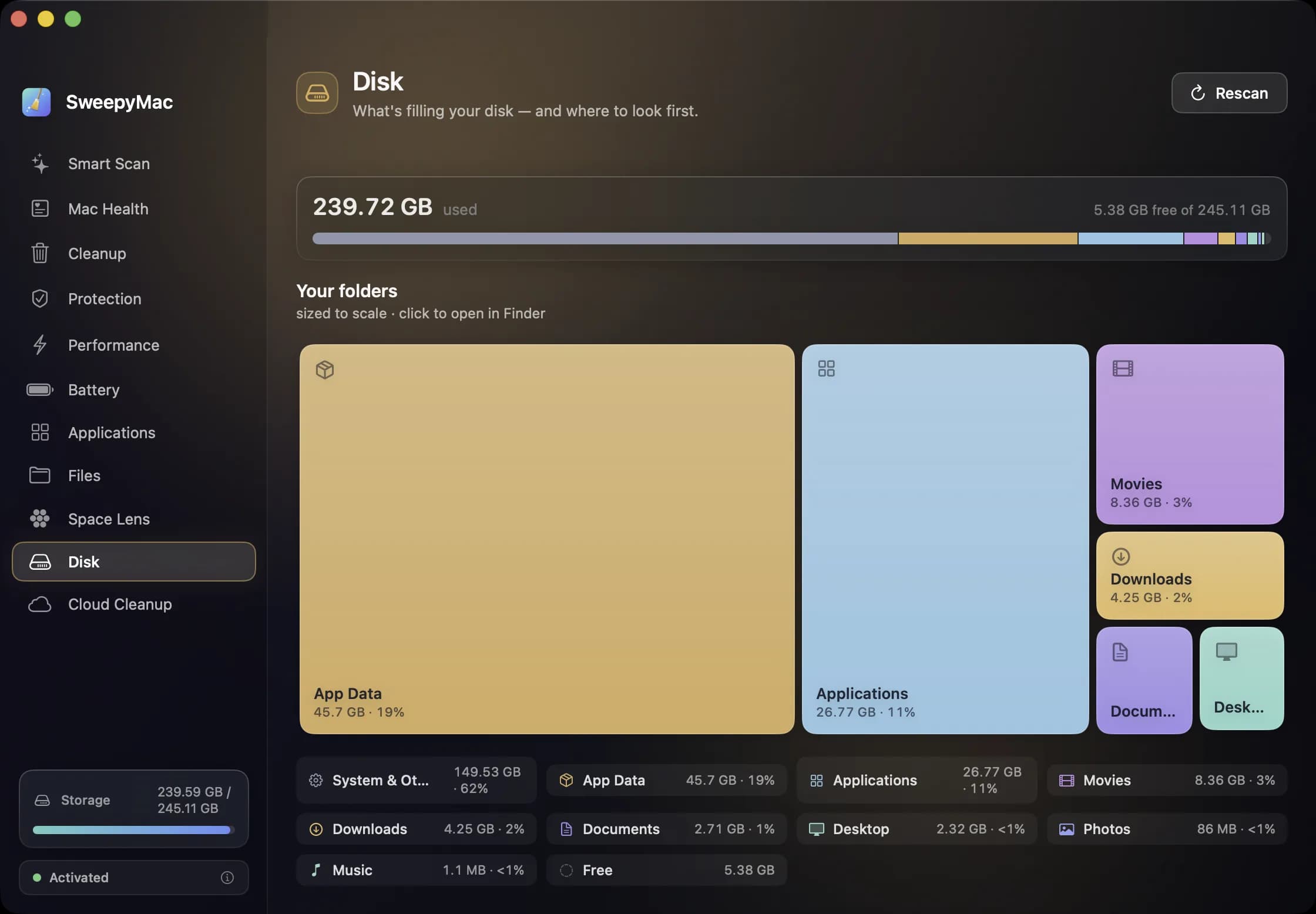
It pays off less when you work offline often, or when the files are large and slow to re-download. A video editor who evicts a 40 GB project folder and then opens a laptop on a train has made a bad trade. For that kind of file, SweepyMac's Disk module is the better first stop: it draws the whole volume to scale, so you can see whether the real problem is iCloud at all.
Checking the result
After a run, the Disk module's storage bar will have moved, and the amount it moved by should match the figure Cloud Cleanup reported. If you want to confirm nothing is gone, open iCloud Drive in the Finder and look for the cloud icons on the files you evicted. Each is one double-click from being local again.
Cloud Cleanup is part of SweepyMac, which has a three-day trial and a licence that covers one, two or five Macs.
Related reading
- The Mac Health score, explained: every number, every thresholdSweepyMac sums up your Mac as one score out of 100. This is what goes into it, exactly when each recommendation fires, and why a check that cannot read its data is skipped rather than marked fine.
- Uninstalling a Mac app completely: the eleven places it leaves things behindDragging an app to the Trash removes the app and nothing else. Its preferences, caches, containers and launch agents stay. Here is where they live, how SweepyMac finds them, and why some apps need a password to remove.
- What starts when you log in, and the three chores you used to need Terminal forSweepyMac's Performance module lists your login items with a Disable button, shows the system agents macOS manages, and runs three maintenance tasks with one click. How the background helper makes that silent, and why it needs a signed build.
Have a question about any of this?
Write in. The person who built the apps reads every message and replies within two working days.