 AppVerz
Blog / 13 October 2026
Uninstalling a Mac app completely: the eleven places it leaves things behind
Dragging an app to the Trash removes the app and nothing else. Its preferences, caches, containers and launch agents stay. Here is where they live, how SweepyMac finds them, and why some apps need a password to remove.
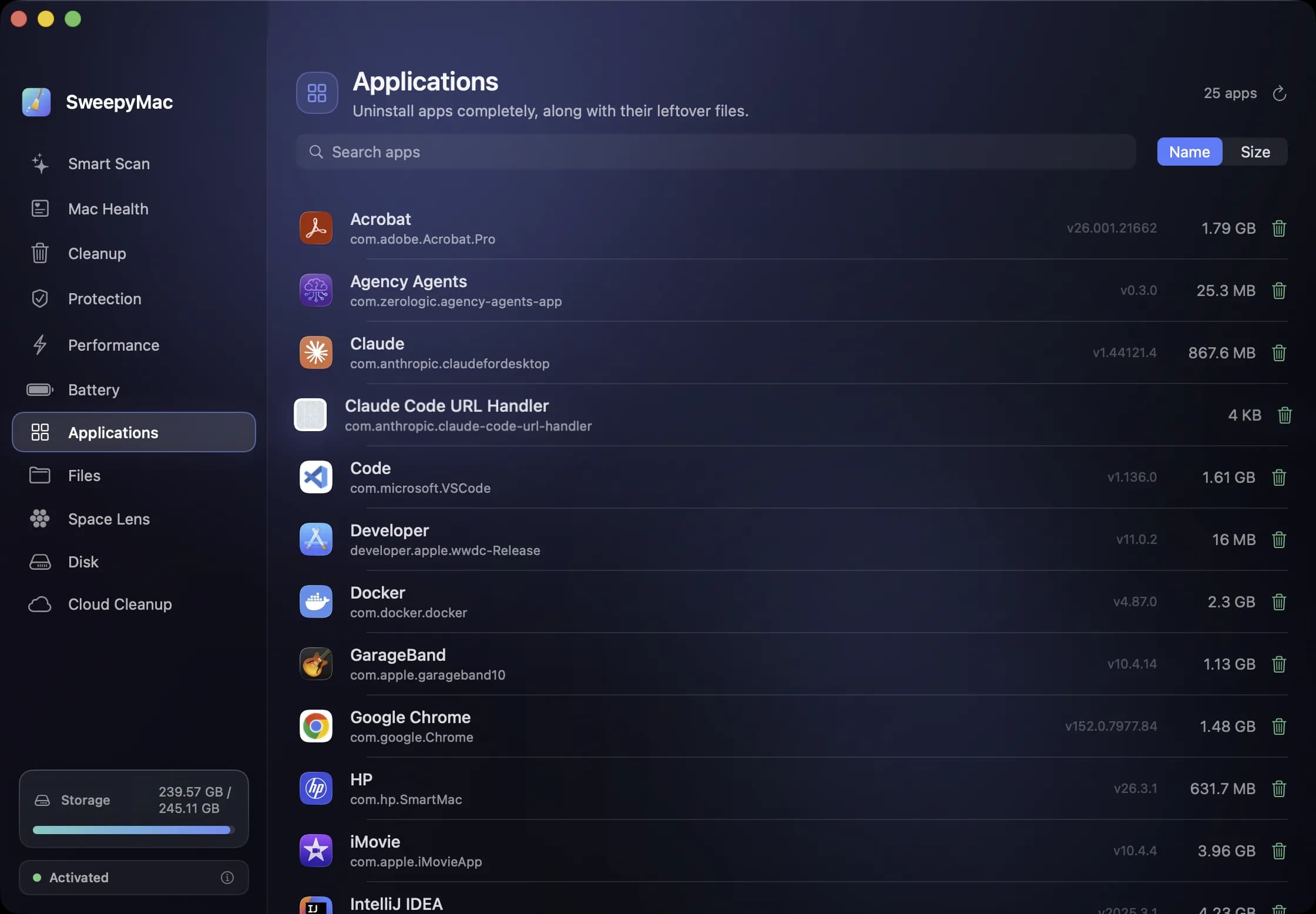
The Mac has no uninstaller. Dragging an app to the Trash has always been the official method, and it has always been incomplete: the app bundle goes, and everything the app wrote into your Library folder stays. For a small utility that is a preferences file. For a creative suite it can be gigabytes of caches, support files and background agents that keep running after the app that owned them is gone.
SweepyMac's Applications module exists to do the drag properly. This is where it looks and what it does.
The eleven places
When you click an app in the list, the uninstall sheet shows the application itself, always included, and below it the leftovers it found in your Library, each individually selectable. They come from eleven locations:
- Application Support, where most apps keep their working files
- Caches, rebuilt on demand but often the largest item
- Logs
- Preferences, the plist files that hold your settings
- Containers and Group Containers, where sandboxed apps keep everything
- Saved Application State, the window layout macOS restores
- HTTP Storage and WebKit, for apps with a built-in web view
- Cookies
- Launch Agents, the files that make something start at login
Matching is done by the app's bundle identifier, not its name, which is the difference between finding the right folder and finding a folder that happens to share a word with the app. If the app list or a Library folder could not be fully read, the sheet shows a warning on the affected leftovers, because in that situation a match could belong to another app and you should look before ticking.
What the list shows
Every app from your Applications folder and the one in your home folder, including subfolders such as Utilities and the folders Setapp and similar tools create, with icon, version and size. The search box matches on name or bundle identifier, and the sort picker switches between name and size. Sorting by size is the usual first move: the apps you forgot about are rarely small.
The uninstall itself
Quit the app first. If it is running, the sheet says so, because a live app will recreate its caches and preferences as fast as they are removed. Then tick the leftovers you want gone, press Uninstall, confirm, and the app and everything selected move to the Trash. The result bar reads "Uninstalled X — freed Y" with an Undo button. Nothing has been permanently deleted. If the next week reveals you needed it, Undo or Finder's Put Back restores the lot.
Leaving a leftover unticked is sometimes right. Preferences for an app you plan to reinstall are worth keeping; a licence file hidden in Application Support is worth keeping. The sheet lists them so you can make that call per item rather than per app.
Apps that need a password
Two kinds of app cannot be moved by a normal user: apps owned by the root user, and apps installed from the Mac App Store. For these the sheet shows a banner and a button labelled "Uninstall (asks for password)", which moves the app with the standard macOS administrator prompt. Because restoring a root-owned bundle would need that prompt again, these are not one-click undoable from inside SweepyMac; the result bar offers Open Trash instead, and the app is still there to drag back. You can also choose Reveal in Finder and handle it yourself.
If an uninstall fails for any other reason, the bar says "Couldn't uninstall" and offers Reveal in Finder or the Full Disk Access setting, which is the usual cause.
Why not just use the app's own uninstaller
Some apps ship one, and if it exists it is worth running, since it knows about files SweepyMac cannot guess at. But most do not, and the ones that do rarely clean the Library locations above. Running the app's uninstaller first and then checking SweepyMac's list for what it missed is the thorough version.
Leftovers from apps already gone
If the app is no longer installed, its leftovers are not in the Applications module, because there is no app to click. They are in Cleanup instead, under App Leftovers, which lists the support files and containers of apps that are gone and have not been written to in sixty days. That category starts unticked for the reasons covered in Smart Scan or Cleanup.
Questions people ask
- Can I undo an uninstall?
- Yes, for ordinary apps. The app and every leftover you selected go to the Trash and the result bar offers Undo. Apps owned by the system or from the App Store are moved with an administrator prompt and are not one-click undoable; the bar offers Open Trash instead.
- Why does it tell me to quit the app first?
- A running app can recreate its caches and preferences the moment they are removed, so you would end up with a half-uninstalled app. Quitting it first means what you remove stays removed.
- Why is a leftover marked with a warning?
- Because the app list or a Library folder could not be fully read, and in that situation a folder matched to this app might belong to another one. The warning tells you to look before you tick.
Related reading
- The Mac Health score, explained: every number, every thresholdSweepyMac sums up your Mac as one score out of 100. This is what goes into it, exactly when each recommendation fires, and why a check that cannot read its data is skipped rather than marked fine.
- Getting disk space back from iCloud Drive without deleting a single fileFiles you downloaded from iCloud Drive keep a local copy on your Mac. Evicting that copy frees the space, keeps the file in iCloud, and leaves it one click from coming back. Here is how it works and when it is worth doing.
- What starts when you log in, and the three chores you used to need Terminal forSweepyMac's Performance module lists your login items with a Disable button, shows the system agents macOS manages, and runs three maintenance tasks with one click. How the background helper makes that silent, and why it needs a signed build.
Have a question about any of this?
Write in. The person who built the apps reads every message and replies within two working days.