 AppVerz
Blog / 23 September 2026
Reading your Mac's battery health: capacity, cycles and the verdict macOS gives
SweepyMac's Battery screen shows what macOS knows about your battery and changes none of it. What maximum capacity and cycle count mean, when Service Recommended appears, and why the numbers can differ slightly from System Settings.
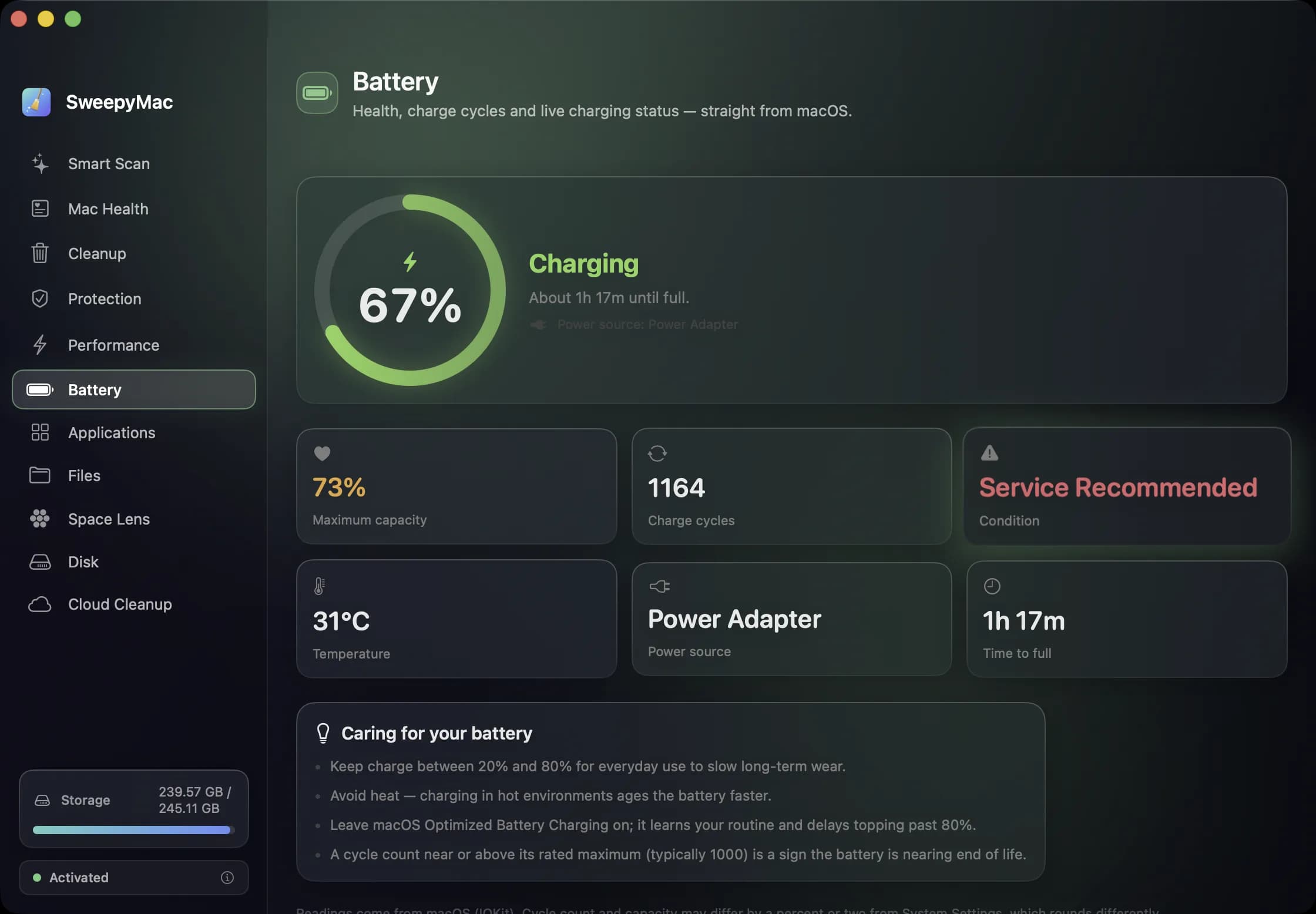
Battery screens in cleaning apps have a bad habit of implying they can do something about the battery. SweepyMac's cannot, and says so: it is read-only, it refreshes every five seconds, and every number on it comes straight from macOS. What it adds is putting the numbers that matter on one screen with a plain explanation of each, which is more than the menu bar offers.
The ring
The hero ring shows current charge and the status: Fully Charged, Charging, Plugged In or On Battery. Beside it, the estimated time until full or until empty, and the power source. These are the numbers you already see in the menu bar, with the estimate written out.
Maximum capacity
This is the number worth knowing. A battery is rated for a certain amount of energy when new, and maximum capacity is how much of that it can hold today, as a percentage. A new Mac reads at or near 100. Every battery declines with age and use; Apple's own figure is that a battery is designed to retain around 80 percent of its original capacity at 1,000 complete charge cycles, and macOS begins suggesting service as capacity falls below that range.
SweepyMac uses the same thresholds in its Mac Health score. Under 80 percent, or a Service Recommended verdict, raises "Battery wearing down". Under 70 percent is "Battery worn out" and counts as critical. The Battery tile on the health screen shows capacity directly, or charge level when capacity is not available.
Charge cycles
A cycle is one full discharge and recharge, counted cumulatively: using half the battery today and half tomorrow is one cycle, not two. The count tells you how hard the battery has worked, and read together with capacity it tells you whether the decline is normal. A battery at 1,200 cycles and 75 percent capacity, as in the screenshot on the SweepyMac page, has done its job and is ready to be replaced. One at 200 cycles and 75 percent has a problem worth asking Apple about.
Condition
The Condition tile shows macOS's own verdict, including Service Recommended when the system has decided the battery should be checked. SweepyMac does not compute this; it reports it. That matters because it is the same verdict Apple's support staff will look at, so there is no argument about whose number is right.
Temperature and the rest
Temperature, power source and the time-remaining estimate round out the tiles. Heat is the one of these you can act on: a battery that is regularly hot, because the Mac is charging on a bed or in a bag, ages faster than one kept cool, and the care notes on the screen say so.
The care notes
Three lines, none of them novel, all of them true. Keep the charge between roughly 20 and 80 percent for everyday use if you can. Avoid heat. Leave Optimized Battery Charging on in System Settings, which lets macOS learn your routine and hold the charge short of full until you are about to unplug. None of this restores capacity. All of it slows the decline.
Why read-only
Because the alternative is dishonest. There is no software setting that gives a battery back its capacity, and an app that offered a "battery optimiser" would be selling a placebo. What SweepyMac can usefully do is show the numbers macOS keeps, explain them, and feed the two that matter, capacity and condition, into the health score so that a worn battery is flagged next to a full disk rather than hidden in a settings pane. On a desktop Mac the screen simply says "No battery detected" and the health score leaves the battery out.
If the numbers differ from System Settings by a percent or two, that is rounding. If the screen says Service Recommended, the next step is not in this app; it is a Genius Bar appointment or an authorised repairer, with these numbers written down.
Questions people ask
- Can SweepyMac improve my battery health?
- No, and nothing can by software. Capacity lost to age and cycles is chemical. The screen reads what macOS reports so you can decide about a replacement with real numbers; it is read-only by design.
- Why do SweepyMac's numbers differ from System Settings by a percent?
- Rounding. Both read the same values from macOS, but System Settings rounds differently. A difference of a percent or two is normal; a larger one is worth a second look.
- What does Service Recommended mean?
- It is macOS's own verdict that the battery's capacity or condition has dropped to the point where Apple suggests having it checked. SweepyMac shows it as macOS reports it and flags it in the Mac Health score.
Related reading
- The orange triangle: what SweepyMac does when it cannot see somethingEvery scanner meets folders it cannot read. The dishonest ones leave them out and show you a clean total. SweepyMac marks incomplete lists, lists the locations it could not scan, skips health checks it cannot measure, and labels space a deletion would not actually free.
- Full Disk Access: what you are actually granting, and why SweepyMac asks onceThe macOS prompt everyone clicks through. What Full Disk Access unlocks, what it does not, how to check which apps have it, and why a scanner is one of the few tools that has a real case for it.
- The Mac Health score, explained: every number, every thresholdSweepyMac sums up your Mac as one score out of 100. This is what goes into it, exactly when each recommendation fires, and why a check that cannot read its data is skipped rather than marked fine.
Have a question about any of this?
Write in. The person who built the apps reads every message and replies within two working days.