 AppVerz
Blog / 28 October 2026
Full Disk Access: what you are actually granting, and why SweepyMac asks once
The macOS prompt everyone clicks through. What Full Disk Access unlocks, what it does not, how to check which apps have it, and why a scanner is one of the few tools that has a real case for it.
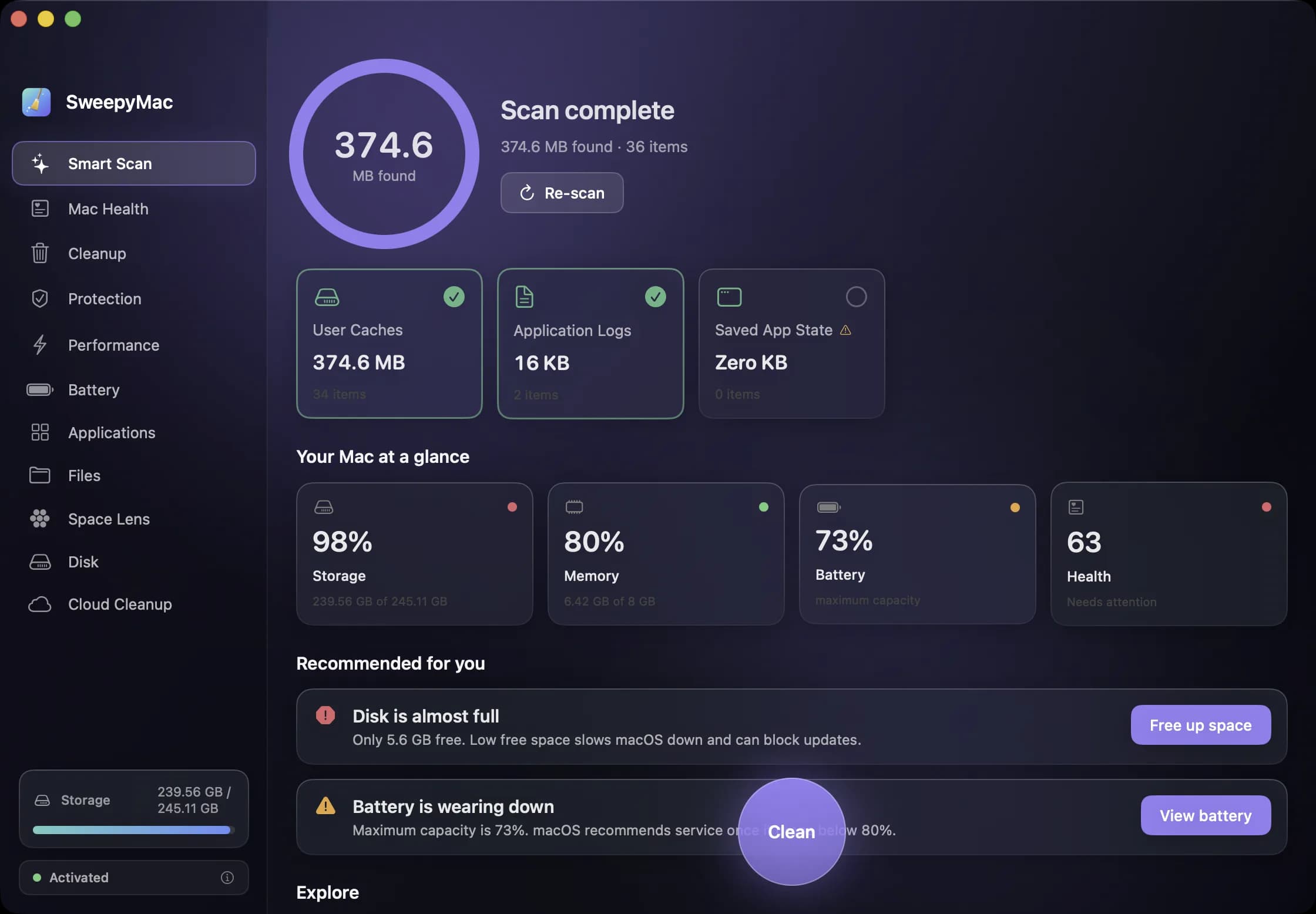
Since macOS Mojave, a normal app cannot read everything inside your own home folder. Mail, Messages, Safari's history, Time Machine backups and a handful of other locations are fenced off, and an app that tries to read them either gets nothing back or triggers a prompt asking whether it may look in that one folder. Full Disk Access is the switch that lifts the fence for one app at a time. It lives in System Settings under Privacy & Security, and it is the permission a Mac cleaner is most likely to ask you for.
Because the prompt is so common, most people grant it without a clear idea of what they have just agreed to. This post is the explanation we wish came with the dialog.
What it unlocks
With Full Disk Access, an app can read and write the parts of the disk that macOS otherwise protects: the Mail and Messages databases, Safari's data, Time Machine backups, the home folders of other users on the same Mac, and the system-wide caches and logs that live outside your own Library folder. It also stops the one-folder-at-a-time prompts. Without it, a scanner walking your home folder can trigger a cascade of "would you like to allow access to your Desktop, Documents, Downloads" dialogs, each of which you have to answer before the scan can continue.
What it does not unlock
Full Disk Access is about files. It does not grant access to the keychain, so your passwords are not part of the deal. It does not let an app see your screen, read your keystrokes, control other apps or use the camera and microphone; each of those is a separate permission with its own switch. And it does not run the app as an administrator. A root-owned file is still root-owned, and deleting it still needs your password.
Why a scanner has a real case for it
Most apps that ask for Full Disk Access do not need it. A scanner does, for one simple reason: the whole point of the tool is to tell you what is on your disk, and a scan that silently skips the protected folders will undercount. Caches and logs accumulate in exactly the kind of places the fence covers. So a cleaner that cannot see them either reports a smaller number than the truth or, worse, reports a number it made up to fill the gap.
SweepyMac asks for the permission once, at first launch, with a sentence saying why. If you grant it, you turn SweepyMac on in System Settings and choose Quit & Reopen when macOS suggests it. If you decline, the app works anyway. It scans what a normal app can see, and the scanners show a small banner offering the permission again, with no nagging beyond that.
What SweepyMac does with it
Only scans you start. Full Disk Access is used to read folders during a scan so the sizes are complete. It is not used to send anything anywhere, because the app has no account, telemetry or analytics to send to. Whatever a scan finds is shown on screen and then handled the way everything in SweepyMac is handled: files you tick go to the Trash, with an Undo. The one download the app ever makes, its malware definitions file, happens regardless of this permission and is signature-checked before it is trusted.
How to audit who has it
Open System Settings, then Privacy & Security, then Full Disk Access. The list is every app that has ever been granted the permission, with a switch for each. It is worth a look twice a year. Anything you no longer use, or do not recognise, can be switched off without consequence; the app is not told, it simply sees less from then on. An app that genuinely needs the permission will ask again the next time it hits the fence, and you can decide then.
The honest version of the prompt
If we could rewrite Apple's dialog for SweepyMac, it would say: "SweepyMac wants to read every folder in your home directory so that its scans report the right sizes. It will not write anywhere except the Trash, it has no network connection to send your files to, and you can turn this off at any time in System Settings." That is the whole arrangement. The SweepyMac user guide says the same in its first section, and the privacy policy says it in the form a lawyer would want.
Questions people ask
- Can I use SweepyMac without granting Full Disk Access?
- Yes. The app asks once at first launch, and you can skip it. Scans then cover what macOS lets a normal app read, and a banner on the scanners offers the permission again if you want a complete picture later.
- Does Full Disk Access let an app read my passwords?
- No. Keychain items are protected separately and are not part of Full Disk Access. It covers files on disk that are otherwise fenced off, such as Mail, Messages, Safari data, Time Machine backups and other users' folders.
- How do I take Full Disk Access away again?
- System Settings, then Privacy & Security, then Full Disk Access. Turn off the switch next to the app. Nothing else needs doing; the app will simply see less from then on.
Related reading
- Clearing browser data on a Mac: what a cleaner can touch, and why Safari is differentCache, history and cookies for every profile of every browser, listed one row at a time and nothing pre-selected. How SweepyMac's privacy cleaner works, why Safari only offers its cache, and why you must quit the browser first.
- The orange triangle: what SweepyMac does when it cannot see somethingEvery scanner meets folders it cannot read. The dishonest ones leave them out and show you a clean total. SweepyMac marks incomplete lists, lists the locations it could not scan, skips health checks it cannot measure, and labels space a deletion would not actually free.
- The Mac Health score, explained: every number, every thresholdSweepyMac sums up your Mac as one score out of 100. This is what goes into it, exactly when each recommendation fires, and why a check that cannot read its data is skipped rather than marked fine.
Have a question about any of this?
Write in. The person who built the apps reads every message and replies within two working days.