 AppVerz
Blog / 1 October 2026
Finding duplicate files on a Mac: what counts, what does not, and what to keep
A duplicate finder is only useful if it never mistakes two different files for the same one. How SweepyMac decides two files are identical, why it keeps the oldest copy, and the two cases where deleting a duplicate frees no space at all.
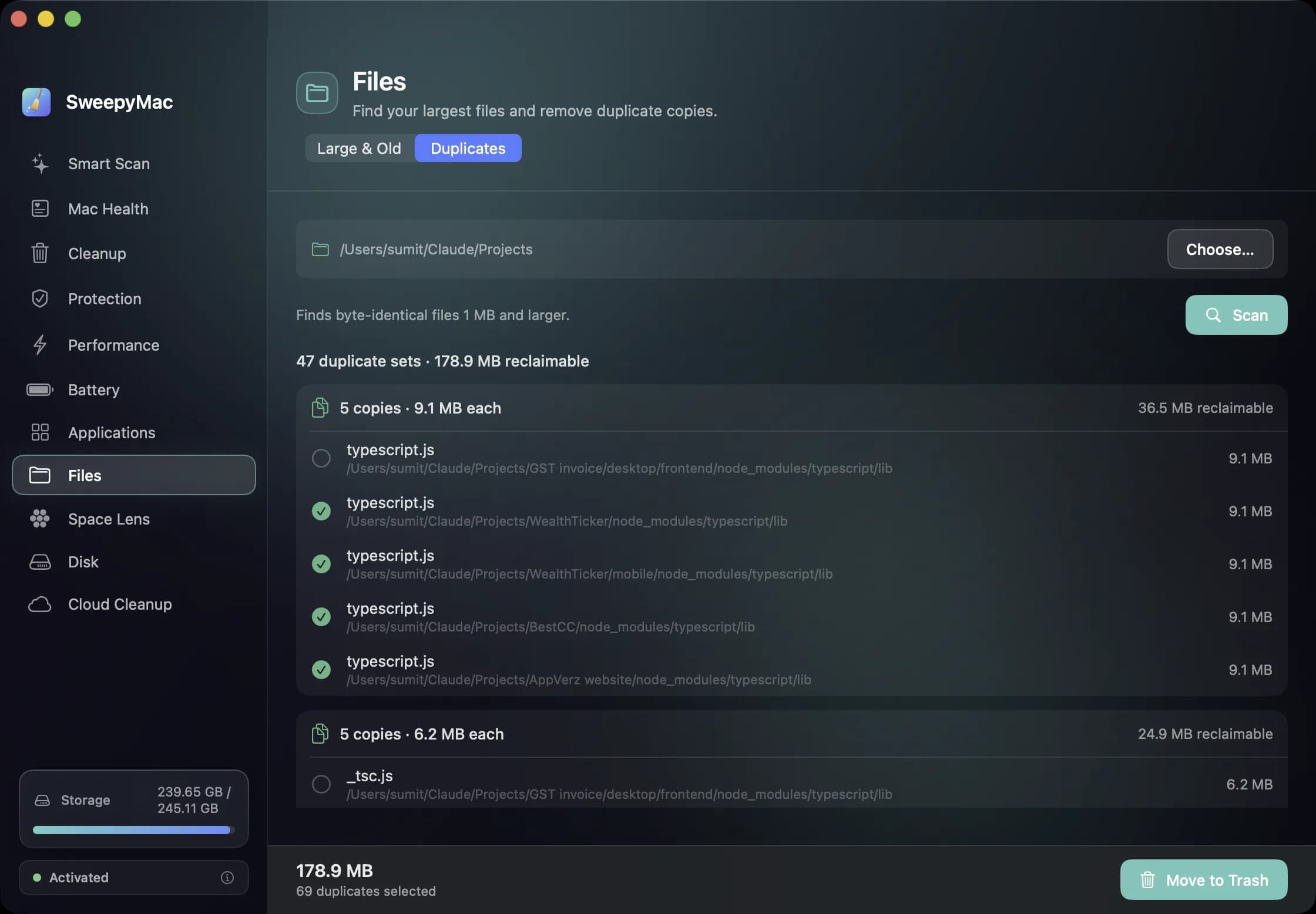
Duplicate files are the most satisfying thing to clean and the easiest to get wrong. The satisfaction is real: a photo library exported twice, a project folder copied for safety and never deleted, the same installer downloaded three times. The risk is also real: a tool that calls two files duplicates when they are not will delete something you needed, and a tool that keeps the wrong copy will leave you with the stale one. Here is how SweepyMac's Duplicates finder handles both, and what you should know before you press Clean.
What counts as a duplicate
Two files are duplicates in SweepyMac if they are byte-for-byte identical. Not the same name, not the same size, not similar-looking; identical content. A photo exported at two resolutions is two files. A document and its revised copy are two files, even if the revision was a single character.
The check happens in three stages, cheapest first. Files are grouped by size, because files of different sizes cannot be identical and most files are eliminated here without being read. Files of equal size get a partial hash of their first bytes, which splits almost all the remaining candidates. Only files that still match after that are read in full and compared by SHA-256, a cryptographic hash that two different files will not share in practice. The result is a set of files that are the same, with no guessing in the pipeline.
Anything under one megabyte is skipped. Small duplicates are everywhere, in preferences and caches and app bundles, and removing them saves nothing worth the risk.
Which copy to keep
Every set needs one survivor, and SweepyMac keeps the oldest. The oldest copy is the one that was there first, which in practice is most often the original: the project before it was copied, the download before it was downloaded again. The newer copies arrive pre-selected and the oldest is left unticked.
This is a default, not a decision made for you. Each set opens to show every copy with its full path and date. If the oldest one lives in a folder you were about to archive and the newest one is the one you use, swap the ticks. Nothing moves until you press the button, and when it does, the copies go to the Trash with an Undo, like everything else in the app.
The two cases where deleting frees nothing
This is the part most duplicate finders get wrong, and the reason to read before cleaning. On an APFS disk, which is every Mac since High Sierra, two files can share the same blocks of storage while appearing as two separate files. This happens in two ways.
A hard link is two directory entries pointing at one file. Time Machine used them heavily, some developer tools still do. A clone is what you get when you duplicate a file in the Finder on APFS: the system does not copy the bytes, it just makes a new file that refers to the same blocks, and only writes new blocks when one copy is changed. In both cases the two files are perfectly identical and deleting one of them frees nothing, because the blocks are still in use by the other.
SweepyMac detects both and labels the set as freeing no space. The files are still duplicates, and you might still want one gone for tidiness, but the "reclaimable" total excludes them so it does not promise space it cannot deliver. A finder that counts those bytes will report a saving that never arrives.
Where to point it
Duplicates runs on a folder you choose, not the whole disk, and that is the right scope. Pointing it at your home folder is fine. Pointing it at the Library folder, or inside app bundles, is not useful: those are full of legitimately identical files that applications expect to find where they are, and SweepyMac's Large & Old scanner skips those places for the same reason. Good targets are Downloads, Documents, Desktop, a project tree, or an external drive of photos.
Scan time depends on how many files share a size. A folder of a hundred thousand small files with many identical sizes takes longer than a folder of a thousand large ones, because more of them reach the hashing stage. The partial hash exists to keep this bearable.
After the clean
Open the Trash and look. Every copy that was removed is there, with its name, and the result bar in SweepyMac still offers Undo. If you empty the Trash and later find you kept the wrong copy of a set, the one you kept is still an exact copy of the one you lost, which is the single reassuring property of exact duplicates: it does not matter which one survived.
The Duplicates finder is part of the Files module in SweepyMac, alongside Large & Old, which finds the files actually taking the room.
Questions people ask
- Does SweepyMac find similar photos, or only exact duplicates?
- Only exact, byte-for-byte duplicates. Two photos that look the same but were exported at different sizes are different files and are not grouped. We think a duplicate finder that guesses is more dangerous than one that is strict.
- Which copy does it keep?
- The oldest copy of each set stays unticked, and the rest are pre-selected. You can change the selection in any set before anything moves, and everything goes to the Trash with Undo.
- Why does it say some duplicates free no space?
- Because they are hard links or APFS clones: two names for the same blocks on disk. Deleting one leaves the blocks in place. SweepyMac labels those sets so you know removing them is housekeeping, not a space saving.
Related reading
- A monthly Mac routine in fifteen minutes, from the keyboardEleven modules is a lot to remember. This is the order we use them in once a month, with the shortcut for each: scan, check health, look for threats, find the big files, hand space back to iCloud, and only then empty the Trash.
- Your first ten minutes with SweepyMacInstall, one permission, a three-day trial and a first scan. What happens at each step, what to say yes to, what you can safely skip, and how to read the screen that comes back before you press Clean.
- What a Mac cleaner should never doMost cleaning apps ask you to trust them. SweepyMac is built so you do not have to: everything it removes goes to the Trash, every clean has an Undo, and every group opens up before you press anything.
Have a question about any of this?
Write in. The person who built the apps reads every message and replies within two working days.