 AppVerz
Blog / 9 November 2026
What is System Data on a Mac, and how much of it can you get back?
System Data is a catch-all, not a thing you can open. What usually fills it, which parts macOS will clear by itself, which parts are safe for you to remove, and which ones a cleaner should refuse to touch.
Open System Settings › General › Storage on a Mac that has been in use for a few years and you may find a grey bar labelled System Data taking 60, 80 or 120 GB. Click it and macOS tells you very little. There is no list and no delete button.
That is because System Data is not a place. It is the name macOS gives to whatever is left after it has counted your apps, documents, photos and so on. To shrink it, you have to work out what is actually in it on your Mac.
What usually fills it
The common contents, roughly in the order we would suspect them:
- Caches and logs. Written by every app you use, in your Library folder.
- App support files. The data apps keep in
~/Library/Application Support, including apps you deleted long ago. - Time Machine local snapshots. Kept on the internal disk between backups.
- Virtual disk images. Docker's
Docker.rawand any virtual machines. One file, often tens of gigabytes. - Developer leftovers. Xcode's DerivedData, simulators and device support files.
- Swap and other temporary files that macOS manages itself.
Step one: check the part you should leave alone
Open Terminal and run:
tmutil listlocalsnapshots /
A long list explains some of the grey bar. It is also the part that needs no action from you, because macOS removes these snapshots when the disk needs the room. If the bar looks alarming but you still have plenty of free space to work with, this may be all that is going on. SweepyMac does not offer to delete snapshots, and we think that is the right call for a cleaner.
Step two: take the caches and logs
These are the safe wins. Smart Scan in SweepyMac sweeps user caches, application logs and saved app state in one pass and totals what it can reclaim. The full Cleanup module adds developer caches and the support files of apps you have removed, listed but left unticked for you to decide. Our post on Smart Scan and Cleanup explains the difference.
Everything goes to the Trash, and files in the Trash still count. Your System Data will not move until you empty it, which is worth doing a day or two later, once you are sure nothing is missed.
Step three: look inside your Library
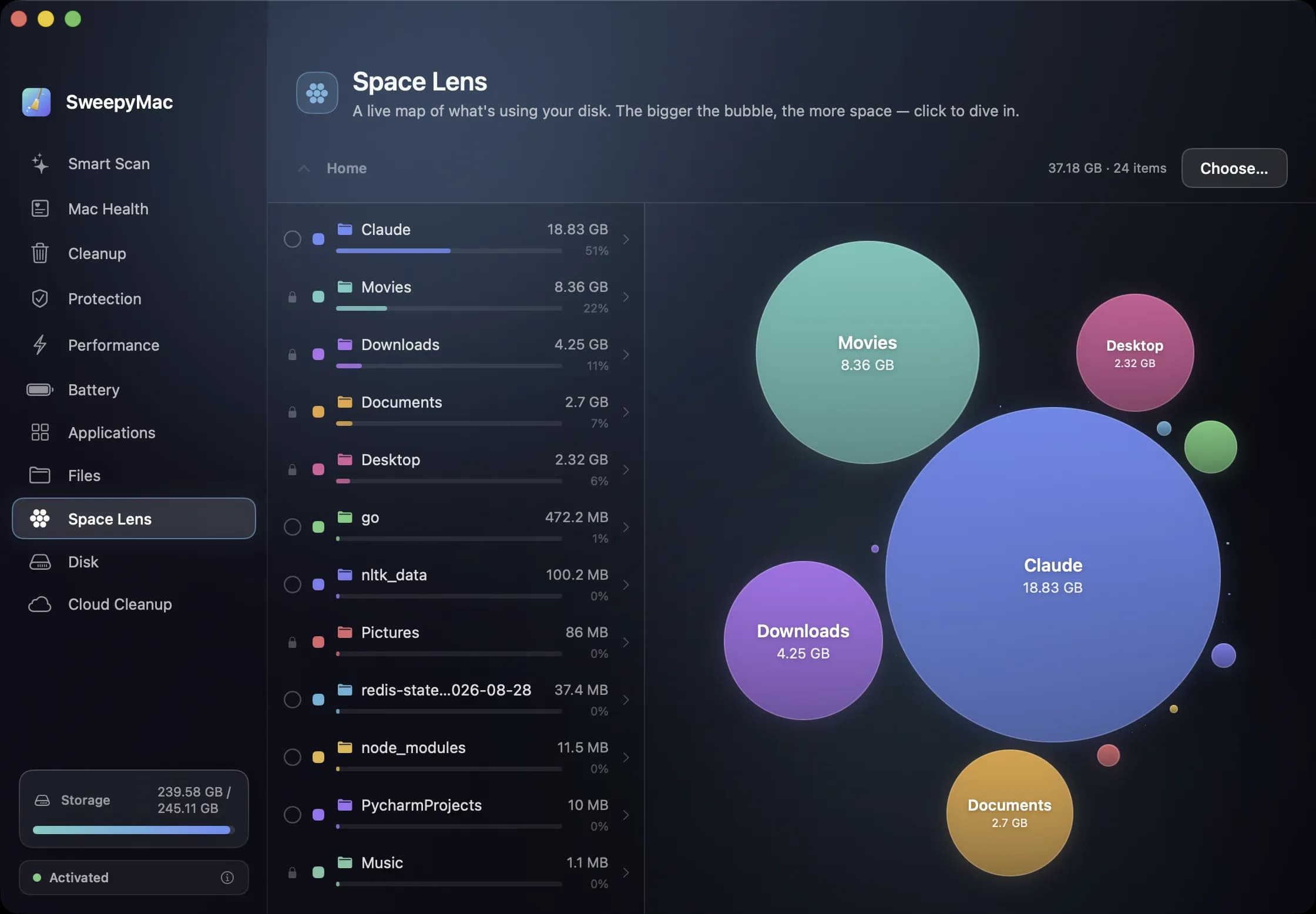
This is where a map beats a list. Point Space Lens at your Library folder and drill down: Application Support is usually the largest bubble, and one app's folder inside it often turns out to be the whole story. You will spot an old video editor's render cache, a chat app's media store, or a game launcher you removed in 2023.
Space Lens will not let you remove Library as a whole, however tempting the bubble. Drill in and take the specific item. If the item belongs to an app you still have, remove it through that app's own settings if you can. If you want the app gone too, the Applications module takes the app and its leftovers together.
Step four: if you use Docker, look there next
Docker Desktop keeps all its images, containers and volumes inside one virtual disk file, and that file is a frequent answer to "where did 60 GB go?" SweepyMac deliberately never touches Docker images, because deleting them is not something a general cleaner should decide for you.
Use Docker's own tools. docker system df shows what is using the space, and docker system prune removes what is unused after asking. Settings › Resources shows the disk image's location and its limit. Be careful with that limit: Docker's documentation warns that reducing it deletes the current disk image, along with every container and image inside.
Step five: if you use Xcode, clear what it rebuilds
Simulators and device support files can each run to many gigabytes. SweepyMac leaves device support alone, and this is where Stackyard comes in. Its Dev Caches tab measures DerivedData, Device Support and simulators alongside npm, Yarn, pnpm, Cargo and the rest, and Select All Safe ticks what rebuilds by itself. Xcode Archives are never touched, since those cannot be rebuilt without the original source at that commit. There is more in the post on dev caches.
Check your backups for phones
Local iPhone and iPad backups live in ~/Library/Application Support/MobileSync/Backup and can be very large. Depending on your macOS version they may be counted separately from System Data. Do not delete them from that folder. Connect the phone, open it in Finder, and use Manage Backups, so you can see which device each one belongs to.
What to expect
You will rarely get System Data to zero, and it is not a useful goal. macOS needs some of it to run. What you want is a bar you can explain. Once caches, dead app data and old disk images are gone, what remains is mostly what your Mac is using.
SweepyMac has a three-day free trial with no account, then from $14.99 a year: get it here. Developers should also look at Stackyard, free for three days, then from $21 once.
Questions people ask
- Can I delete System Data directly?
- No. It is a label on a storage bar, not a folder. You reduce it by finding the individual things counted under it: caches, app support files, snapshots, virtual disk images.
- Should I delete Time Machine local snapshots?
- Usually not. macOS removes them by itself when the disk needs the room. Treat deleting them by hand as a last resort, and only when something needs free space right now, such as a macOS update.
- Why don't SweepyMac's numbers match System Settings?
- They divide the disk differently. SweepyMac's App Data is your Library folder, and anything it cannot measure is folded into System & Other rather than guessed at. macOS draws its own lines and also accounts for purgeable space.
Related reading
- Your Mac's disk is almost full. Here is the order to free it inLook before you delete, take the reversible wins first, hand space back to iCloud, clear what your tools rebuild, then go after the big files, and empty the Trash last, because until you do, nothing you removed has freed a byte.
- Why is my Mac slow? A six-point checklist, in the order worth checkingA slow Mac is almost always one of six things: memory pressure, one process burning the processor, a nearly full disk, too much starting at login, weeks without a restart, or dev processes nobody is watching. How to tell which, and where SweepyMac and Stackyard show it.
- Bought or inherited a used Mac? What to check before you trust itFour checks to make before any money changes hands, none of which need an app. Then what to do with a Mac that has been properly erased, and a fuller pass for the hand-me-down that still has someone else's years on it.
Have a question about any of this?
Write in. The person who built the apps reads every message and replies within two working days.