 AppVerz
Blog / 4 November 2026
Reclaiming disk from the caches and build folders your tools rebuild on their own
Xcode DerivedData, package manager caches, node_modules in a project you have not opened in a month. How Stackyard measures what a developer's Mac can safely give back, why everything goes to the Trash, and what it never touches.
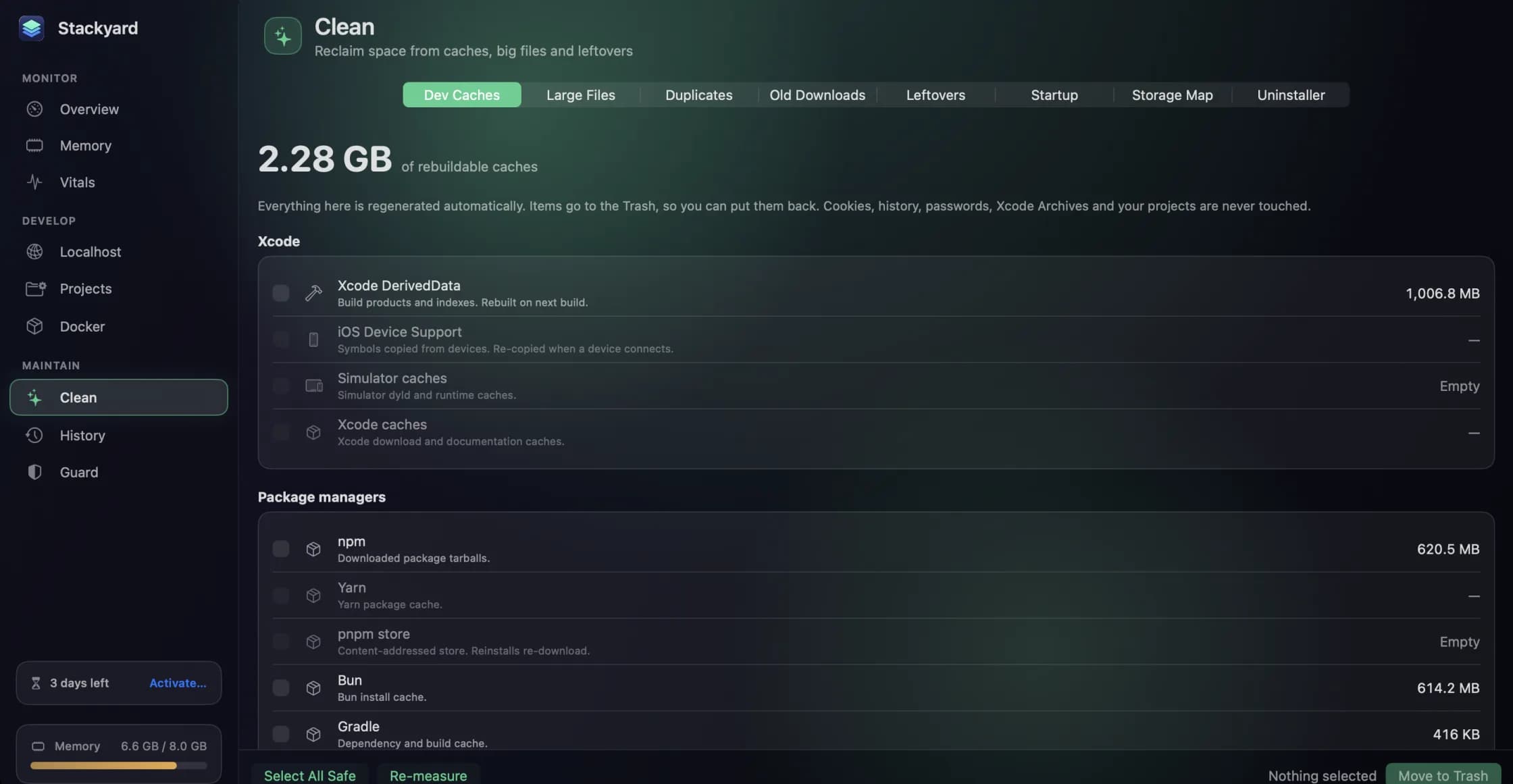
A developer's Mac fills up differently from everyone else's. It is rarely photos or films. It is a gigabyte of Xcode DerivedData for a project you built once, the package manager caches for four languages, a simulator runtime from two iOS versions ago, and a node_modules folder in every project you have ever cloned. None of it is precious. All of it is rebuilt by your tools when needed. And because it is scattered across a dozen hidden folders, none of it shows up when you go looking for what is taking the room.
Stackyard's Clean section is built for exactly that kind of space. This post covers what it measures, how it decides what is safe, and the one rule that runs through all of it: everything you clean goes to the Trash.
Dev Caches: one list for every toolchain
The Dev Caches tab measures the caches your tools keep and lists them by family:
- Xcode: DerivedData, Device Support and simulators.
- JavaScript package managers: npm, Yarn, pnpm and Bun.
- Everything else: Gradle, CocoaPods, SwiftPM, Homebrew, pip, Go, Cargo, Playwright and Puppeteer.
- Browser caches.
Each line shows its size, so you can see straight away that DerivedData is a gigabyte and the Bun cache is forty megabytes, and decide accordingly. Select All Safe ticks everything that is safe to rebuild in one go. Move to Trash does the rest.
The honest cost of clearing a cache is time, not data. The next Xcode build starts from scratch, and the next npm install downloads what it used to find locally. That is usually a fine trade when the disk is nearly full, and a poor one an hour before a demo. Clean on a quiet afternoon.
Safari's cache is the one item that needs extra permission. macOS protects it, so Stackyard can only measure it with Full Disk Access. That permission is optional; the Welcome sheet shows its status and has a button that opens the right pane in System Settings.
Build folders, per project
Caches are only half of it. The other half lives inside your projects. Once you have added the folders where you keep code to Projects (⌘5), each project's details list its rebuildable folders with their sizes: node_modules, .next, .nuxt, target, .venv, __pycache__, DerivedData, Pods, dist, build and others. Tick the ones you want gone and move them to the Trash; the next install or build recreates them.
A project's build folders cannot be removed while that project is running. The running process is using them, and pulling them out from under it is how you get a confusing crash instead of a clean rebuild.
Stale projects first
The quickest wins are in projects you have stopped working on. Turn on Stale in Projects and the list narrows to projects whose source files have not changed in thirty days or more, each with how long it has been idle. A side project last touched in the spring with a two-gigabyte node_modules is the canonical example. These usually have the most to clean up and the least reason to keep their build folders around.
The rest of the Clean section
The other tabs cover the space that is not specific to development:
- Large Files lists your biggest files, sortable by size or name.
- Old Downloads lists files in Downloads older than a number of days you choose.
- Duplicates finds files over 1 MB with the same content. Stackyard compares contents, not names, keeps the oldest copy in each set and pre-selects the rest, so untick anything you want to keep.
- Leftovers lists preferences, caches and support folders left behind by apps you have deleted. Check the list before removing, because some of them belong to command-line tools that never appeared in Applications.
- Startup lists launch agents and daemons, the updaters, helpers and sync services that start on their own, with the app each belongs to, whether it is running, and whether it starts at login or restarts when quit. You can remove your own; the system folders are shown for reference.
- Storage Map draws any folder, your home folder by default, as tiles sized by the space each item takes. Click a tile to go inside and use the breadcrumb to come back out. In the screenshot on the Stackyard page, the biggest tiles in a home folder are
.nvmat 3.66 GB,.androidat 2 GB and.localat 1.9 GB, which is about as typical a developer's home folder as there is. - Uninstaller takes an app you drop on it, or choose, and shows what goes with it: support files, caches, preferences and login agents. If the app is running the button becomes Quit & Uninstall, and Force Quit & Uninstall handles one that will not quit.
The first time Stackyard scans Downloads, Desktop or Documents, macOS asks for your permission. That is normal, and it only asks once.
The rule: the Trash, and a short list of things never touched
Everything you clean in Stackyard goes to the Trash rather than straight to deletion. If a build breaks because a cache was doing more than you thought, or you realise a duplicate was the copy you wanted, it is in the Trash to put back.
Some things are never offered at all, however large they are: cookies, browser history, passwords, Xcode Archives and your projects. Archives are your shipped builds. The rest are not caches in any sense; losing them costs you something no tool rebuilds.
If you also use SweepyMac, the overlap is intentional but small. SweepyMac's Cleanup lists developer caches as an opt-in category for a general Mac clean. Stackyard goes further into the developer side, with per-project build folders, stale projects and the toolchains a general cleaner does not know about.
Stackyard is a free preview: ask for a build on its page, and the user guide has the full list of what each tab covers.
Questions people ask
- Is it safe to delete node_modules or DerivedData?
- Yes, in the sense that your tools recreate them on the next install or build. The cost is time: the next build is slower and the next install downloads again. Stackyard moves them to the Trash rather than deleting them, so you can put anything back.
- Can I clean a project's build folders while it is running?
- No. Stackyard will not remove a project's build and dependency folders while that project is running, because the running process is using them.
- What does Stackyard never clean?
- Cookies, browser history, passwords, Xcode Archives and your projects themselves. Those are not caches; losing them costs you something your tools cannot rebuild.
Related reading
- Every local server on your Mac, with a health dot, and how to open one on your phoneStackyard lists every listening port with a green, red or blue dot, names the Docker container behind it, and can share a localhost-only server to your phone over Wi-Fi with a QR code. Plus Compose projects and Homebrew services in the same window.
- The node process your terminal left behind: memory and orphans in StackyardClose a terminal tab and the dev server inside it can keep running for days. How Stackyard groups memory the way you think about apps, finds the node and python processes nobody is watching, and tells you which tool left each one.
- Guard, History and Meeting Mode: the parts of Stackyard that work while you don'tA notification when memory pressure stays high, leak detection that ignores a single spike, orphans quit on a timer, apps quit when unused, and a Meeting Mode that frees memory for a call and puts everything back after. Plus a 24-hour memory history, widgets and stackyard:// links.
Have a question about any of this?
Write in. The person who built the apps reads every message and replies within two working days.