 AppVerz
Blog / 4 November 2026
Guard, History and Meeting Mode: the parts of Stackyard that work while you don't
A notification when memory pressure stays high, leak detection that ignores a single spike, orphans quit on a timer, apps quit when unused, and a Meeting Mode that frees memory for a call and puts everything back after. Plus a 24-hour memory history, widgets and stackyard:// links.
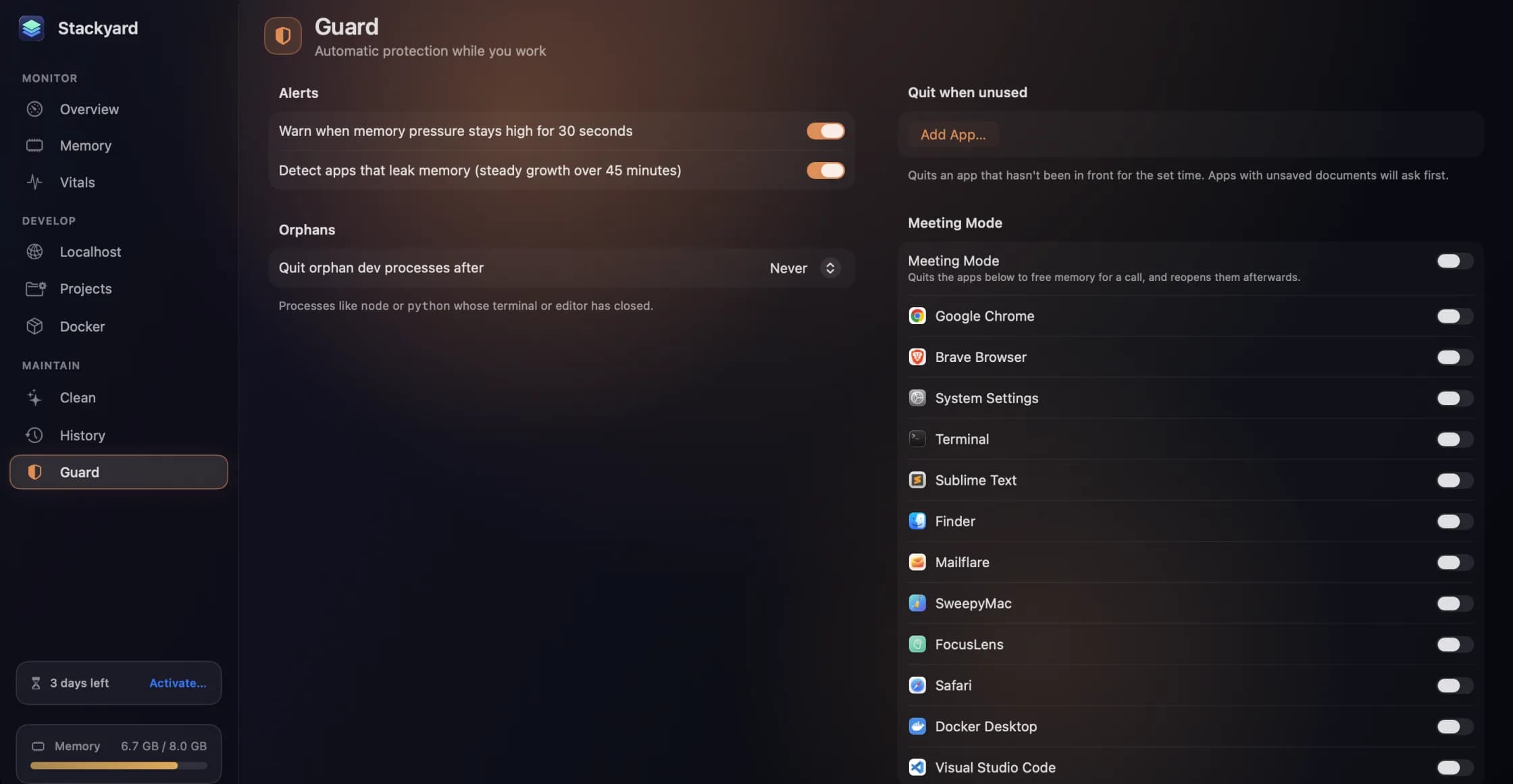
Most of Stackyard is something you open when you notice a problem. The parts in this post are for the problems you do not notice until they have already cost you something: the slow climb of a leaking app, the dev servers that pile up over a week, the video call that stutters because the Mac is out of memory. Guard runs in the background and handles those, and History lets you look back at what happened when you were not watching.
Memory pressure alerts
Memory pressure is macOS's own judgement of how hard it is working to keep everything in memory, and it is a far better signal than how many gigabytes are in use. A Mac can sit happily at 90 percent used; it cannot sit happily at high pressure.
With memory pressure alerts on, Stackyard sends a notification when pressure stays high for thirty seconds. The wait is the point. A brief spike while you open a large project is normal and not worth interrupting you for; thirty seconds of sustained pressure means something is genuinely crowding the machine, and the notification is your cue to open the menu bar and quit the heaviest thing on the list. Notifications need macOS's permission, which the Welcome sheet asks for with the others.
Leak detection
Some apps do not spike; they creep. An editor extension with a leak, a browser tab running a badly written dashboard, a dev server whose file watcher keeps allocating. Each one looks fine whenever you check, and an hour later the Mac is swapping.
Leak detection flags apps whose memory grows steadily, about 1 GB an hour or more over 45 minutes. A single jump does not count, because plenty of apps take a large block of memory at once for perfectly good reasons. When an app is flagged, it gets a Leaking badge on its row in Memory, so the next time you look you know which app to restart rather than guessing.
Quit orphans automatically
Orphan processes, the node and python processes left running after their terminal, editor or AI agent closed, can be cleared by hand from the menu bar. Guard can also clear them for you. Choose fifteen minutes, thirty minutes or an hour, and orphans older than that are quit automatically.
The rule has a deliberate exception list. Databases and background services such as Postgres, Redis, Ollama and nginx are left alone even when nothing seems to own them, because they are usually meant to keep running and quitting one would break whatever depends on it.
Quit when unused
Some apps are only useful while you are looking at them and expensive the rest of the time. Quit when unused takes a list of apps you choose and quits each one when it has not been in front for a set number of minutes.
Two rules keep it safe. Apps with unsaved documents ask first rather than quitting and losing your work. And time the Mac spends asleep or locked does not count, so coming back from lunch does not mean finding your apps closed because the clock kept running while you were away.
Meeting Mode
Video calls are among the heaviest things a Mac does, and they are the worst time to discover you are out of memory. Meeting Mode quits the apps you choose so your Mac has room for the call, and reopens them when you end Meeting Mode.
You set it up once in Guard, with a switch for each app it should quit. After that, starting a call is turning Meeting Mode on, and finishing it is turning it off and getting your working set back without having to remember what was open.
History: the last 24 hours of memory
When something went wrong while you were not looking, History (⌘8) shows you what happened. Stackyard records memory every 30 seconds and keeps the last 24 hours. The charts cover the last hour, six hours or day, and show two things: total memory used, with the peak marked, and memory by app, with a line for each of the heaviest apps and the heaviest one named. Possible leaks are marked there too.
That turns "the Mac was slow this afternoon" into something specific: a peak of 6.7 GB at three o'clock, and the line that climbed to meet it. History is kept on your Mac along with everything else Stackyard stores.
Widgets and links, for the rest of the Mac
Two widgets carry Stackyard onto the desktop and into Notification Center. Memory shows the pressure ring, and in its medium size the top three apps and free disk space. Local Servers shows up to five ports with their health dots. Right-click the desktop, choose Edit Widgets… and search for Stackyard. They update at most once a minute, and only when something changed, so they cost nothing to leave out.
For scripts, Stackyard has a link scheme. open "stackyard://memory" from Terminal, a script or another app opens that section, and any section name works: overview, memory, vitals, localhost, projects, docker, clean, history and guardTab. stackyard://palette opens the command palette. It is a small thing that makes Stackyard easy to wire into a launcher or a shell alias.
All of it, on your Mac
Guard's rules, your project folders and the 24 hours of memory samples are stored on your Mac, with a small summary written to a container shared with the widgets so they can draw without the app open. There is no account, no analytics and no crash reporting. The only thing Stackyard ever sends anywhere is a licence key, to check it.
Stackyard is a free preview: ask for a build on its page, and the user guide has every setting in one place.
Questions people ask
- How does Stackyard decide an app is leaking memory?
- It looks for memory that grows steadily, about 1 GB an hour or more, sustained over 45 minutes. A single jump does not count, because plenty of apps take a large chunk of memory at once for good reasons.
- Will Quit when unused close an app with unsaved work?
- No. Apps with unsaved documents ask first, and time the Mac spends asleep or locked does not count towards the limit.
- How far back does History go?
- Twenty-four hours. Memory is sampled every 30 seconds, and the charts show the last hour, six hours or day.
Related reading
- The node process your terminal left behind: memory and orphans in StackyardClose a terminal tab and the dev server inside it can keep running for days. How Stackyard groups memory the way you think about apps, finds the node and python processes nobody is watching, and tells you which tool left each one.
- Every local server on your Mac, with a health dot, and how to open one on your phoneStackyard lists every listening port with a green, red or blue dot, names the Docker container behind it, and can share a localhost-only server to your phone over Wi-Fi with a QR code. Plus Compose projects and Homebrew services in the same window.
- Reclaiming disk from the caches and build folders your tools rebuild on their ownXcode DerivedData, package manager caches, node_modules in a project you have not opened in a month. How Stackyard measures what a developer's Mac can safely give back, why everything goes to the Trash, and what it never touches.
Have a question about any of this?
Write in. The person who built the apps reads every message and replies within two working days.