 AppVerz
Blog / 4 November 2026
The node process your terminal left behind: memory and orphans in Stackyard
Close a terminal tab and the dev server inside it can keep running for days. How Stackyard groups memory the way you think about apps, finds the node and python processes nobody is watching, and tells you which tool left each one.
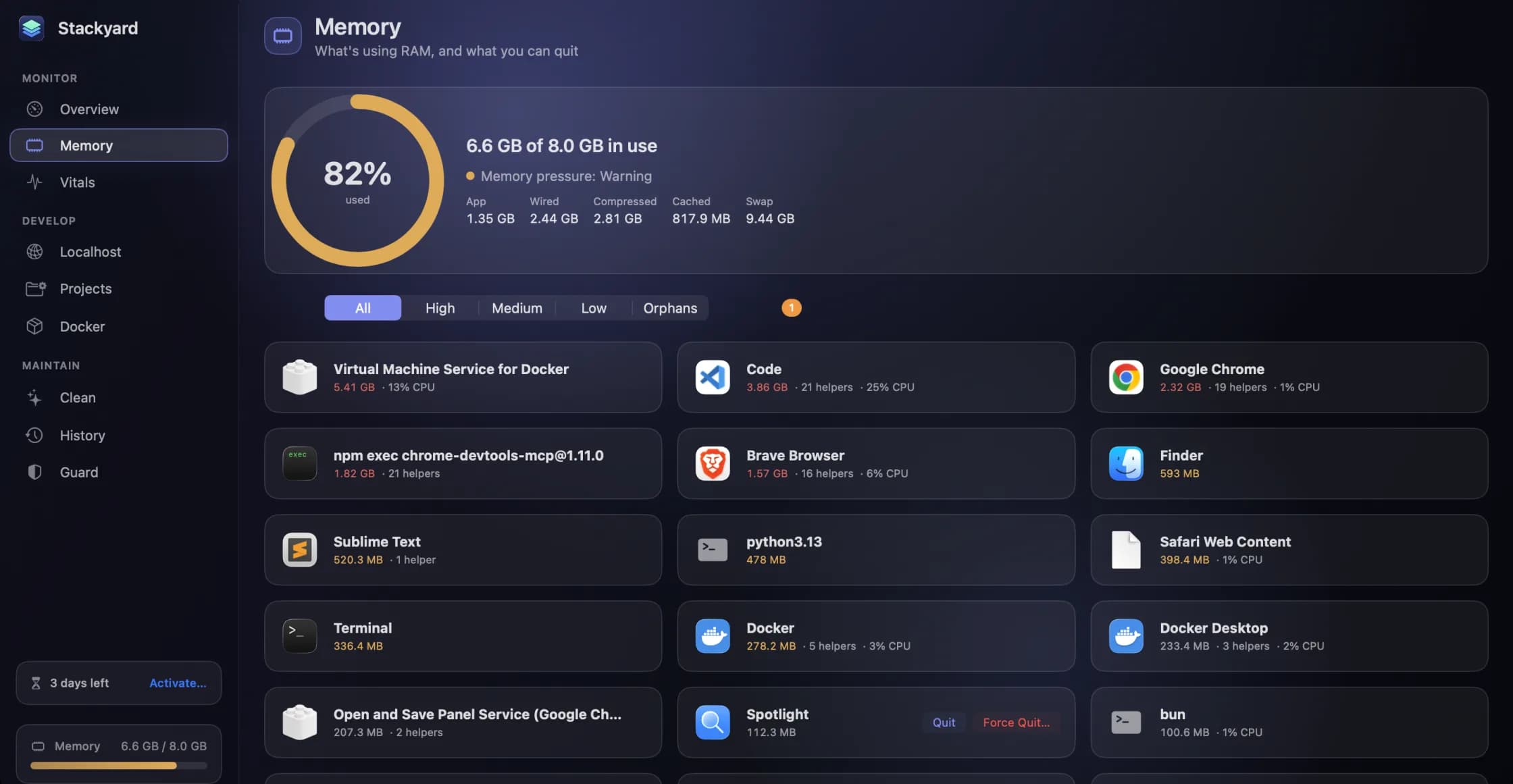
Every developer has had the afternoon where the Mac gets slow for no visible reason. Activity Monitor shows a wall of processes called node, a few called python, and no clue which of them matter. Usually the answer is that some of them belong to terminal tabs you closed yesterday, an editor window you shut, or an AI coding agent that started a dev server and then finished its session. The tab is gone. The server is not.
Stackyard is a menu-bar app for Mac developers, and the first thing it does is make that situation legible. This post covers its Memory section and the part of it we use most: the orphan list.
Memory, grouped the way you think about apps
Activity Monitor lists processes. You do not think in processes; you think in apps. Chrome is one thing to you even when it is forty helper processes underneath, and so is your editor with its language servers and extension hosts.
Stackyard's Memory section (⌘2) shows memory used against the total, the current memory pressure macOS reports, and a breakdown into app memory, wired, compressed, cached and swap. Below that is a grid of apps, and each app's helper processes are folded under it, so Chrome with forty helpers is one row with one number. That number is the one you actually want when deciding what to quit.
Each row has its memory, its helper count and its CPU, plus three actions: Quit, Force Quit… and Show in Finder. Force Quit asks first, because anything unsaved in that app is lost. Filters along the top narrow the grid to High, Medium or Low memory users, or to Orphans.
Two kinds of row behave differently. Processes owned by other users or by macOS itself appear together as a single read-only row called System & other users: you can see what they take, but Stackyard will not quit something that is not yours. And when Guard is watching, an app whose memory keeps climbing gets a Leaking badge, which is covered in the post on Guard and History.
Orphans, and who left them
An orphan, in Stackyard's terms, is a dev process such as node or python that kept running after the terminal, editor or AI agent that started it closed. These are the processes nobody is looking at. They hold ports, they hold memory, and some of them keep a file watcher spinning on a project you are no longer working on.
What makes the list useful is that each orphan says who left it. Stackyard traces the process back to the tool that started it and shows that alongside the folder it was running in and its PID. The tools it names include Terminal, VS Code, Cursor, Claude Code, iTerm2, Warp and tmux. So instead of six identical node rows you see a Vite server started from VS Code in one project, a Next.js dev server Claude Code started in another, and a Python script from an iTerm2 tab you closed on Monday.
From there it is one button per row, or Quit All to clear the lot in one go. If one of them is something you still want, leave it; the list does not quit anything on its own unless you have told Guard to.
The menu bar does most of the work
Stackyard lives in the menu bar, and for memory that is where you will spend most of your time. The menu-bar item shows how much memory is in use and adds a ⚠︎ when pressure is high. Clicking it lists the heaviest apps with a Quit button each, your local servers with a health dot, running projects with Stop, and a single button that quits all orphans. Most days that menu is all you need; Open Stackyard (⌘O) is there when you want the full window.
Closing the main window does not quit the app. Stackyard keeps running in the menu bar, and if you would rather it never appeared in the Dock at all, Settings has a Show Dock icon switch you can turn off.
The Overview, when something is wrong
The first section of the main window, Overview (⌘1), opens with a memory ring and a sentence instead of a number: "Plenty of headroom" on a good day, "Memory is under pressure" on a bad one. When it is the bad one, the fix sits right under the headline. In the screenshot on the Stackyard page, the ring reads 83 percent and the buttons beside it offer to quit Docker's virtual machine or the one orphan Stackyard found, which between them were most of the problem.
The rest of the Overview is small charts for CPU, GPU, network and disk, the heaviest apps, local servers and containers, reclaimable disk space and the top energy users. Each card has a Show link that jumps to its section.
⌘K, for when you know what you want
If you already know which process is the problem, the command palette is faster than any list. Press ⌘K anywhere in Stackyard, type a few letters of the app's name, and quit it. The same palette opens or stops any local server, starts or stops any project or container, cleans any cache and jumps to any section. Elsewhere in the window, ⌘1 to ⌘9 move between sections, the arrow keys move the selection, Space starts or stops the selected item and Return opens it.
Why it is a download, not an App Store app
Quitting other apps and processes is the one thing a sandboxed Mac app is not allowed to do, and the Mac App Store only takes sandboxed apps. So Stackyard is not sandboxed, and it is distributed as a signed download from this site instead. It runs entirely on your Mac, with no account and no analytics, and the only time it goes online is to check a licence key if you enter one.
Stackyard is a free preview at the moment. Ask for a build on its page and one comes back by email; the user guide covers every section in detail.
Questions people ask
- What counts as an orphan in Stackyard?
- A dev process such as node or python that is still running after the terminal, editor or AI agent that started it has closed. Stackyard shows who left it, the folder it was started in and its PID, so you can decide whether it is something you still want.
- Why can't I quit some rows?
- Processes owned by other users or by macOS itself are folded into one read-only row, System & other users. Stackyard only quits processes that belong to you.
- Will Stackyard quit my database by accident?
- Not through the automatic orphan rule. When Guard quits orphans after a set time, databases and background services such as Postgres, Redis, Ollama and nginx are left alone.
Related reading
- Guard, History and Meeting Mode: the parts of Stackyard that work while you don'tA notification when memory pressure stays high, leak detection that ignores a single spike, orphans quit on a timer, apps quit when unused, and a Meeting Mode that frees memory for a call and puts everything back after. Plus a 24-hour memory history, widgets and stackyard:// links.
- Every local server on your Mac, with a health dot, and how to open one on your phoneStackyard lists every listening port with a green, red or blue dot, names the Docker container behind it, and can share a localhost-only server to your phone over Wi-Fi with a QR code. Plus Compose projects and Homebrew services in the same window.
- Reclaiming disk from the caches and build folders your tools rebuild on their ownXcode DerivedData, package manager caches, node_modules in a project you have not opened in a month. How Stackyard measures what a developer's Mac can safely give back, why everything goes to the Trash, and what it never touches.
Have a question about any of this?
Write in. The person who built the apps reads every message and replies within two working days.