 AppVerz
Blog / 4 November 2026
Every local server on your Mac, with a health dot, and how to open one on your phone
Stackyard lists every listening port with a green, red or blue dot, names the Docker container behind it, and can share a localhost-only server to your phone over Wi-Fi with a QR code. Plus Compose projects and Homebrew services in the same window.
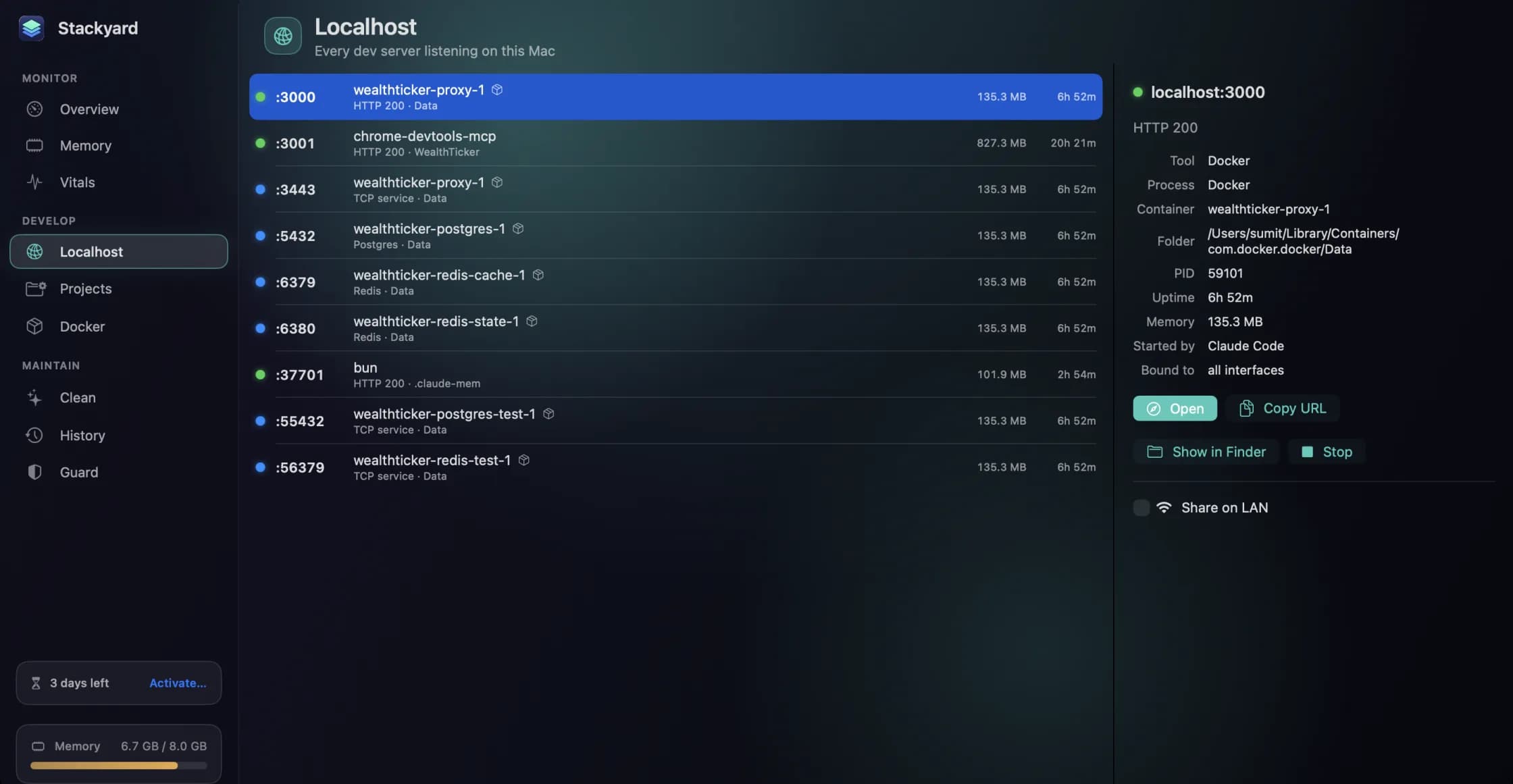
"Port 3000 is already in use." Every web developer knows the message, and most of us know the ritual that follows: lsof -i :3000, squint at a PID, kill it, hope it was the right one. It works, but it answers one question about one port, and the real question is usually broader. What is running on this Mac right now, which of it is healthy, and which of it did I forget about?
Stackyard's Localhost section answers that in one list. This post walks through it, the Share on LAN feature that lets you open a localhost-only server on your phone, and the Docker section that sits next to it.
Every listening port, with a dot
Localhost (⌘4) lists every server listening on your Mac. Each row has a health dot, and the colours are deliberately few:
- Green: an HTTP server answering normally.
- Red: a server error (a 5xx) or no answer at all.
- Blue: something that is not a web server, such as Postgres or Redis.
To get the colour, Stackyard sends a health check to the port on 127.0.0.1, your own Mac, and reads the answer. It never talks to anything outside the machine to do it. A red dot is often the most useful thing on the screen: the dev server that is technically up but has been throwing errors since you pulled a branch, or the process that still holds a port but stopped answering an hour ago.
Ports opened by Docker carry the container's name instead of a bare process, so localhost:5432 reads as the database container from your Compose project rather than as com.docker.backend. By default the list shows your servers and leaves out the ports macOS opens for itself; Show System Ports in the toolbar adds them when you want the full picture.
What a row tells you, and what you can do with it
Select a server and the detail pane fills in: the HTTP status, the Docker container if there is one, the PID, uptime, memory, and who started it. That last one is the same tracing Stackyard uses for orphan processes: a server started from VS Code, Cursor, Claude Code or a terminal tab says so.
The actions are the ones you would otherwise reach for in Terminal:
- Open the server in your browser.
- Copy URL to paste somewhere else.
- Show in Finder for the process behind it.
- Stop it.
The menu-bar menu has a compressed version of the same list, so on most days you can see your servers' health and stop one without opening the window at all. A Local Servers widget shows up to five ports with their dots on the desktop or in Notification Center.
Share on LAN, with a QR code
Most dev servers bind to localhost, which is exactly right for security and exactly wrong when you want to see the page on a real phone. The usual fixes are restarting the server with a different host flag, or a tunnelling service that puts your half-finished work on a public URL.
Share on LAN does neither. Choose it on a server and Stackyard opens that server to other devices on your Wi-Fi, without touching the server's own configuration, and shows a QR code to scan. The shared port is the original plus 10000, so a server on :3000 is reachable from your phone on :13000. Nothing is exposed to the internet; the relay only reaches your own network, and only while you share.
Sharing also cleans up after itself. It stops by itself when the server exits, and it stops when your Mac changes network, so a server you shared at the office is not still open on the café Wi-Fi. If you move networks and want it back, choose Share on LAN again on the new one.
Docker, grouped by Compose project
The Docker section (⌘6) lists your containers grouped by Compose project, which is how you think about them: not ten unrelated containers, but one project with a web app, a worker, a database and a cache. Each container shows its CPU and memory, ports, image, health and logs, with Start, Stop and Restart. Each project has Start All and Stop All, so bringing a whole stack up or down is one click.
If Docker itself is not running, a Start Docker button launches it. And because Docker's virtual machine is often the single largest memory user on a developer's Mac, it is often the first thing the Overview offers to quit when memory is under pressure.
Homebrew services get switches
Below the containers sit your Homebrew services: MySQL, Postgres, Redis and the others you installed with brew and then forgot were starting at login. Each one has an on/off switch. It is the same as brew services stop, without having to remember the service's exact name.
Projects, for the servers you start yourself
The servers you run from your own code have a section of their own. Add the folders where you keep code, and Stackyard finds package.json scripts such as dev and start, .claude/launch.json configs and run.sh files, then lets you start and stop each one with a live log. If the port a project needs is already taken, Stackyard warns you before it starts rather than letting the server crash into the "already in use" error. That section, and the build folders it can clean, are covered in the post on reclaiming disk from dev caches.
Stackyard is a free preview: ask for a build on its page and it arrives by email.
Questions people ask
- Does Share on LAN put my dev server on the internet?
- No. It relays the server only to devices on your own network, and only while you are sharing it. Nothing is exposed to the internet, and sharing stops by itself when the server exits or your Mac changes network.
- My phone can't open a shared server. What should I check?
- That the phone is on the same Wi-Fi as the Mac, and that you are using the shared port, which is the original plus 10000, so :3000 becomes :13000. If the Mac changed networks, sharing stopped; choose Share on LAN again.
- What does a blue dot mean?
- That the port belongs to something that is not a web server, such as Postgres or Redis. Green means an HTTP server answering normally, and red means a server error or no answer at all.
Related reading
- The node process your terminal left behind: memory and orphans in StackyardClose a terminal tab and the dev server inside it can keep running for days. How Stackyard groups memory the way you think about apps, finds the node and python processes nobody is watching, and tells you which tool left each one.
- Reclaiming disk from the caches and build folders your tools rebuild on their ownXcode DerivedData, package manager caches, node_modules in a project you have not opened in a month. How Stackyard measures what a developer's Mac can safely give back, why everything goes to the Trash, and what it never touches.
- Guard, History and Meeting Mode: the parts of Stackyard that work while you don'tA notification when memory pressure stays high, leak detection that ignores a single spike, orphans quit on a timer, apps quit when unused, and a Meeting Mode that frees memory for a call and puts everything back after. Plus a 24-hour memory history, widgets and stackyard:// links.
Have a question about any of this?
Write in. The person who built the apps reads every message and replies within two working days.