 AppVerz
Blog / 15 November 2026
What is purgeable space on a Mac, and why does it make your disk look full?
Purgeable space is storage macOS has promised to free when something needs it: Time Machine snapshots, iCloud files kept on your Mac, and caches. Where to see how much you have, why some apps still say the disk is full, and how to turn it into real free space when you need it now.
Select your Mac's disk in Finder, press ⌘I, and the Get Info window says something like Available: 48 GB (31 GB purgeable). Run df -h in Terminal and it says 17 GB. An installer then tells you there is not enough room. All three are telling the truth. They count different things.
What purgeable means
Purgeable space is storage that is in use right now but that macOS is allowed to free whenever something needs the room. It is not a folder. It is a label macOS puts on certain files. On most Macs, almost all of it comes from three places:
- Time Machine local snapshots. If you back up with Time Machine, macOS keeps snapshots on the internal disk between backups. They are deleted when space runs short, or after about 24 hours.
- iCloud Drive files kept on your Mac. With Optimize Mac Storage on, files you have opened that are already safe in iCloud can have their local copy removed, so they count as purgeable. Photos does the same with full-size originals when its own Optimize option is on.
- Caches macOS manages. Some system and app caches are marked as safe to remove under pressure.
The idea is sound. Unused space does nothing for you, so macOS fills it with things that save time later (a backup you can restore from, a file that opens without downloading) and gives it back when you need it.
Where to see it
| Where | What it shows |
|---|---|
| Finder › select the disk › ⌘I | Available, with the purgeable part in brackets |
| Finder status bar (View › Show Status Bar) | Available space, which includes purgeable |
| System Settings › General › Storage | Available space, and the categories using the rest |
df -h / in Terminal |
Only what is free right now, without purgeable |
tmutil listlocalsnapshots / in Terminal |
The local snapshots behind part of the purgeable figure |
Different tools draw the line in different places, which is why no two of them quite agree. If two numbers on your Mac disagree, purgeable space is usually the gap between them.
Why the disk can still be "full"
macOS frees purgeable space when it notices that something needs it. Most of the time that works. Some apps, however, check the free space before they start, see only what df sees, and refuse. Large installers, macOS updates, virtual machines and video software are the usual ones. So you get "not enough space" with a Finder window showing 40 GB available.
There is a second case. If you are running out of space quickly, for example while copying a large file, macOS may not purge fast enough to keep up.
Turning purgeable space into free space
Do these only when something needs real free space now. Otherwise, leave purgeable space alone and let macOS manage it.
1. Thin the local snapshots. In Terminal:
tmutil listlocalsnapshots /
tmutil thinlocalsnapshots / 21474836480 4
The second command asks macOS to free up to 20 GB (the number is in bytes) of snapshots at the highest urgency. It removes the oldest first, and it affects only the copies on your Mac, not the backups on your Time Machine disk. Run your next backup soon afterwards.
2. Remove local copies of iCloud Drive files. In Finder, right-click a file or folder in iCloud Drive and choose Remove Download. The file stays in iCloud and downloads again the next time you open it. Do this for large folders you have finished with.
3. Restart. Some temporary files and snapshots are cleared on restart. It is crude, but it works often enough to try first.
What not to do: do not fill the disk on purpose with a huge file to force a purge, a trick that circulates online. If something goes wrong halfway, you are left with a full disk.
Real space, not purgeable space
If your available space is low even counting purgeable, the problem is not purgeable space. It is the files themselves. Start with your Mac's storage is almost full, and if a grey bar is the biggest thing on the chart, what is System Data.
Doing it with SweepyMac
SweepyMac does not delete Time Machine snapshots, and we think that is right for a cleaner. Snapshots are a safety net, macOS already manages them, and the tmutil command above does the job when you really need it. Here is what SweepyMac does instead.
- Cloud Cleanup does step 2 for every iCloud Drive file at once. It removes the local copies of files you have already downloaded, but only files that are fully uploaded, and it reports what was actually freed. The files stay in iCloud and download again when you open them. It does not go through the Trash, so there is no Undo, only opening the file again. Getting disk space back from iCloud Drive covers it in detail.
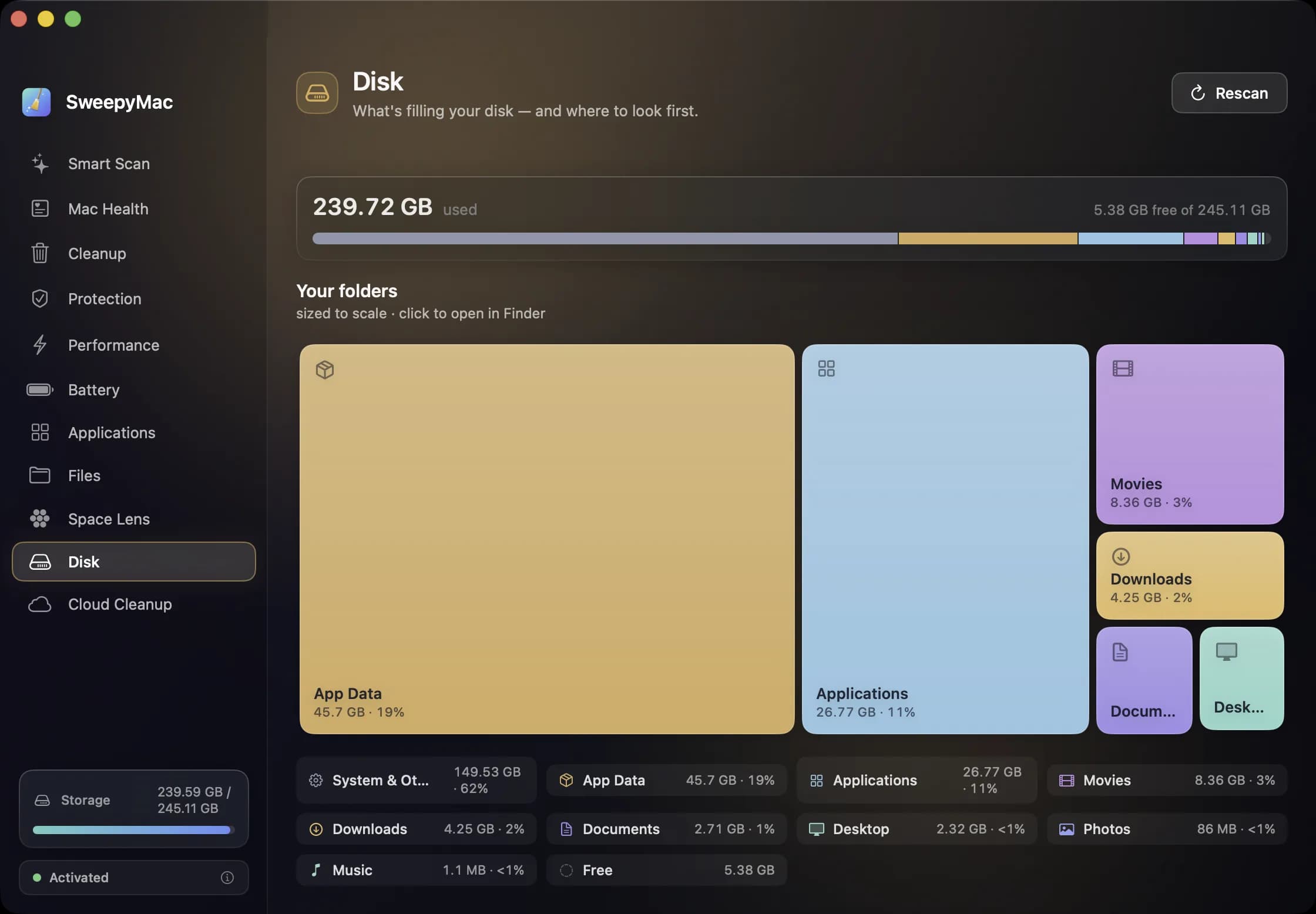
- Disk is a read-only overview of what is using the disk: Applications, Photos, Movies, Downloads, App Data and so on. What it cannot measure goes into System & Other rather than being guessed at.
- Space Lens finds what is using space that is not purgeable, as a map you can drill into.
- Smart Scan clears caches, logs and saved app state, which is real space rather than space macOS will free one day. Everything goes to the Trash with Undo.
SweepyMac has a three-day free trial with no account, then from $14.99 a year or $59.96 once. Download it from its page.
Questions people ask
- Can I delete purgeable space on a Mac?
- Not directly, and usually you do not need to. macOS removes it by itself when the disk runs short. If an app or an installer refuses to start because it does not count purgeable space as free, you can thin Time Machine's local snapshots or remove the local copies of iCloud files, which turns purgeable space into free space straight away.
- Why does Finder show more available space than Terminal?
- Finder counts purgeable space as available, because macOS can free it on demand. The df command in Terminal reports only the space that is free right now. Both are correct. They answer different questions.
- Is purgeable space the same as System Data?
- No, although they overlap. System Data is a category on the storage bar. Purgeable is a property: some of what is in System Data, such as local snapshots, is purgeable, and so are some of your iCloud Drive files, which are counted under other categories.
Related reading
- Messages, Mail and chat attachments: the space on your Mac you forgot aboutEvery photo, video and PDF anyone has sent you is still on your Mac, often twice. Where Messages, Mail and chat apps keep attachments, how to remove them from inside each app so nothing breaks, the iCloud setting that deletes them from your phone too, and how to find the copies you saved.
- How to clear the cache on a Mac: which caches, when it helps, and how to do it safelyYour Mac keeps caches for itself, for every app and for every browser. Where each one lives, how to clear it by hand without breaking anything, why clearing them rarely makes a Mac faster, and the three situations where it really is the right move.
- "Your system has run out of application memory": what it means and how to stop it coming backThe warning rarely means your Mac has too little memory. Usually one app has grown out of control, or the disk is too full for macOS to swap. How to get out of the dialog, how to tell which of the two it was, and the changes that keep it from returning.
Have a question about any of this?
Write in. The person who built the apps reads every message and replies within two working days.