 AppVerz
Blog / 15 November 2026
Messages, Mail and chat attachments: the space on your Mac you forgot about
Every photo, video and PDF anyone has sent you is still on your Mac, often twice. Where Messages, Mail and chat apps keep attachments, how to remove them from inside each app so nothing breaks, the iCloud setting that deletes them from your phone too, and how to find the copies you saved.
A Mac that has been signed in to the same Apple Account for a few years carries every photo, video, voice note and PDF anyone has sent it. Messages keeps them forever by default. Mail keeps them for as long as the email exists. Chat apps keep their own copies. Then you saved the important ones to Downloads, so many of them are on the disk twice.
This can easily run to tens of gigabytes, and it is spread across folders most people never open. Here is where it lives and how to remove it without breaking anything.
First, the setting that decides what "delete" means
Open Messages › Settings › iMessage and look at Enable Messages in iCloud.
- If it is on, your conversations sync across your devices. Deleting an attachment on your Mac deletes it on your iPhone and iPad too. That is fine if you want it gone everywhere, and a bad surprise if you only wanted space back on the Mac.
- If it is off, deletions on the Mac stay on the Mac.
Decide which you want before going on. If your phone is the place you keep everything, the Mac-only route below is the safer one.
Messages
Messages stores attachments in ~/Library/Messages/Attachments. Do not delete from that folder in Finder. Messages still refers to the files, and your conversations will show broken attachments. Use one of these instead.
See and remove the largest attachments. Open System Settings › General › Storage, and click the ⓘ beside Messages. You get a list of attachments sorted by size, with conversations, photos, videos and other files listed separately. Select the ones you do not need and press Delete.
Stop keeping everything forever. In Messages › Settings › General, change Keep messages from Forever to 1 Year or 30 Days. Older conversations and their attachments are deleted, permanently, so save anything you care about first. With Messages in iCloud on, this applies to all your devices.
Clear one conversation. In the conversation, choose View › Show Details or click the name at the top, scroll to Photos or Files, and delete from there.
Mail keeps each message, with its attachments, in ~/Library/Mail. There are two easy wins and one that takes a little longer.
- The Mail Downloads folder. When you open an attachment, Mail copies it to
~/Library/Containers/com.apple.mail/Data/Library/Mail Downloads. The originals are still in the emails, so this folder is safe to empty. Quit Mail first. - Download Attachments. For an IMAP account, Mail › Settings › Accounts › Account Information has a Download Attachments menu. Setting it to Recent or None stops Mail storing every attachment locally. They are fetched from the server when you open them.
- Delete the large emails themselves. On the server, this frees space in your mailbox and, through syncing, on your Mac. Most webmail services can search by size, for example
larger:10Min Gmail.
Chat apps
WhatsApp, Telegram, Slack and similar apps keep their own copies of everything sent to you, in folders inside ~/Library/Containers or ~/Library/Group Containers named after the app. As with Messages, delete from inside the app, not from Finder. Most have a storage section in their settings that lists the largest chats and media and lets you clear them. Where one does not, open the chat's shared media and delete from there.
The copies you saved
Every attachment you dragged out of a conversation or an email is now a separate file, usually in Downloads, often under a name like IMG_4021 (2).jpeg. These do not belong to any app, so you can remove them freely. They are also easy to forget, because the original is still in the conversation.
Sort Downloads by size in Finder (View › as List, then click the Size column), and look out for videos and anything with a number in brackets in its name.
Doing it with SweepyMac
SweepyMac does not delete anything from inside Messages, Mail or chat apps, and it should not. Those apps keep track of their own attachments, and removing the files underneath them is how you end up with broken conversations. What SweepyMac does is show you where the space is and clean up the copies that belong to nobody.
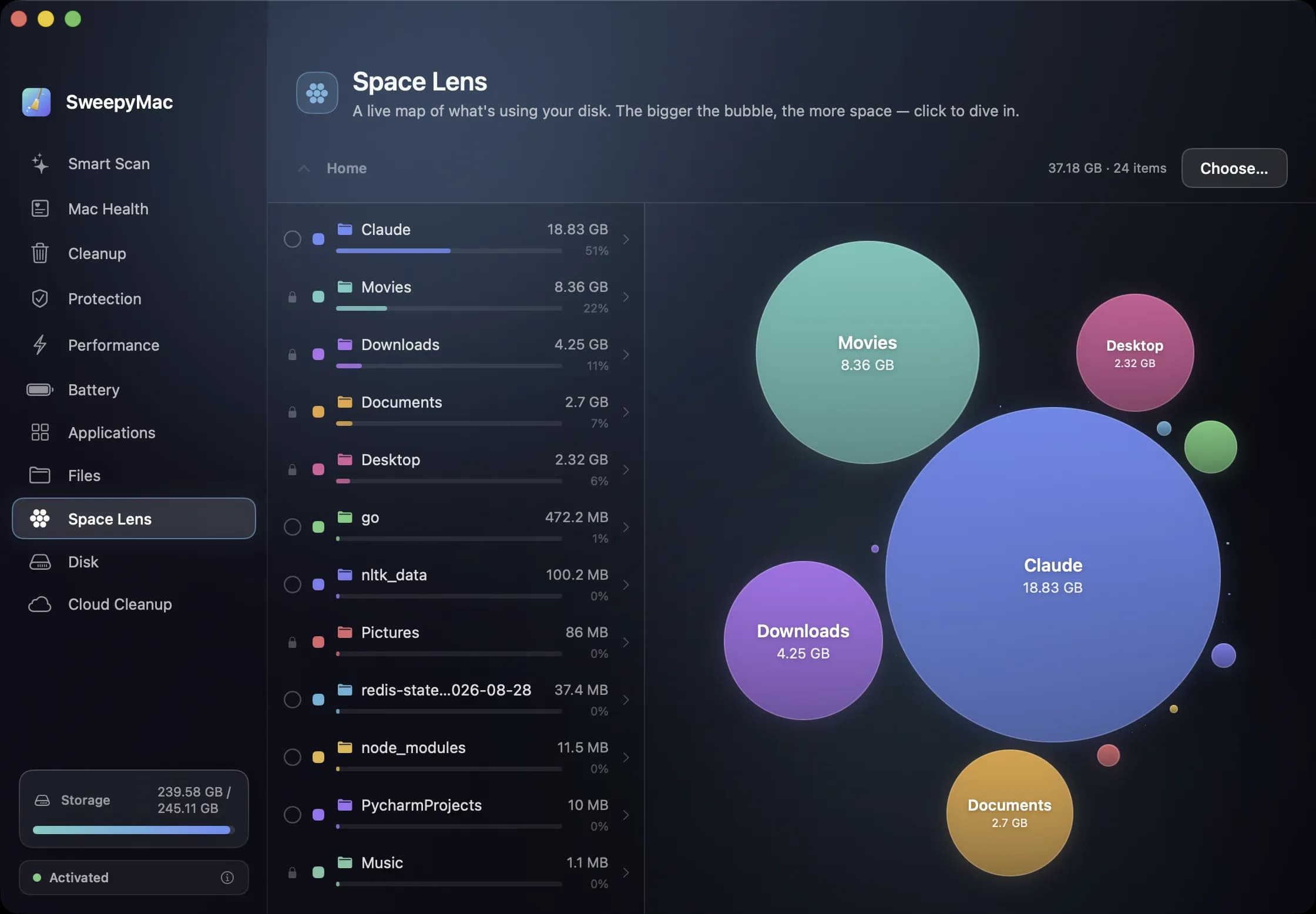
- Space Lens draws any folder as a map of bubbles sized by space used. Point it at your Library folder and you can see at once whether Messages, Mail or a chat app's container is the large one, before you open each app's settings. Its job here is to point you to the right app.
- Large & Old finds big, old files in a folder you choose, such as Downloads, with a minimum size from 10 MB and an age. It skips your Library folders on purpose, so it will not offer files Messages and Mail are still using.
- Duplicates finds byte-identical files, including the attachment you saved three times. It keeps the oldest copy of each set and pre-selects the rest. Finding duplicate files explains how it decides.
Everything goes to the Trash first, with Undo. SweepyMac needs Full Disk Access to measure folders like Messages, which macOS protects. Full Disk Access, explained covers why and what it does with it.
SweepyMac has a three-day free trial with no account, then from $14.99 a year or $59.96 once. Download it from its page.
Questions people ask
- Can I delete the Messages Attachments folder on a Mac?
- You should not delete it from Finder. Messages still refers to those files, and conversations will show broken attachments. Remove attachments from System Settings › General › Storage › Messages, or set Messages to keep conversations for a shorter time, and Messages tidies up its own folder.
- If I delete Messages attachments on my Mac, are they deleted on my iPhone?
- If Messages in iCloud is turned on, yes. Deleting a message or attachment on one device deletes it on all of them. Check the setting in Messages › Settings › iMessage before you start.
- Where does Mail store attachments on a Mac?
- Mail keeps messages and their attachments in ~/Library/Mail. Attachments you open are also copied into a Mail Downloads folder inside ~/Library/Containers/com.apple.mail. The copies you saved yourself are usually in Downloads.
Related reading
- What is purgeable space on a Mac, and why does it make your disk look full?Purgeable space is storage macOS has promised to free when something needs it: Time Machine snapshots, iCloud files kept on your Mac, and caches. Where to see how much you have, why some apps still say the disk is full, and how to turn it into real free space when you need it now.
- How to clear the cache on a Mac: which caches, when it helps, and how to do it safelyYour Mac keeps caches for itself, for every app and for every browser. Where each one lives, how to clear it by hand without breaking anything, why clearing them rarely makes a Mac faster, and the three situations where it really is the right move.
- "Your system has run out of application memory": what it means and how to stop it coming backThe warning rarely means your Mac has too little memory. Usually one app has grown out of control, or the disk is too full for macOS to swap. How to get out of the dialog, how to tell which of the two it was, and the changes that keep it from returning.
Have a question about any of this?
Write in. The person who built the apps reads every message and replies within two working days.