 AppVerz
Blog / 11 November 2026
How to clear the cache on a Mac: which caches, when it helps, and how to do it safely
Your Mac keeps caches for itself, for every app and for every browser. Where each one lives, how to clear it by hand without breaking anything, why clearing them rarely makes a Mac faster, and the three situations where it really is the right move.
"Clear your cache" is the most common advice on the internet for a Mac that is misbehaving, and it is right about a third of the time. This post covers where the caches are, how to clear each one by hand, and the three cases where it is worth doing.
What a cache is, and why clearing it is not a speed-up
A cache is a copy an app keeps so it does not have to do the same work twice: thumbnails it has already drawn, web pages it has already downloaded, code it has already compiled. When the cache is there, the app is quick. When you clear it, the app rebuilds it the next time it needs it, and it runs slower while it does.
So clearing caches to make a healthy Mac faster usually does the opposite for a day or so. macOS also trims caches by itself when the disk runs short. We say more about this in does a Mac need a cleaner?
There are three situations where it is the right move:
- One app misbehaves. It shows stale content, crashes on launch or will not load something it used to. A corrupt cache is a common cause, and clearing just that app's cache is a cheap first step.
- You need the space now. Caches can run to several gigabytes, and on a nearly full disk that matters.
- Privacy. Browser caches and history are a record of where you have been.
The caches on your Mac, and which ones to touch
| Location | What is in it | Clear it? |
|---|---|---|
~/Library/Caches |
Caches for the apps you run, one folder each | Yes, app by app |
~/Library/Containers/<app>/Data/Library/Caches |
Caches for sandboxed apps, including most App Store apps | Yes, app by app |
| Browser profiles | Web cache, history and cookies, per browser and per profile | From the browser itself |
/Library/Caches |
Caches shared by all users and system services | Leave it |
/System/Library/Caches |
macOS's own | You cannot. macOS protects it |
The ~ means your home folder. Your Library folder is hidden: in Finder, choose Go › Go to Folder (⇧⌘G) and type ~/Library/Caches.
Clearing one app's cache by hand
- Quit the app. Clearing a cache while the app is using it is how you get the corruption you were trying to fix.
- Open
~/Library/Cachesand find the app's folder. It is usually named after the app's bundle identifier, such ascom.spotify.clientorcom.microsoft.VSCode. - Open that folder and move its contents to the Trash. Leave the folder itself where it is.
- Open the app again and check that the problem has gone.
- Empty the Trash a few days later, once you are sure nothing needed it.
If you cannot find the app in ~/Library/Caches, it is probably sandboxed. Look in ~/Library/Containers, find the app's folder, and go into Data/Library/Caches inside it.
Avoid the one-line Terminal versions you will find elsewhere, such as rm -rf ~/Library/Caches/*. They clear every app's cache at once, including the caches of apps that are running. They skip the Trash, so there is no undo. And they save you about thirty seconds.
Clearing browser caches
Clear browser caches from inside the browser. The browser knows which of its files are safe to remove while it runs.
- Safari: turn on Settings › Advanced › Show features for web developers, then choose Develop › Empty Caches (⌥⌘E). This clears the cache and keeps your history and logins. History › Clear History removes history along with cookies and website data.
- Chrome, Brave, Edge, Arc: press ⇧⌘⌫, pick a time range, and tick only Cached images and files if you want to stay signed in to everything.
- Firefox: Settings › Privacy & Security › Cookies and Site Data › Clear Data, with only Cached Web Content ticked.
Each browser profile has its own cache, so if you use a work profile and a personal profile, clear each one.
The DNS cache
If one website will not load on your Mac but loads fine on your phone, your Mac may be holding an out-of-date address for it. Flush the DNS cache in Terminal:
sudo dscacheutil -flushcache; sudo killall -HUP mDNSResponder
Nothing is deleted, and macOS rebuilds the cache as you browse.
What to leave alone
/Library/Cachesand anything under/System. These are macOS's own. Clearing them by hand gains little, and the System folder is protected anyway.- Logins and cookies, unless you mean to sign out of everything. Most "clear browsing data" screens tick cookies by default.
- Developer caches you are using today. Xcode DerivedData and package-manager caches are safe to remove, but your next build will be slow while they rebuild. There is a separate post on those.
- Anything you cannot identify. Look up a folder name before you remove it.
Doing it with SweepyMac
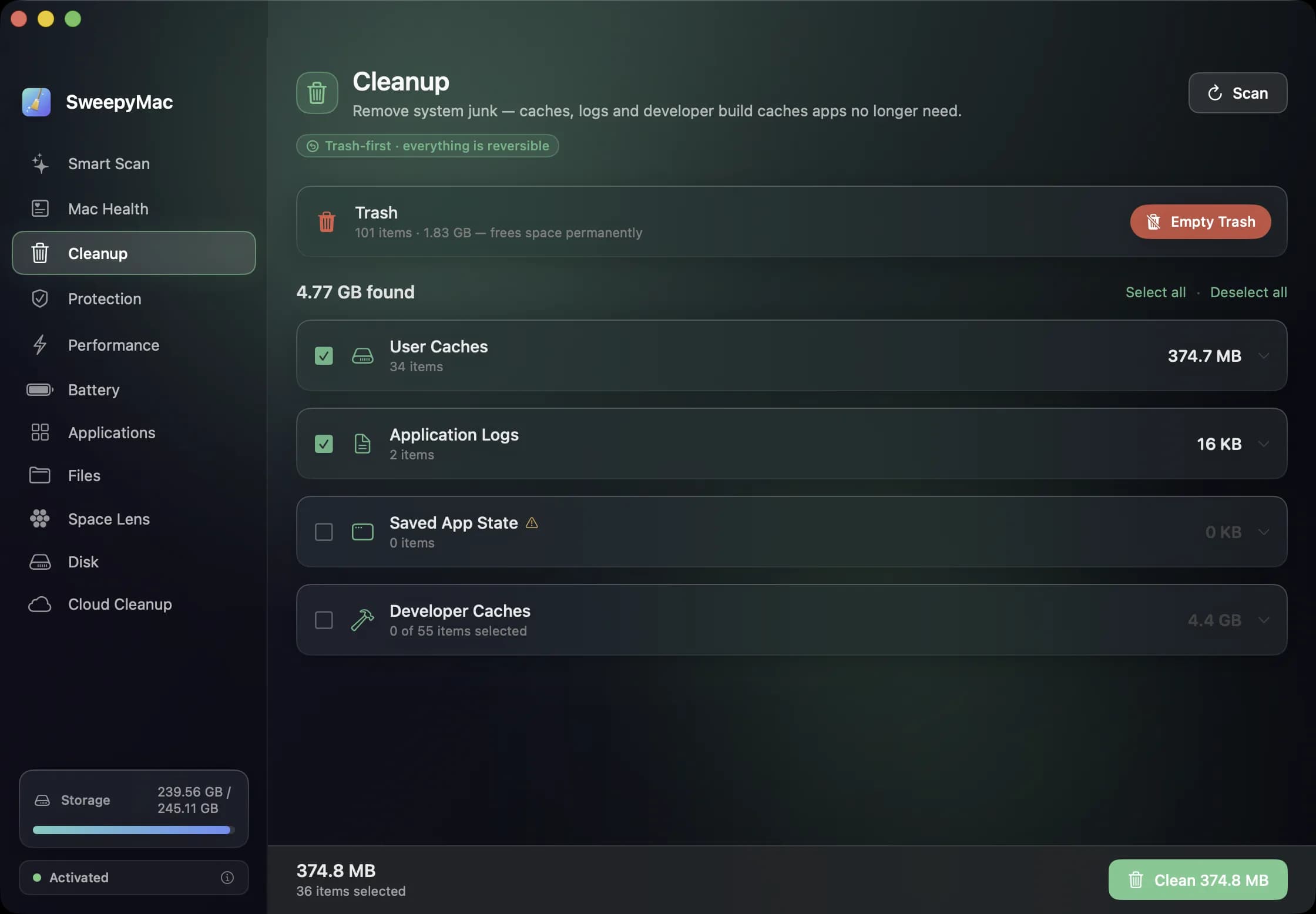
Clearing caches by hand is fine for one app. For the whole Mac it is a lot of folders, so this is the job we built SweepyMac's first two screens for, and we built them to work the way the manual method above does.
Smart Scan looks at your user caches, application logs and saved app state in one pass, totals what can be reclaimed, and touches nothing until you press Clean. Cleanup lists the same groups along with developer caches and leftovers from apps you have uninstalled. Only the conservative groups start ticked, and each group opens up to show the exact files inside. Smart Scan or Cleanup? explains the difference.
Removed files go to the Trash, and every clean has an Undo, which is step 3 of the manual method done for you. The Privacy tab in Protection does the browser side: cache, history and cookies for Chrome, Brave, Edge, Arc, Vivaldi, Chromium, Firefox and Safari, one row per profile, with nothing pre-selected. For Safari it can clear only the cache, because macOS protects the rest. The DNS flush is a button on the Performance screen.
Some things SweepyMac never offers to remove: anything in /Library or /System, Xcode Archives, iOS DeviceSupport, and Docker images. Cleanup only works inside your own user folders, so it never needs your administrator password.
It will not make a healthy Mac faster, and the same is true of any other app that clears caches. What it does is clear the right caches in a couple of minutes and let you put back anything you did not mean to remove. SweepyMac is free for three days, then from $14.99 a year or $59.96 once. Download it from its page.
Questions people ask
- Is it safe to delete everything in ~/Library/Caches?
- Mostly, because apps rebuild their caches. It is safer to quit the app first and delete the contents of its own folder instead of the whole Caches folder. Move things to the Trash rather than deleting them, so you can put them back if an app misbehaves.
- Will clearing the cache make my Mac faster?
- Usually not. A cache is there to make things faster, so apps are often slower for a while after you clear one, while they rebuild it. Clearing helps when a cache is corrupt, when you need the disk space, or for privacy.
- Should I clear /Library/Caches or /System/Library/Caches?
- No. /System/Library/Caches is protected by macOS and cannot be changed. /Library/Caches holds caches shared by every user and by system services, and macOS manages it. Clearing it by hand gains little and needs an administrator password.
Related reading
- Messages, Mail and chat attachments: the space on your Mac you forgot aboutEvery photo, video and PDF anyone has sent you is still on your Mac, often twice. Where Messages, Mail and chat apps keep attachments, how to remove them from inside each app so nothing breaks, the iCloud setting that deletes them from your phone too, and how to find the copies you saved.
- What is purgeable space on a Mac, and why does it make your disk look full?Purgeable space is storage macOS has promised to free when something needs it: Time Machine snapshots, iCloud files kept on your Mac, and caches. Where to see how much you have, why some apps still say the disk is full, and how to turn it into real free space when you need it now.
- "Your system has run out of application memory": what it means and how to stop it coming backThe warning rarely means your Mac has too little memory. Usually one app has grown out of control, or the disk is too full for macOS to swap. How to get out of the dialog, how to tell which of the two it was, and the changes that keep it from returning.
Have a question about any of this?
Write in. The person who built the apps reads every message and replies within two working days.