 AppVerz
Blog / 6 November 2026
A week with FocusLens: a seven-day experiment in seeing your own attention
Install it on Monday and change nothing for two days. Fix the categories, replay a day, find the app that breaks your focus most, set one goal, find your best hours, and read the week back on Sunday. What to look at each day, and what people usually find.
Most people who install an attention tracker look at it once, feel briefly guilty, and never open it again. The data was fine; the problem is that a single day tells you very little. A week tells you a lot, as long as you look at the right thing each day.
This is the week we suggest for a first run with FocusLens. Each day has one screen to open and one question to answer. It takes a couple of minutes a day.
Before Monday: install
FocusLens is free and in limited preview, so ask on its page and a build comes back by email. Because the preview build is signed but not yet notarized, the first launch needs a right-click on the app, then Open, then Open again. After that it opens normally.
There is no account to create and no permission to grant. FocusLens times the app in front of you from the same notifications the Dock listens to, and starts the moment it opens. The only prompt you might see is for notifications, and only if you turn on alerts.
Monday and Tuesday: change nothing
Work as you normally would. Do not open FocusLens to check on yourself, and do not try to have a good day for its benefit. The whole experiment depends on two honest days to compare everything else against.
One habit worth adopting from the start: lock the screen when you walk away. FocusLens stops counting when the display sleeps, but before that it cannot tell reading from staring out of the window.
Wednesday: fix the categories
Open FocusLens for the first time and go to Settings. Every app has been sorted into productive, communication, distracting, entertainment, utilities or neutral, and the default will be wrong about some part of your job. A designer's reference browser filed as distracting, a support engineer's chat app filed as communication when it is the work itself.
Search for each app that is wrong and choose the category it belongs in. Every past day recalculates around your answer, so Monday and Tuesday now read correctly too. The categories post explains what each category does to your numbers.
Thursday: replay yesterday
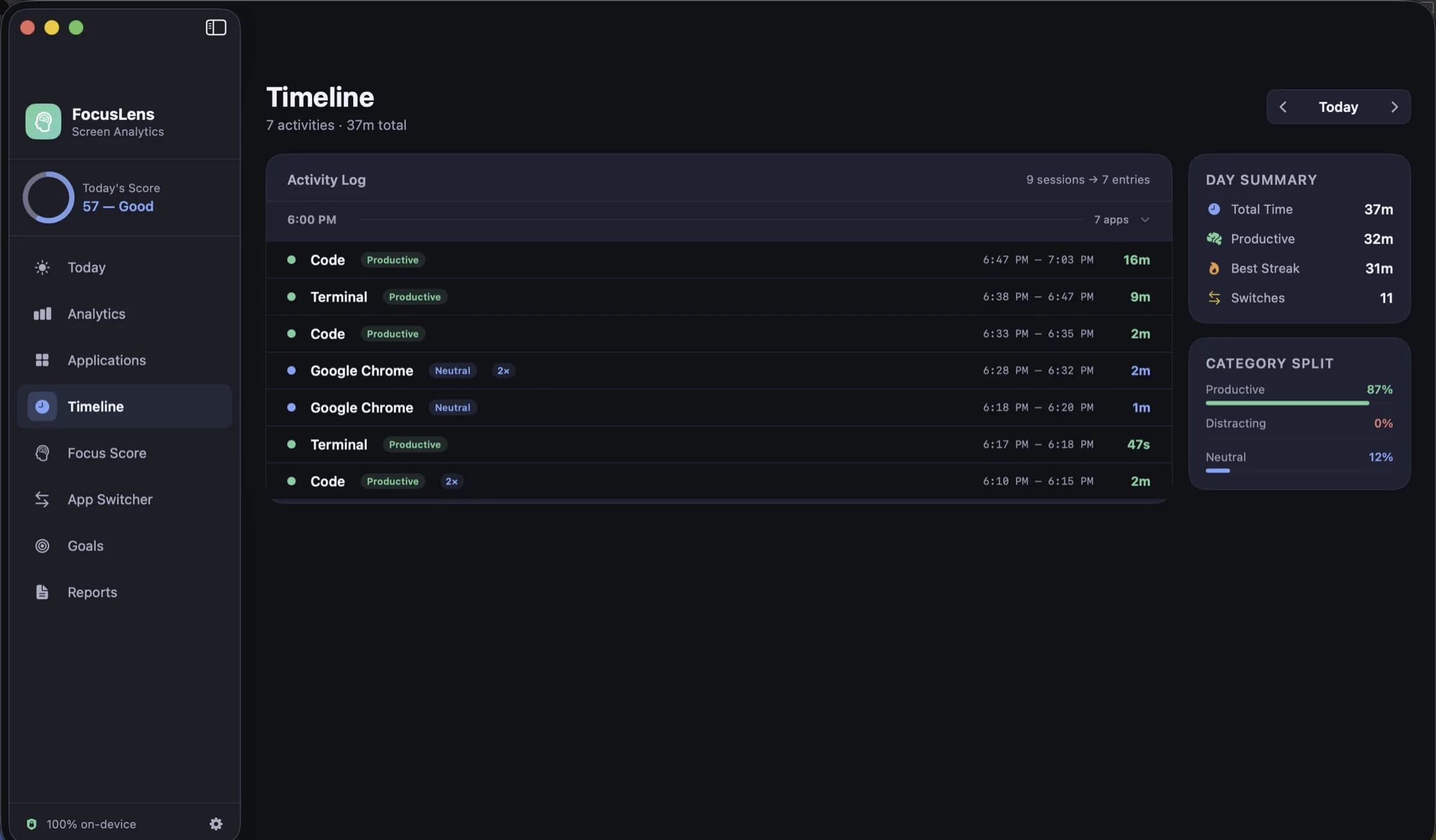
Open the Timeline and pick Wednesday. It lists every session in order: the app, its category, when it started and stopped and how long it lasted, with the day's totals beside it.
The usual finding is a block you remember as "the morning I worked on the report" that turns out to be forty minutes of real work between short visits to mail. That is not a failure; it is the most useful thing FocusLens will show you, because you cannot fix a pattern you cannot see.
Friday: find the worst offender
Open the App Switcher. It counts every switch between apps, prices the disruptive ones at the twenty-three minutes research says it takes to get back into a task, and ranks the apps that broke your focus most in a list called Worst Offenders.
For most people, one app is far ahead of the rest. Usually it is chat or email. Make a note of it; it is the subject of tomorrow. The context switching post explains how the cost is counted.
Saturday: set one goal
Go to Goals and set exactly one. Either a daily target for the work you want more of, such as three hours of productive time, or a limit for the time you want less of, aimed at the category Friday's worst offender lives in.
Set it from your real numbers, not your hopes: about ten percent better than what the first days show. A goal you hit builds on itself. A goal set at the number you wish were true gets paused by Thursday. The goals post has more on setting them.
Sunday: read the week back
Open Reports and look at the weekly report. It writes the week out in sentences, with your average score, deep work, switches and active days, a score history, and a comparison of the first half of the week against the second.
Then open Analytics, where a seven-day heatmap by hour shows when in the day your focused work actually happens. That stretch is your peak focus window, and it is the time most worth protecting from meetings next week. The reports post covers both screens.
If you want to keep the week, export it as a PDF, or as CSV for a spreadsheet.
What to do in week two
Keep the one goal, and make one change based on what you found: move a recurring meeting out of your peak window, turn off notifications from the worst offender during it, or batch email into two sittings. Then let FocusLens tell you next Sunday whether it worked.
The focus score post is worth reading at this point, because it explains why the same hours can score very differently depending on how they were broken up.
Questions people ask
- Should I change how I work during the first week?
- Not for the first two days. The point of the start of the week is to see a normal day honestly. Change one thing at a time after that, so you can tell what worked.
- Does FocusLens count time when I walk away from the Mac?
- It stops when the display or the Mac sleeps. Between those it times the app in front, so locking the screen when you walk away keeps the numbers honest.
- Why are very short sessions missing?
- Anything under five seconds is never recorded, and the Timeline hides anything under ten, because flicking through windows is noise, not activity. Settings has a slider to change the floor.
Related reading
- Screen Time tells you how long. FocusLens tells you how wellScreen Time is built into your Mac and counts hours per app across your devices. FocusLens counts the same hours on one Mac, then asks a different question: how much of that time was focused, and what kept breaking it up. What each is for, and why they work side by side.
- FocusLens is not a timesheet. Freelancers should use it anywayFocusLens records which app was in front, not which client you were working for, so it will never fill in an invoice. What it will do is show how many of your billable hours were actually focused, how much the inbox costs you, and where your best hours are, without recording a single client name.
- Categories you can argue with: how FocusLens files your apps, and how to overrule itProductive, communication, distracting, entertainment, utilities, neutral. FocusLens sorts every app into one of six categories by default, and the default will be wrong about somebody's job. Here is what each category does to your numbers, and how one override rewrites your whole history.
Have a question about any of this?
Write in. The person who built the apps reads every message and replies within two working days.