 AppVerz
Blog / 6 November 2026
A developer's Monday morning with Stackyard, in eight steps
Clear what last week left running, check what is on your ports, start the projects you need without a port clash, bring up the containers, and set the machine up for the day's calls. The start-of-week routine we use, with the shortcut for each step.
Mondays on a developer's Mac start with whatever Friday left behind. A dev server from a terminal you closed, a container still running from a demo, a port taken by something you cannot name, and memory already under pressure before you have opened your editor.
This is the routine we use to clear that up and start the week. It takes about five minutes, and most of it happens from the menu bar.
1. Read the menu bar
Before opening anything, look at Stackyard's menu-bar item. It shows how much memory is in use, and a ⚠︎ beside it means pressure is already high. Click it and the menu lists the heaviest apps with a Quit button each, your local servers with a health dot, and any running projects with Stop. Most Mondays, this is enough to see what Friday left.
2. Quit last week's orphans
At the bottom of that menu is a single button that quits all orphans: the node and python processes still running after the terminal, editor or AI agent that started them closed. If you want to see them first, open Stackyard (⌘O), go to Memory (⌘2) and filter by Orphans. Each one shows which tool left it and the folder it was started in, so you can keep anything you still want.
If you find yourself doing this every Monday, let Guard do it instead: it can quit orphans automatically after 15 minutes, 30 minutes or an hour, and it leaves databases like Postgres, Redis and nginx alone. The orphans post has the detail.
3. Glance at the Overview
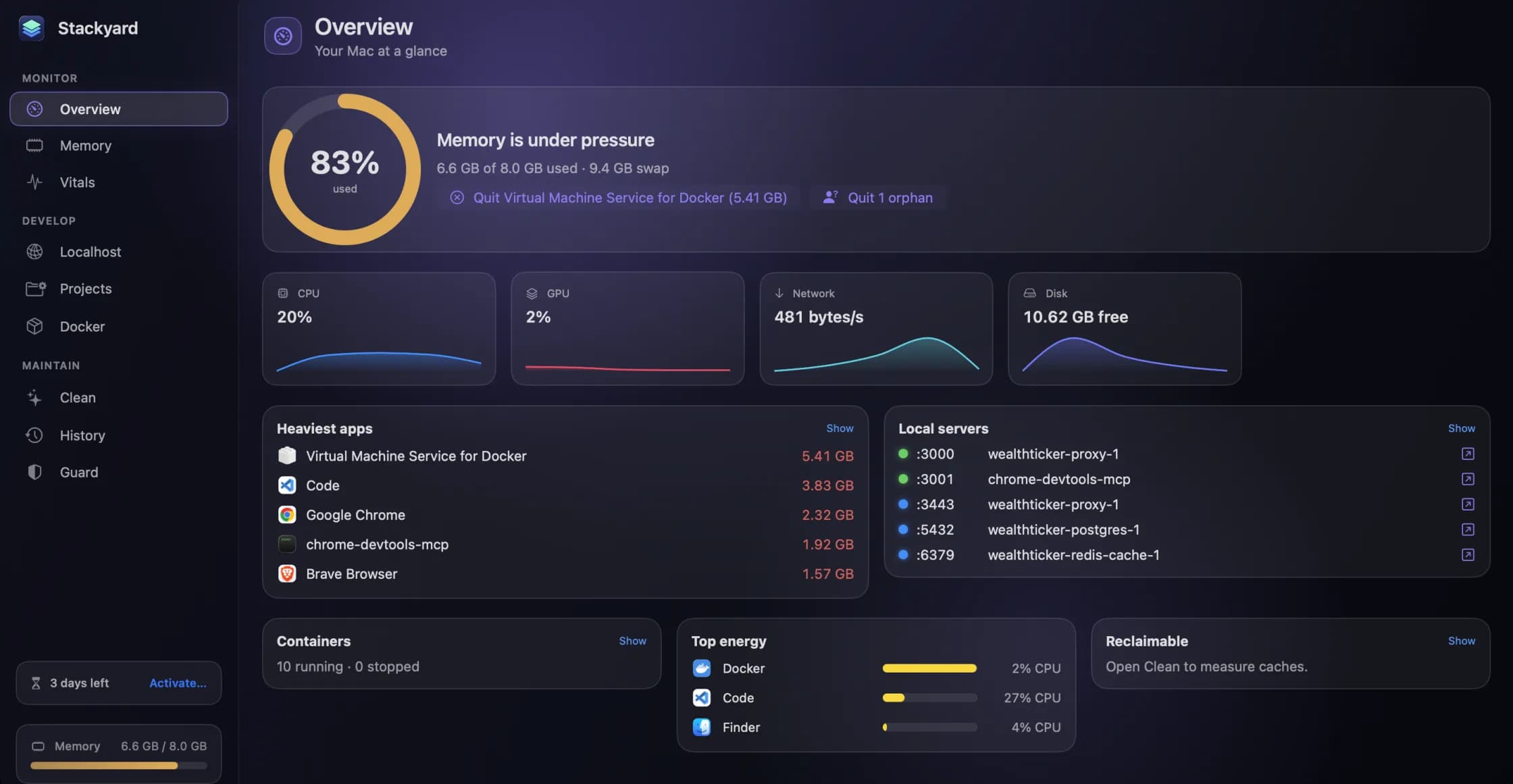
The Overview (⌘1) opens with a memory ring and a sentence: "Plenty of headroom" or "Memory is under pressure". When it is the second, the fix sits right under the headline. In the screenshot above, the buttons offer to quit Docker's virtual machine or the one orphan Stackyard found, which between them were most of the problem.
4. Check what is on your ports
Open Localhost (⌘4). Every listening port is listed with a health dot: green for an HTTP server answering, red for a server error or no answer, blue for something that is not a web server. Ports opened by Docker carry the container's name.
This is where you find the thing that was going to cause "port 3000 already in use" ten minutes from now. Stop it from here, or use Show in Finder to see which process is behind it first. The local servers post covers the rest of this section.
5. Start the projects you need
Go to Projects (⌘5). Once you have added the folders where you keep code, Stackyard lists every dev and start script it found, plus .claude/launch.json configs and run.sh files. Select the API you are working on this week and press Space to start it; its log streams as it runs. If the port it needs is already taken, Stackyard warns you before starting rather than letting it crash.
Projects started from Stackyard stop when you quit Stackyard, which is a useful property on a Friday afternoon.
6. Bring up the containers
If the project needs a database or a queue, open Docker (⌘6). Containers are grouped by Compose project, so Start All brings up the whole stack for one project at once. If Docker is not running, Start Docker launches it. Homebrew services such as Postgres and Redis have an on/off switch each, further down.
7. Set up for the day's calls
If your Monday has a standup and a planning meeting, set up Meeting Mode in Guard once: choose the apps it should quit to give your Mac room for a video call. Turn it on before the call, and when you end Meeting Mode, Stackyard reopens everything it closed. The Guard post covers the other background rules.
8. Once a month: clean what rebuilds
On the first Monday of the month, add one step. Open Clean and look at Dev Caches, then turn on Stale in Projects to see what you have not touched in thirty days or more. A side project from the spring with two gigabytes of node_modules is the usual find. Everything goes to the Trash, and your tools rebuild it on the next install. The dev caches post has the full list.
Making it faster
Once the routine is familiar, you will do most of it from the keyboard. ⌘K opens the command palette from anywhere in Stackyard: type a few letters to quit an app, stop a port, start a project or container, or clean a cache.
You can also script it. open "stackyard://localhost" opens that section from Terminal or another app, and any section name works. Put it in the shell script that starts your week, and Stackyard opens on the screen you check first.
And for a glance without opening anything, Stackyard's two widgets show the memory pressure ring and up to five local servers with their health dots on your desktop or in Notification Center.
Stackyard is a free preview. Ask for a build on its page, and the user guide covers every section and shortcut.
Questions people ask
- Do projects started from Stackyard keep running if I quit it?
- No. Projects started from Stackyard stop when you quit Stackyard. Servers you start yourself from a terminal are not affected.
- Can I open a Stackyard section from a script?
- Yes. Running open "stackyard://localhost" from Terminal opens that section, and any section name works, as does stackyard://palette for the command palette.
- Does Guard need to be on for this routine?
- No. Every step here works by hand. Guard just does some of it automatically, such as quitting orphans after a set time.
Related reading
- Activity Monitor is free and already on your Mac. Here is what Stackyard addsActivity Monitor sees every process, and it is the right tool for a deep dive. What it does not do is think like a developer: group an app's helpers, tell you who left a node process running, put a health dot on a port, or start your project. An honest comparison.
- SweepyMac and Stackyard on the same Mac: where they overlap, and which to reach forBoth clean caches, both find duplicates and big files, both uninstall apps properly, and both send everything to the Trash. Tool by tool, where the two apps do the same job, where one goes further, and which one a developer actually needs.
- Why is my fan on? Finding the answer in Stackyard's VitalsA Mac's fan turns on for a reason, and the reason is nearly always one app. Stackyard's Vitals shows CPU per core, GPU, network, disk, battery and thermal state live, ranks apps by energy, and shows which apps are using your connection right now.
Have a question about any of this?
Write in. The person who built the apps reads every message and replies within two working days.