 AppVerz
Blog / 6 November 2026
Activity Monitor is free and already on your Mac. Here is what Stackyard adds
Activity Monitor sees every process, and it is the right tool for a deep dive. What it does not do is think like a developer: group an app's helpers, tell you who left a node process running, put a health dot on a port, or start your project. An honest comparison.
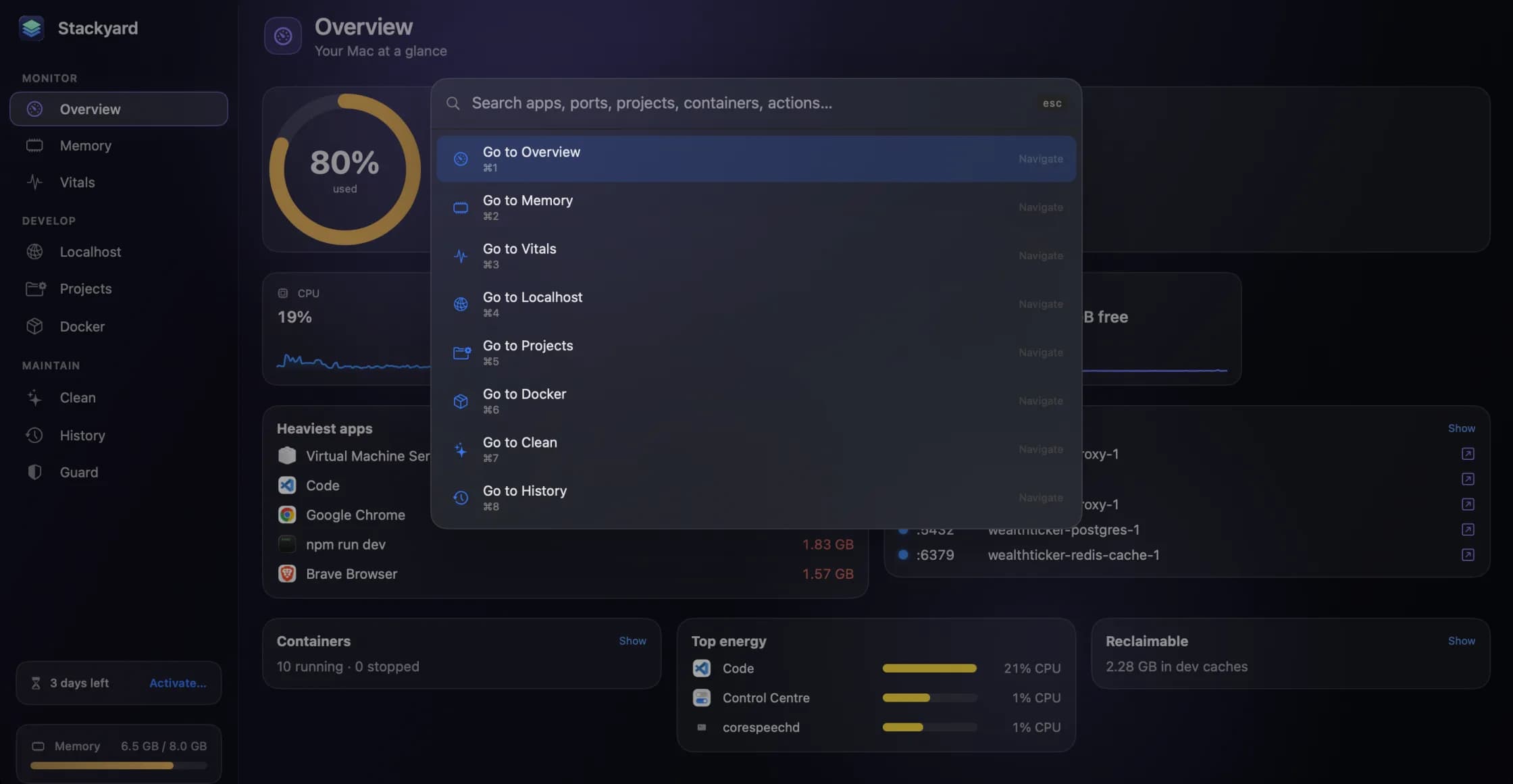
Every Mac comes with Activity Monitor, and it is a good tool. So the fair question about Stackyard is: why would a developer want something else? This post answers it honestly, including the things Activity Monitor still does better.
What Activity Monitor does well
Activity Monitor shows every process on the Mac, including the system's own, with CPU, memory, energy, disk and network tabs. Double-click a process and you can see its parent, its open files and ports, and take a sample of what it is doing. For investigating one misbehaving process in depth, nothing on the Mac beats it, and it is already installed.
If that is the kind of question you have, use Activity Monitor. Stackyard does not try to replace the inspector.
Where it stops being quick
The questions developers ask most days are not about one process. They are about apps, ports and projects, and Activity Monitor answers those slowly or not at all.
"What is using my memory?" Activity Monitor gives you a list of processes. A browser is dozens of them, an editor is a dozen more with its language servers and extension hosts, and adding them up is your job. Stackyard's Memory section folds each app's helpers under it, so the browser is one row with one number, next to Quit and Force Quit.
"Which of these node processes can I kill?" In Activity Monitor they all look the same. Stackyard's Orphans filter lists only the dev processes whose terminal, editor or AI agent has closed, and for each one shows which tool started it (Terminal, VS Code, Cursor, Claude Code, iTerm2, Warp or tmux), the folder it was started in and its PID. The orphans post goes into how.
"What is on port 3000?" Activity Monitor can show a process's open ports once you know which process to look at. Stackyard's Localhost section starts from the other end: every listening port, with a dot that says whether it is answering. Green for an HTTP server responding normally, red for a server error or no answer, blue for something that is not a web server, such as Postgres. Ports opened by Docker carry the container's name. The local servers post covers this section and Share on LAN.
"Start the API, then the front end." Activity Monitor watches processes; it cannot start one. Stackyard's Projects section finds the dev and start scripts in your folders, starts them with a live log, and warns you before a port clash.
"What was using memory an hour ago?" Activity Monitor shows the present. Stackyard records memory every 30 seconds and keeps 24 hours, in total and by app, with the peak and the heaviest app marked.
Things Activity Monitor does not attempt
Some of what Stackyard does has no equivalent in Activity Monitor at all:
- Docker containers grouped by Compose project, with Start All and Stop All, and on/off switches for Homebrew services.
- Measuring and clearing the caches and build folders your tools rebuild on their own, into the Trash.
- Guard: a notification when memory pressure stays high, leak detection, orphans quit on a timer, and Meeting Mode.
- A menu-bar item that shows memory in use and warns when pressure is high, with the heaviest apps one click away.
⌘K, which is the real difference
The biggest practical difference is speed. In Activity Monitor, quitting a process is find it, select it, press the stop button, confirm. In Stackyard, it is ⌘K, a few letters of the app's name, Return.
The same palette opens or stops any local server, starts or stops any project or container, cleans any cache and jumps to any section. Elsewhere in the window, ⌘1 to ⌘9 switch sections, the arrow keys move the selection and Space starts or stops the selected item. And open "stackyard://palette" from Terminal opens the palette from a script.
What Stackyard will not do
Stackyard only quits processes that belong to you. Anything owned by macOS or another user is folded into a single read-only row, System & other users, so you can see what it takes but cannot end it from Stackyard. If you genuinely need to end a system process, that is a job for Activity Monitor and an administrator password, and it should feel like a deliberate act.
Use both
Keep Activity Monitor for the deep dive into one process. Use Stackyard for the ten times a day you want to know what is eating memory, what is on a port, or which node process is safe to quit. Stackyard is a free preview: ask for a build, and the user guide has every shortcut.
Questions people ask
- Does Stackyard replace Activity Monitor?
- No, and it is not trying to. Activity Monitor is better for inspecting a single process in depth. Stackyard is for the everyday developer questions Activity Monitor makes slow to answer.
- Can Stackyard quit system processes?
- No. Processes owned by macOS or by other users appear in one read-only row. Stackyard only quits processes that belong to you.
- Why does Stackyard need to be outside the App Store?
- Quitting other apps and processes is something a sandboxed app is not allowed to do, and the Mac App Store only takes sandboxed apps. So Stackyard is a signed download instead.
Related reading
- Why is my fan on? Finding the answer in Stackyard's VitalsA Mac's fan turns on for a reason, and the reason is nearly always one app. Stackyard's Vitals shows CPU per core, GPU, network, disk, battery and thermal state live, ranks apps by energy, and shows which apps are using your connection right now.
- The node process your terminal left behind: memory and orphans in StackyardClose a terminal tab and the dev server inside it can keep running for days. How Stackyard groups memory the way you think about apps, finds the node and python processes nobody is watching, and tells you which tool left each one.
- Guard, History and Meeting Mode: the parts of Stackyard that work while you don'tA notification when memory pressure stays high, leak detection that ignores a single spike, orphans quit on a timer, apps quit when unused, and a Meeting Mode that frees memory for a call and puts everything back after. Plus a 24-hour memory history, widgets and stackyard:// links.
Have a question about any of this?
Write in. The person who built the apps reads every message and replies within two working days.