 AppVerz
Blog / 11 November 2026
Xcode is taking up 60 GB. Here is what each part is, and what you can delete
DerivedData, simulators, simulator runtimes, device support, archives and old copies of Xcode itself. Where each one lives, how big it tends to get, the commands to measure and clear it, and the one folder you should think twice about.
You open System Settings › General › Storage, and Developer is one of the largest items, sometimes larger than Photos. Most of it is Xcode, and most of what Xcode keeps can be removed, because Xcode rebuilds or downloads it again on demand. The exceptions matter, so here is everything, piece by piece.
Measure first
du -sh ~/Library/Developer/* ~/Library/Developer/Xcode/* 2>/dev/null | sort -h
That lists the size of each part, smallest first. Then check for simulator runtimes, which live outside your home folder:
xcrun simctl runtime list
The parts, in order of how safe they are to delete
DerivedData: delete freely
~/Library/Developer/Xcode/DerivedData
Build products, indexes and build logs, in one folder per project, including projects you opened once in 2023. It grows with every project you build and never shrinks by itself. It is also the classic fix when Xcode starts behaving strangely, such as indexing that never finishes or errors that make no sense.
Quit Xcode, then move the folder's contents to the Trash. Each project's next build is a full build, and indexing starts again.
Simulator devices: delete the ones you do not use
~/Library/Developer/CoreSimulator/Devices
Each simulator you have created or booted is a full device with its own apps and data, and a well-used one can take several gigabytes. Two commands clean up most of it:
xcrun simctl delete unavailable   # simulators for runtimes you no longer have
xcrun simctl erase all            # reset the rest to a clean state (all simulators must be shut down)
To remove individual simulators, use Window › Devices and Simulators in Xcode.
Simulator runtimes: keep only what you test against
Each iOS, watchOS, tvOS or visionOS simulator runtime is a multi-gigabyte download. Old ones stay installed after you upgrade Xcode. Remove them in Xcode › Settings › Components (called Platforms in older versions), or from Terminal:
xcrun simctl runtime delete <identifier from the list above>
Keep the runtimes for the oldest and newest iOS versions you support. You can download the others again if a bug report needs them.
iOS DeviceSupport: delete old devices and versions
~/Library/Developer/Xcode/iOS DeviceSupport (and watchOS DeviceSupport, if you develop for Apple Watch)
When you connect a device to debug on it, Xcode copies its system symbols here, one folder for each combination of device and OS version, and each can be a few gigabytes. If you have been developing for a few years, most of these folders are for phones you no longer own or iOS versions they no longer run.
Delete the old folders. If you delete the one for a device you still use, Xcode copies the files again the next time you plug it in, and you wait a few minutes.
Caches: delete freely
~/Library/Caches/com.apple.dt.Xcode: Xcode's own cache.~/Library/Caches/org.swift.swiftpm: downloaded Swift packages, shared between projects.~/Library/Caches/CocoaPods, if you use it.
Each is downloaded or rebuilt again when needed.
Old copies of Xcode: delete deliberately
Look in /Applications for Xcode-beta.app and old numbered versions you kept "just in case". Each installed copy takes more than ten gigabytes. If you still need an older version, keep one, not three.
Archives: think first
~/Library/Developer/Xcode/Archives
This one is different. An archive is a build you shipped, together with its debug symbols, the dSYM files. They let you read crash reports from people still running that version. Delete an archive, and crashes from that build become rows of memory addresses.
Delete archives from Window › Organizer, oldest first, and only for versions nobody still runs. Make sure the dSYMs are kept somewhere else, such as App Store Connect or your crash reporter, before you remove an archive.
How much comes back
On a Mac that has been used for iOS development for a couple of years, DerivedData, unused simulators and old device support often add up to 30 GB or more. They are also the three things you can remove without losing anything that matters.
Where Stackyard fits
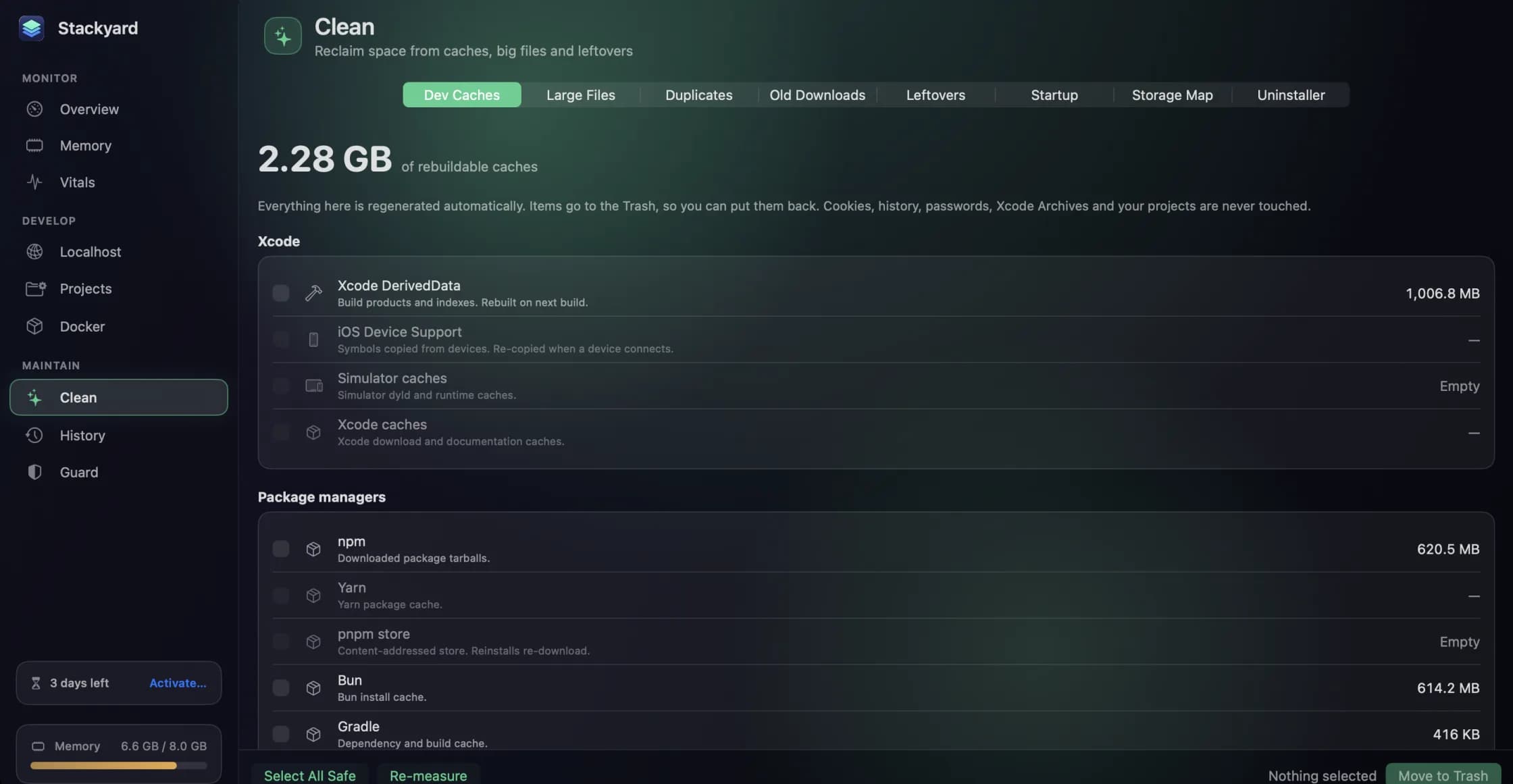
Doing this by hand once a year is reasonable. The problem is that DerivedData and simulator data grow back at the same rate. That is why Stackyard's Clean › Dev Caches tab measures them all the time, along with the rest of a developer's rebuildable caches.
- Xcode: DerivedData, Device Support and simulator data, each with its size.
- Package managers: SwiftPM and CocoaPods, alongside npm, Yarn, pnpm, Bun, Gradle, Homebrew, pip, Go, Cargo, Playwright and Puppeteer.
- Select All Safe ticks everything that rebuilds itself. Move to Trash does exactly that, moves it to the Trash, so a mistake costs you nothing.
Stackyard never touches Xcode Archives, or your projects, cookies, browser history or passwords. Your archives are the one thing in this post you should decide about yourself.
The Storage Map shows any folder as tiles sized by the space each item takes. Point it at ~/Library/Developer and you can see where the space went before you remove anything.
Reclaiming disk from dev caches covers the rest of the Clean section. If you also use SweepyMac, this post explains which app to use for which job. SweepyMac lists DerivedData too, but leaves Device Support alone.
Stackyard is free for three days, then from $21 once, with no subscription. Download it from its page.
Questions people ask
- Is it safe to delete DerivedData?
- Yes. DerivedData holds build products, indexes and logs that Xcode rebuilds on the next build. Quit Xcode first. The next build of each project takes longer, and indexing runs again.
- Is it safe to delete iOS DeviceSupport?
- Yes for devices and iOS versions you no longer debug on. Xcode copies the files again from a device the next time you connect it, which can take several minutes. Keep the folder for the device on your desk.
- Should I delete Xcode Archives?
- Only the ones you are sure you no longer need. An archive holds the debug symbols for a build you shipped. Without them, crash reports from people still running that version cannot be read. Delete from Xcode's Organizer, oldest first.
Related reading
- Homebrew services you forgot you started: finding them, stopping them, and keeping them stoppedbrew services start does two things: it starts the service now and starts it again every time you log in. That is how Postgres, MySQL and Redis end up running for months on a Mac you only use for one project a week. How to list them, stop them properly, and run them only when you need them.
- kernel_task and WindowServer using a lot of CPU: what they are and when to worryTwo processes at the top of Activity Monitor worry more Mac owners than any others. kernel_task is usually your Mac keeping itself cool, and WindowServer is the part that draws the screen. What each one is doing, why you should not try to stop either, and how to find the real cause.
- Docker Desktop on a Mac: where your memory and disk went, and how to get them backDocker on a Mac runs inside a Linux virtual machine, and that machine takes a fixed share of your memory and a disk image that grows. How to measure both, the prune commands and what each one deletes, the two settings worth changing, and when not to run Docker at all.
Have a question about any of this?
Write in. The person who built the apps reads every message and replies within two working days.