 AppVerz
Blog / 15 November 2026
kernel_task and WindowServer using a lot of CPU: what they are and when to worry
Two processes at the top of Activity Monitor worry more Mac owners than any others. kernel_task is usually your Mac keeping itself cool, and WindowServer is the part that draws the screen. What each one is doing, why you should not try to stop either, and how to find the real cause.
Open Activity Monitor on a struggling Mac and you will often find one of two names at the top of the CPU list, neither of which you started: kernel_task and WindowServer. Both are part of macOS. Neither can be quit sensibly. And when either one is busy, it is nearly always doing what something else asked it to.
kernel_task: your Mac keeping itself cool
kernel_task is the macOS kernel, the core of the system. Most of the time it uses very little CPU. When it jumps to 200, 400 or 800 percent, the usual reason is heat.
Apple describes this in its own support material. When the processor gets too hot, kernel_task occupies CPU time on purpose, so that the apps actually generating the heat get less of it. The Mac slows down, it cools down, and when the temperature drops, kernel_task lets go. It is a brake, not the engine.
That changes what you should look for. The question is not "why is kernel_task busy?" but "why is my Mac hot?" The usual answers are:
- One app working hard. A build, a video export, a browser tab running something heavy, a stuck process.
- Poor airflow. A laptop on a duvet, vents blocked by a stand, dust in an older Intel Mac's fan.
- A warm room or direct sun.
- Charging under load. Charging adds heat. On some Intel MacBook Pros, which side you charge from has been reported to make a difference. If you see kernel_task while charging, try the other side.
Apple silicon Macs run much cooler than Intel ones and hit this far less. If one does, it is worth taking seriously.
Checking it in Terminal
pmset -g therm
On many Macs this reports whether a thermal or performance warning has been recorded and, on Intel Macs, the CPU speed limit as a percentage. Anything below 100 means the Mac is being throttled. Run it again after the Mac cools and you should see the limit come back up.
WindowServer: the part that draws your screen
WindowServer combines every window, menu, shadow and animation into the image on your display. When something on screen changes, WindowServer does work. When a lot changes, it does a lot of work.
It gets busy when:
- You add displays, especially large ones at a scaled resolution. A "looks like 2560 × 1440" setting on a 4K monitor means drawing at a larger size and scaling down, which costs more than a native resolution.
- Lots of windows are open across many desktops.
- Transparency and motion are on everywhere.
- An app redraws constantly. An animated web page, a progress bar spinning in a background window, or an app with a rendering bug.
- Screen recording or screen sharing is running.
What to try
- Unplug the external display for a minute and see whether WindowServer drops. If it does, try a different scaling setting in System Settings › Displays.
- Quit apps one at a time, starting with browsers. Whichever app makes WindowServer drop when it closes was the one asking it to redraw.
- Turn on Reduce transparency and Reduce motion in System Settings › Accessibility › Display.
- Close windows you are not using, including on other desktops.
- Log out and back in. WindowServer restarts with your session, which clears it if it has got into a bad state. Do not force quit it from Activity Monitor: that logs you out at once and you lose unsaved work.
When to worry
A spike that comes and goes with what you are doing is normal. Look further if kernel_task stays high on a Mac that is cool to the touch and doing nothing, if WindowServer stays high with one display and nothing open, or if either started right after a macOS update. In those cases, restart first, then check for a macOS update, then contact Apple Support. A Mac that throttles with fans at full speed and nothing running may need cleaning or a repair.
For a wider list of causes, see why is my Mac slow? A checklist.
Finding the real cause with Stackyard
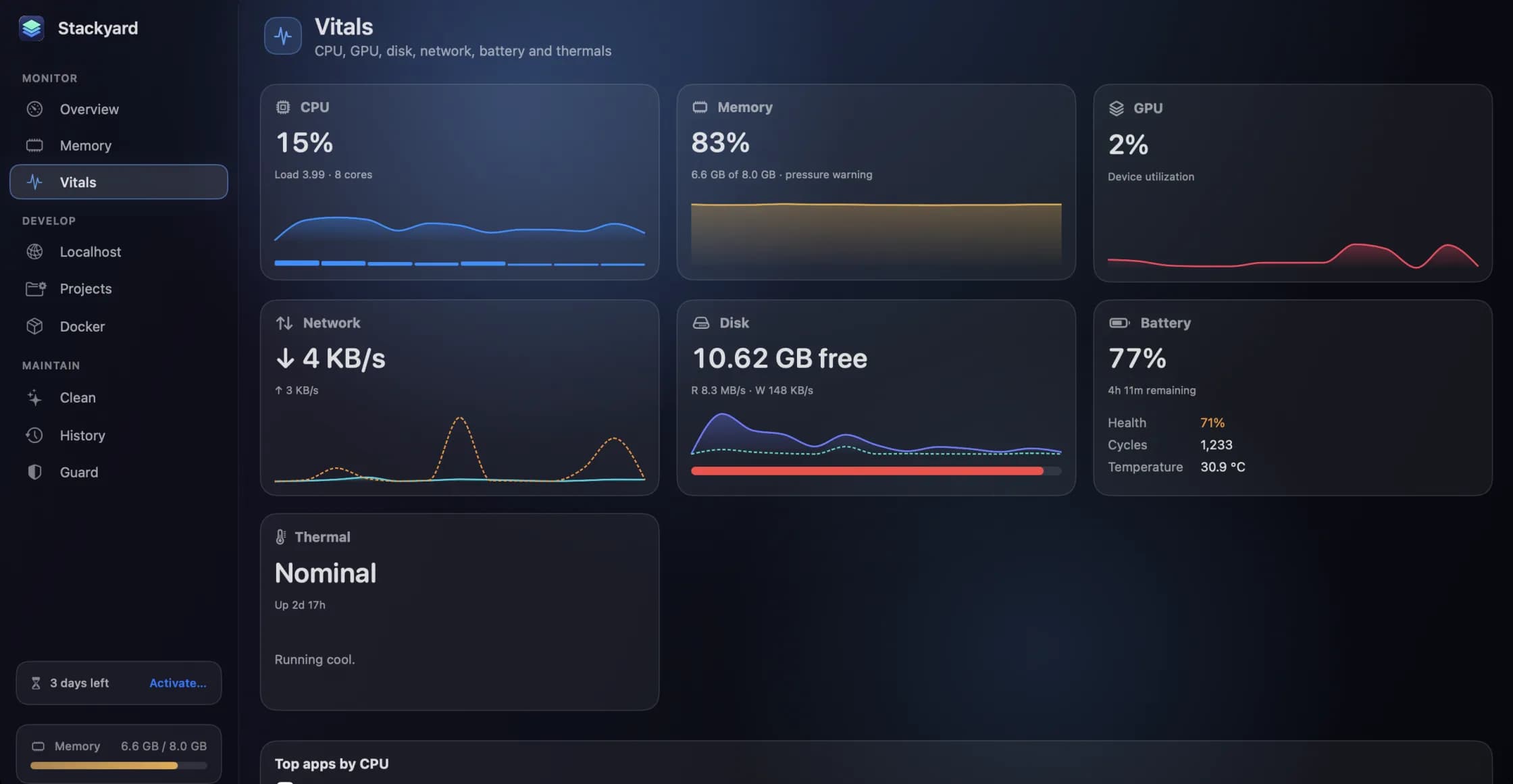
Activity Monitor shows you kernel_task at the top. What you need is what is underneath it: which app is generating the heat, and whether the Mac is actually throttling. Stackyard's Vitals (⌘3) puts both on one screen.
- Thermal state is shown live. If it is anything other than Nominal, kernel_task's CPU use is the brake doing its job, and the cause is elsewhere on the same screen.
- Top apps ranks apps by CPU with their energy impact, and Top energy answers "why is my fan on?" directly. The app at the top is usually your answer.
- CPU per core and GPU show whether the load is the processor or the graphics. A busy GPU next to a busy WindowServer points at drawing, not computing.
- Memory, in its own section, groups each app's helper processes under the app, so a browser with forty helpers is one row with one Quit button.
Why is my fan on? walks through Vitals card by card, and Stackyard and Activity Monitor covers what each one does better.
Stackyard is built for developers, whose builds and dev servers cause a lot of this heat. If that is not you, SweepyMac's Performance screen shows the thermal state, CPU load and uptime, and its health checks recommend a restart after 14 days without one.
Stackyard is free for three days, then from $21 once for one Mac, with no subscription. Download it from its page.
Questions people ask
- Can I quit kernel_task?
- No. kernel_task is the macOS kernel itself, and you cannot quit it. When it uses a lot of CPU it is usually keeping the processor busy on purpose so that other apps cannot heat the Mac up further. Find what is making the Mac hot, and kernel_task goes back down by itself.
- Why is WindowServer using so much CPU?
- WindowServer draws everything on your screen. It works harder with more and larger displays, scaled resolutions, many open windows, transparency effects, and apps that redraw constantly. Unplugging an external display or closing a busy app usually shows which one is responsible.
- Is high kernel_task CPU a sign of malware?
- Almost never. kernel_task is the kernel, and Apple documents its high CPU use as a way of managing temperature. Heat, a blocked vent or a heavy app explains it far more often. If you are worried, run a malware scan, but look at temperature first.
Related reading
- Homebrew services you forgot you started: finding them, stopping them, and keeping them stoppedbrew services start does two things: it starts the service now and starts it again every time you log in. That is how Postgres, MySQL and Redis end up running for months on a Mac you only use for one project a week. How to list them, stop them properly, and run them only when you need them.
- Docker Desktop on a Mac: where your memory and disk went, and how to get them backDocker on a Mac runs inside a Linux virtual machine, and that machine takes a fixed share of your memory and a disk image that grows. How to measure both, the prune commands and what each one deletes, the two settings worth changing, and when not to run Docker at all.
- Xcode is taking up 60 GB. Here is what each part is, and what you can deleteDerivedData, simulators, simulator runtimes, device support, archives and old copies of Xcode itself. Where each one lives, how big it tends to get, the commands to measure and clear it, and the one folder you should think twice about.
Have a question about any of this?
Write in. The person who built the apps reads every message and replies within two working days.