 AppVerz
Blog / 11 November 2026
Docker Desktop on a Mac: where your memory and disk went, and how to get them back
Docker on a Mac runs inside a Linux virtual machine, and that machine takes a fixed share of your memory and a disk image that grows. How to measure both, the prune commands and what each one deletes, the two settings worth changing, and when not to run Docker at all.
Docker on a Mac is not quite Docker. Containers need a Linux kernel, and macOS does not have one, so Docker Desktop runs a small Linux virtual machine and runs your containers inside it. Almost every "Docker is eating my Mac" problem follows from that.
- Memory: the virtual machine has a memory limit, and Activity Monitor shows the whole machine as one large process, no matter how little your containers are doing.
- Disk: everything Docker stores, including images, containers, volumes and build cache, lives in one disk image file. It grows as you work and does not shrink by itself.
Memory: the virtual machine's limit
Open Docker Desktop's Settings › Resources. The memory limit there is how much the virtual machine may use, and by default it is half of your Mac's memory. On a 16 GB Mac that is 8 GB. On an 8 GB Mac it is 4 GB, before your editor, browser and dev server have started.
Three changes help, in this order:
- Lower the limit to what you actually use. Run your normal stack, then run
docker statsto see what each container really uses. Set the limit a little above the total. A Postgres and a Redis for local development rarely need more than 2 GB between them. - Turn on Resource Saver (in Settings › Resources, in current versions). It pauses the virtual machine after a period with no running containers, so an idle Docker uses next to nothing.
- Quit Docker Desktop when you are done. Stopping containers frees memory inside the virtual machine. Quitting gives it back to macOS.
Disk: one file that only grows
Everything lives in Docker.raw, under ~/Library/Containers/com.docker.docker. Do not judge it by its size in Finder. It is a sparse file, so Finder may show the maximum it is allowed to reach rather than what is really written. Ask Docker:
docker system df
TYPE            TOTAL     ACTIVE    SIZE      RECLAIMABLE
Images          41        6         18.4GB    14.9GB (80%)
Containers      9         3         212MB     180MB (84%)
Local Volumes   17        4         6.1GB     4.8GB (78%)
Build Cache     233       0         9.7GB     9.7GB
docker system df -v breaks each line down image by image and volume by volume. The RECLAIMABLE column is the one to read. It is space held by things no running container uses.
What each prune deletes
| Command | Removes | Safe? |
|---|---|---|
docker builder prune |
Build cache | Yes. Your next build is slower |
docker container prune |
Stopped containers | Yes, unless you meant to restart one |
docker image prune |
Dangling images (untagged leftovers of rebuilds) | Yes |
docker image prune -a |
Every image not used by a container | Yes, but you will download them again |
docker system prune |
All of the first three, plus unused networks | Yes |
docker volume prune |
Unused anonymous volumes. Add -a for named ones too |
Careful. Volumes hold your databases |
On most development machines, the build cache and old images are where the space is, and docker builder prune plus docker image prune -a gets most of it back. Volumes are where local databases live. Before pruning them, run docker volume ls and read the names.
Current versions of Docker Desktop return freed space to macOS by themselves, usually within a few minutes. If the space has not come back after a while, restart Docker Desktop.
Cap it
Under Settings › Resources, Docker Desktop also has a limit for the virtual disk. Setting it to something your Mac can afford turns "the disk filled up overnight" into a clear error from Docker, which is much easier to deal with.
When not to run Docker at all
If Docker on your Mac is there only to run a database, you may not need it. brew install postgresql@16 or brew install redis runs natively, with no virtual machine underneath. It starts in a second and uses a fraction of the memory. brew services start postgresql@16 runs it in the background, and brew services stop stops it.
Keep Docker for what really needs it: a multi-service stack, a production-like Linux environment, or a project where everyone has to run the same versions.
Where Stackyard fits
Docker's own commands are the right tools for the disk side, and Stackyard does not replace them. It does not delete images or volumes. Docker's data stays under Docker's control. What Stackyard does is the day-to-day management that keeps memory under control, without you going back to the terminal or opening Docker Desktop's window.
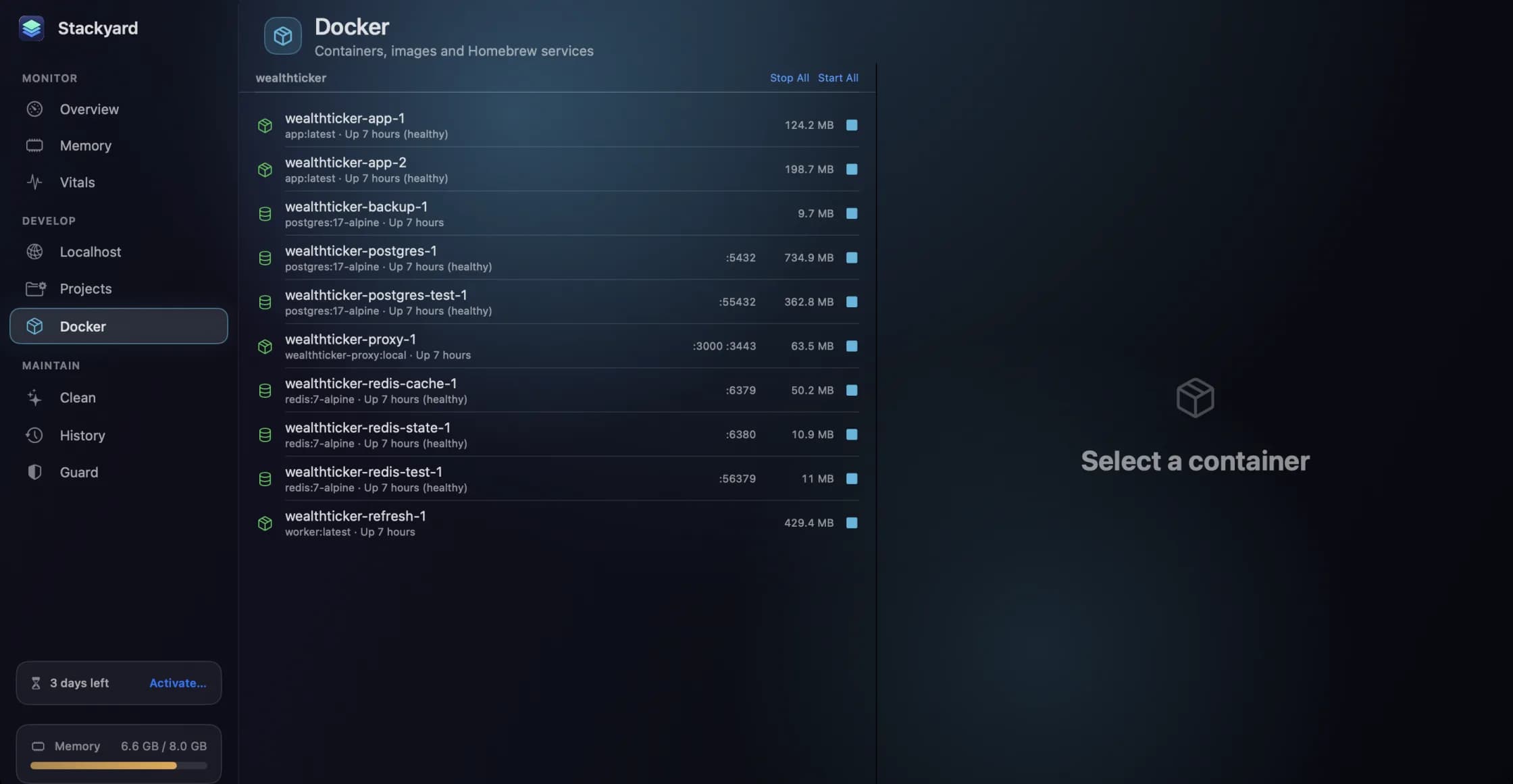
- The Docker section groups containers by Compose project, with CPU, memory, ports, image, health and logs for each. Start, stop or restart one container, or press Start All and Stop All for a whole project. If Docker is not running, Start Docker launches it.
- The Overview shows Docker's virtual machine beside everything else using memory. When memory is under pressure, it offers to quit the virtual machine, in one click.
- Localhost names the container behind each port, so
localhost:5432reads as your project's database rather than just a number. - Homebrew services, the native alternative above, each get an on/off switch in the same section. Running Postgres without Docker is still one click.
- History charts memory for 24 hours, by app. A day's chart shows what Docker actually costs you, and what limit to set.
Every local server, with a health dot covers the Localhost and Docker screens in more detail. On a smaller machine, read web development on an 8 GB Mac next.
Stackyard is free for three days, then from $21 once for one Mac, with no subscription. At 3.9 MB, it is not adding to the problem. Download it from its page.
Questions people ask
- Why does Docker use so much memory on a Mac when no containers are running?
- Containers on a Mac run inside a Linux virtual machine, and the memory limit you set is for that machine as a whole. Activity Monitor shows it as one large process. Stopping the containers frees memory inside the virtual machine, but only quitting Docker Desktop, or letting Resource Saver pause it, gives the memory back to macOS.
- Is docker system prune safe?
- It removes stopped containers, unused networks, dangling images and the build cache. It does not remove volumes unless you add --volumes, so your databases are safe by default. With -a it also removes every image not used by a container, which means downloading them again later.
- Where does Docker Desktop store its data on a Mac?
- In a single disk image file, Docker.raw, inside ~/Library/Containers/com.docker.docker. Finder can report its maximum size rather than what it really uses. Use docker system df to see what is inside it.
Related reading
- Homebrew services you forgot you started: finding them, stopping them, and keeping them stoppedbrew services start does two things: it starts the service now and starts it again every time you log in. That is how Postgres, MySQL and Redis end up running for months on a Mac you only use for one project a week. How to list them, stop them properly, and run them only when you need them.
- kernel_task and WindowServer using a lot of CPU: what they are and when to worryTwo processes at the top of Activity Monitor worry more Mac owners than any others. kernel_task is usually your Mac keeping itself cool, and WindowServer is the part that draws the screen. What each one is doing, why you should not try to stop either, and how to find the real cause.
- Xcode is taking up 60 GB. Here is what each part is, and what you can deleteDerivedData, simulators, simulator runtimes, device support, archives and old copies of Xcode itself. Where each one lives, how big it tends to get, the commands to measure and clear it, and the one folder you should think twice about.
Have a question about any of this?
Write in. The person who built the apps reads every message and replies within two working days.