 AppVerz
Blog / 9 November 2026
Web development on an 8 GB Mac: how to make it work, and when to stop trying
Plenty of good Macs shipped with 8 GB and are still in daily use. Why the memory figure you are watching is the wrong one, the three changes that help most, and the honest signs that you need a new machine.
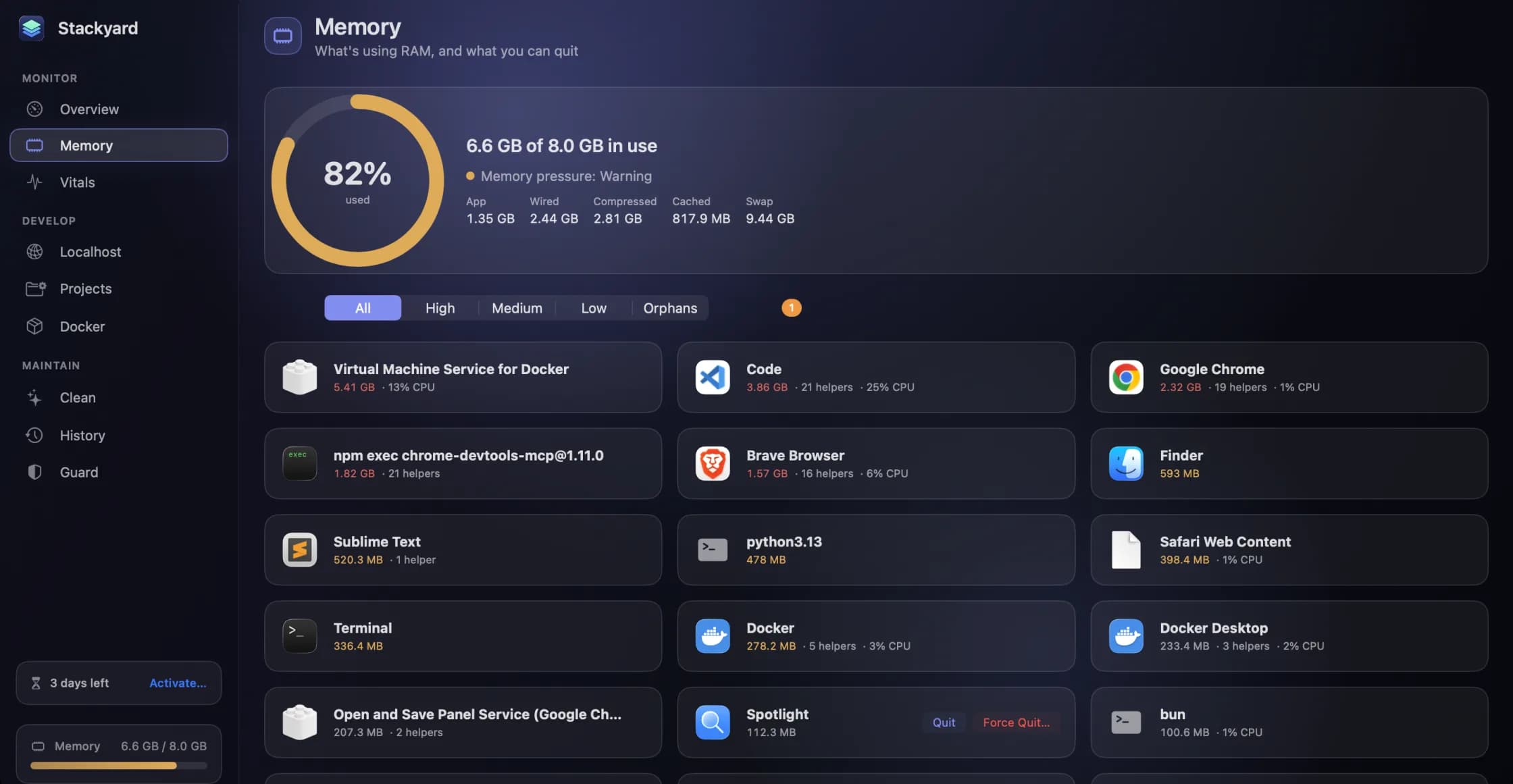
The Memory screen above is from an 8 GB Mac: 6.6 GB in use, pressure at Warning. Apple sold Macs with 8 GB as the base configuration until late 2024, so a lot of developers are working on one right now, and for many of them a new laptop is not next month's plan.
It can be done. It takes some deliberate choices about what is allowed to run.
Watch pressure, not usage
"Memory used" is close to useless on a Mac. macOS keeps memory busy with caches and compressed pages on purpose, so a healthy Mac will often look nearly full.
The number that matters is memory pressure, which is macOS's own judgement of how hard it is working to keep up. You can see it in Activity Monitor, or in Terminal with memory_pressure. Green pressure at 90 percent used is a Mac doing its job. Sustained warning-level pressure means compression and swap are carrying the load, and that is when typing starts to lag.
Stackyard's menu-bar item shows the amount in use and adds a ⚠︎ when pressure is high, so you see trouble without opening anything. Its Memory section breaks the total down into app, wired, compressed, cached and swap.
Find out what your day actually costs
Do not guess. History records memory every 30 seconds and keeps 24 hours, with total memory and memory per app and the peak marked. Work a normal day with Stackyard running, then look at the chart at the end of it.
Because each app's helpers are folded under it, you get one honest number per app. Chrome with forty helpers is a single row. Your editor, its language servers and its extension hosts are one row. Most people find that two or three things make up the bulk of it, and those are all you need to work on.
The three changes that help most
1. Cap Docker, or do not run it
Docker Desktop runs a Linux virtual machine, and by default it gets 50 percent of your memory. On an 8 GB Mac, that is 4 GB gone before your code starts. Lower it in Docker's Settings › Resources to what your containers really need.
Better still, if all you use Docker for is a database, run that database natively. brew install postgresql@16 has no virtual machine underneath it. Stackyard's Docker section gives every Homebrew service an on/off switch, so turning Postgres off when you are not using it is one click.
And stop Docker when you are done. Stop All on a Compose project stops the containers, and the Overview will offer to quit Docker's virtual machine when memory is under pressure.
2. Get rid of what you are not using
The most expensive memory on a small Mac is memory held by something you have forgotten about.
Orphans lists node and python processes that outlived their terminal or editor, and names who left them. On 8 GB, set Guard to quit them automatically after 15 minutes, because you cannot afford to carry them. Databases and services are left alone.
Quit when unused quits apps you pick after they have not been in front for a set number of minutes. Apps with unsaved documents ask first, and time asleep or locked does not count. It suits the heavy apps you open for one thing, such as a design tool or a second browser.
3. Clear the deck for calls
A video call on an 8 GB Mac with a full dev stack running is often where everything falls over. Meeting Mode quits the apps you choose so there is room for the call, then reopens them when you end it. You pick the list once.
Keep some disk free too
When memory runs short, macOS swaps to the SSD, so a nearly full disk makes a memory problem worse. If you are short of both, reclaim disk from the caches your tools rebuild: Stackyard's Clean section measures them, and old node_modules folders are often the quickest win. Each project's details list what can go. The dev caches post covers it.
Smaller habits that add up
- Run one dev server at a time. Use Stackyard's Projects to swap between them with Start and Stop.
- Use the browser profile with the fewest extensions for development.
- Close the second editor window. Each one tends to bring its own language servers.
- Restart once a week or so, particularly after a long stretch of swapping.
When to stop trying
Stackyard cannot make 8 GB into more than 8 GB, and we would rather say so. These are signs you have reached the end of what software can fix:
- Your History chart sits at the top all day even with the above done, and not just in a few peaks.
- You see swap in the gigabytes during normal work.
- Your project needs several containers running at the same time and there is no way to reduce them.
- You are regularly quitting things you need in order to run other things you need.
If that is you, the same History chart gives you a number to shop with: your real peak, plus some room. Current Macs start at 16 GB, and your charts will tell you whether that is enough.
Until then, Stackyard is free for three days, then from $21 once, with no subscription, and at 3.9 MB it is not going to add to the problem. Download it from its page.
Questions people ask
- Is 8 GB enough for web development?
- For a front-end or a single small back-end, with some discipline, usually yes. Running a multi-container Docker stack, several AI agents or large TypeScript projects at once, it tends not to be. Your memory pressure over a working day is the real answer.
- How much memory does Docker Desktop use on a Mac?
- Its virtual machine is given a share of your memory that defaults to 50 percent of the host, so 4 GB on an 8 GB Mac. You can lower it in Settings › Resources.
- Can Stackyard add memory or compress it?
- No. It shows you what is using memory and makes it quick to quit things or have them quit automatically. It cannot make 8 GB into more than 8 GB.
Related reading
- AI coding agents leave a lot running on your Mac. How to keep up with themAgents start dev servers, spawn test browsers and create worktrees, then finish and move on. What that leaves behind in memory, ports and disk, the commands to check it, and how Stackyard shows which agent left what.
- Port 3000 is already in use on a Mac: find it, stop it, and keep it stoppedThe exact commands to find what is holding a port and stop it, why the process sometimes comes straight back, what is really on port 5000, and how to see every port on your Mac at once.
- Activity Monitor is free and already on your Mac. Here is what Stackyard addsActivity Monitor sees every process, and it is the right tool for a deep dive. What it does not do is think like a developer: group an app's helpers, tell you who left a node process running, put a health dot on a port, or start your project. An honest comparison.
Have a question about any of this?
Write in. The person who built the apps reads every message and replies within two working days.