 AppVerz
Blog / 15 November 2026
Time blocking on a Mac, and checking that the blocks actually happened
Time blocking works when you plan every hour of the day, and it fails quietly when the plan and the day drift apart. How to set it up with the Calendar app you already have, how to handle the day falling apart by lunchtime, and how to audit each block against what you really did.
Time blocking is simple to describe. Before the day starts, you give every hour a job: writing from nine to half past ten, email until eleven, the client call, lunch, the report. Then you work the plan.
It is one of the few productivity methods with a strong track record, and it fails in a predictable way. The plan says two hours of writing. The day contained forty minutes of writing, some of it in fragments. Nobody notices, because the calendar still shows a neat blue block, and next week's plan is built on the same optimism.
This post covers setting it up on a Mac with tools you already have, and then the part most guides skip: checking whether the blocks happened.
Setting it up in Calendar
You do not need a special app for the planning. The Calendar app on your Mac does it well.
- Make a separate calendar for blocks. In Calendar, choose File › New Calendar and call it "Blocks". Give it a muted colour. Meetings stay on your work calendar, and you can hide the blocks with one tick when someone asks to see your availability.
- Plan tomorrow at the end of today. Ten minutes before you stop, drag out blocks for the next day. You know what is unfinished, and you are not starting the morning by deciding what to do.
- Block everything, not just the deep work. Email, chat, admin and lunch get blocks too. If shallow work has no place on the plan, it takes over the deep blocks instead.
- Make focus blocks 60 to 90 minutes. Shorter than that, and too much of the block goes on getting started. Longer, and something usually breaks it. How many hours of deep work in a day covers why four hours of focused work is a ceiling, not a target.
- Put the hard blocks in your best hours. That is often the morning, but not for everyone. Check before you assume.
Cal Newport, who popularised the method, plans on paper and keeps a column for redrawing the day. On a Mac, dragging events does the same job.
When the day falls apart
It will, most days. A call runs long, something breaks, a message needs an answer now. The rule is to re-plan, not abandon. Drag the unfinished block to the next free slot, and decide what it pushes out. You might shorten a later block or move something to tomorrow. A plan you redraw three times is still working. A plan you gave up at eleven o'clock is just a picture of the morning you wanted.
Two habits keep re-planning cheap:
- Leave one buffer block in the afternoon. Thirty to sixty minutes with no job, to absorb the overrun.
- Keep a short list of 15-minute tasks for the gaps between meetings, so a gap does not turn into a check of your inbox.
The missing step: checking the blocks
At the end of a week, a time-blocked calendar records what you intended. To improve the plan, you need what happened, and memory is a bad witness here. People remember the block, not the six times they left it.
You can audit by hand. Keep a notebook beside the keyboard. Each time you leave the planned task, write down the time and where you went. At the end of the day, compare it against the calendar. It works, and it is tedious, so most people manage it for about two days.
What you are looking for:
- Blocks that started late. If the nine o'clock block reliably starts at twenty past, plan it at twenty past.
- Blocks that leaked. A writing block with eight trips to chat in it was not a writing block.
- Blocks that were always too short. If writing consistently runs over, the plan is wrong, not you.
- The hours that worked. Some hours give you more focus than others. Move the hardest blocks there.
Auditing blocks with FocusLens
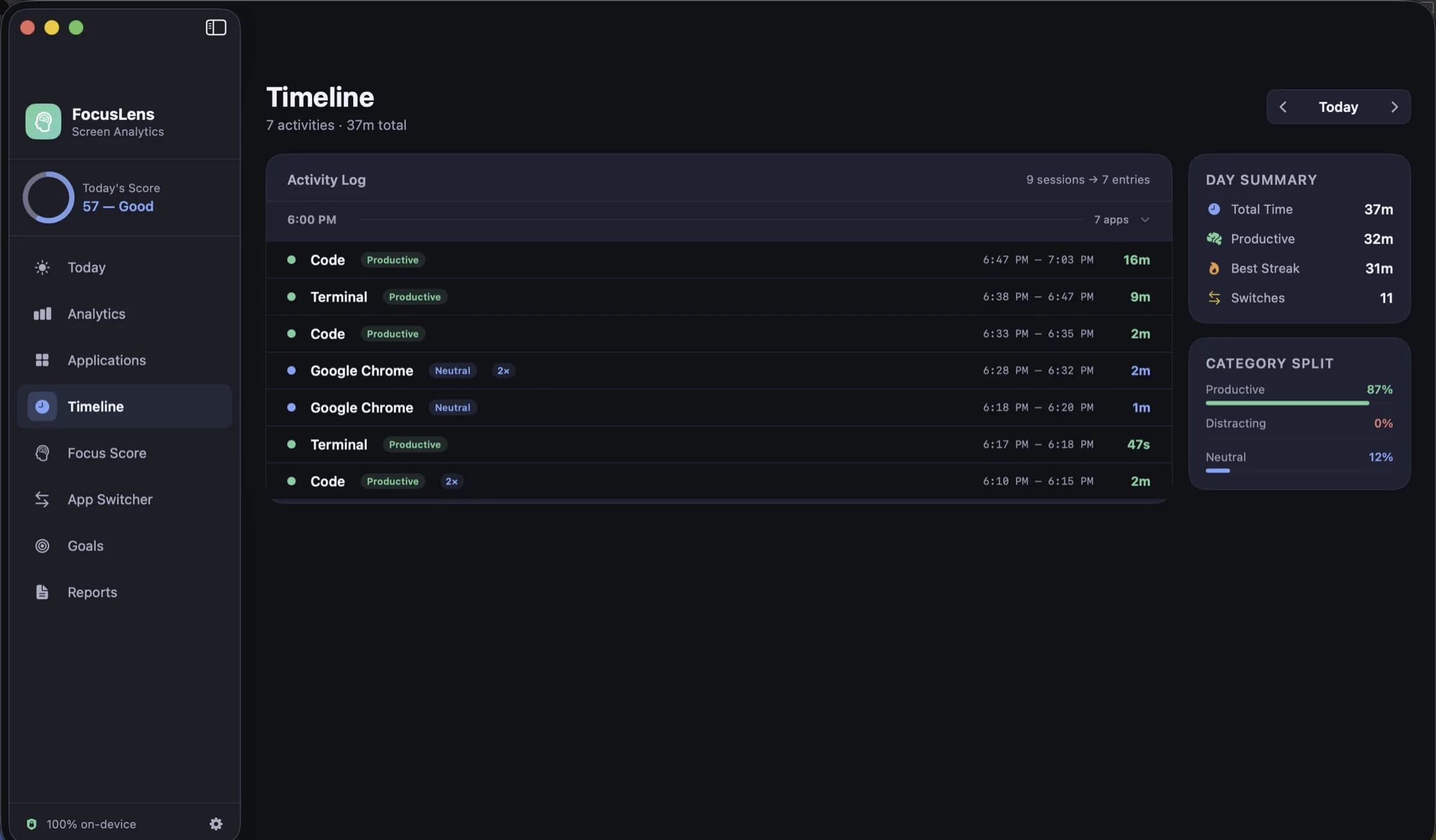
FocusLens does not plan your day and does not read your calendar. What it does is keep the other half of the record: which app was in front of you, from when to when, all day. Laid beside the calendar, that is the audit.
- The Timeline shows any single day as an activity log in time order: app, category, start, end and duration, with quick runs of the same app merged into one entry. Put it next to Calendar's day view and read the two together. Your nine o'clock writing block either shows forty minutes in your editor or it does not.
- Analytics draws your week as a heatmap by the hour and names your peak focus window, from your own data. That is where the hard blocks belong. Finding your peak focus window explains how to read it.
- The App Switcher names the apps that pull you out of a block most often, and the bursts of quick switching that broke it. If one app keeps breaking your blocks, quit it at the start of each one.
- Goals are daily amounts per category, from 15 minutes to 12 hours. Set a productive target equal to your planned focus blocks, and a limit on distracting time. The goal does not know about individual blocks. It tells you at the end of the day whether the blocks added up.
- CSV export includes every app session with its start and end. If you want a block-by-block comparison, put it next to an export of your calendar in a spreadsheet.
Be clear about one limit. FocusLens knows which app was in front, not what you were doing in it. A browser tab of research and a browser tab of news look the same unless your categories separate them, so set your categories in the first few days. It also needs no permission to start, and nothing it records leaves your Mac.
FocusLens is free for three days, then $19.99 once, with no subscription and no account. Download it from its page, block out a week, and look at the Timeline on Friday.
Questions people ask
- What is the best app for time blocking on a Mac?
- The Calendar app that comes with macOS is enough for the planning side. Make a separate calendar for blocks so you can show or hide them, and drag events to reschedule. What Calendar cannot tell you is whether a block happened, which is why it helps to pair it with something that records what you actually did.
- How long should a time block be?
- For focused work, 60 to 90 minutes is a good length for most people. Shorter blocks spend too much of their time getting started, and longer ones tend to break anyway. Batch small tasks such as email into a single 30-minute block of their own.
- What do I do when a time block gets interrupted?
- Re-plan the rest of the day rather than abandoning the plan. Drag the unfinished block to the next free slot and move or drop whatever it pushes out. A plan you redraw three times a day is still doing its job.
Related reading
- Screen Time tells you how long. FocusLens tells you how wellScreen Time is built into your Mac and counts hours per app across your devices. FocusLens counts the same hours on one Mac, then asks a different question: how much of that time was focused, and what kept breaking it up. What each is for, and why they work side by side.
- Checking Slack and email less: how to batch messages, and how to know it workedMost people check messages dozens of times a day, and few could say how many. What the research says about checking less, a batching routine that survives a real job, the macOS settings that make it stick, and how to measure the habit instead of guessing.
- How many hours of deep work can you actually do in a day?Probably fewer than your calendar assumes, and more than a day of meetings allows. What the research on expert practice suggests, why four hours is a ceiling rather than a target, how to find your own number, and how to stop a good number from turning into an unrealistic goal.
Have a question about any of this?
Write in. The person who built the apps reads every message and replies within two working days.