 AppVerz
Blog / 9 November 2026
How to find your peak focus window, and test whether it is real
FocusLens can name the hours you do your best work. That chart shows when you did focus, which is not always when you could. A two-week method for finding your window, separating it from your calendar, and proving it by moving your hardest task.
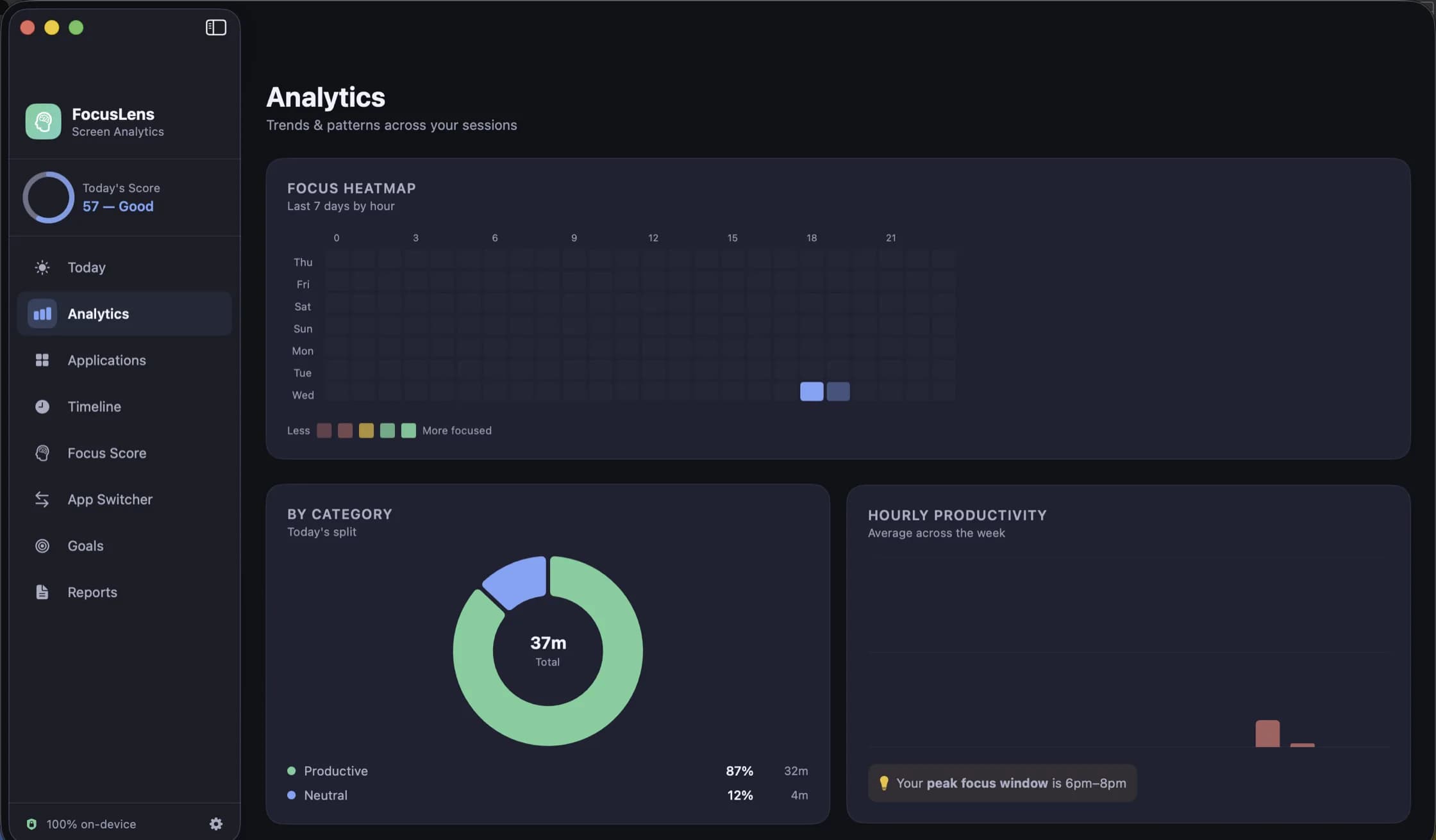
The Analytics screen in the picture above is calling out 6pm to 8pm as a peak focus window. If you read advice about productivity, you would expect a morning. The person in that screenshot does their best work when the rest of the world has stopped sending them things.
That is the useful part of measuring this: your window is not the one in the book. There is also a trap in it, and this post is about both.
What the chart shows
FocusLens watches which app is in front and sorts your time into categories. Analytics turns that into two views. A heatmap lays the week out by hour, so you can see the shape of it at a glance. An hourly productivity chart names your peak window in words. The Today screen repeats that as a coaching insight.
If your main tool is filed in the wrong category, all of this is wrong, so fix that first. The categories post takes five minutes and rewrites your history around your answer.
The trap
The chart tells you when you were focused. It does not tell you when you could have been.
Suppose your team's standup is at 10 and your meetings run until 3. Your productive hours will pile up at 4pm, and FocusLens will honestly report a late afternoon peak. That might be your best time. It might just be the first free time you get. A calendar can manufacture a peak window, and if you build your week around it you have only agreed with your calendar.
So treat the first answer as a hypothesis.
Two weeks to a real answer
Week one: change nothing
Install it and work as you normally do. At the end of the week, open Analytics and write down three things: the named peak window, the two or three darkest cells on the heatmap, and the hours you know were blocked by meetings. The heatmap covers one week at a time, so paper or a note is the right tool here.
Mark what the calendar did
Compare the heatmap with your calendar for the same week. Any window that sits right after a block of meetings is suspect. Any window that shows up on a day with an open morning is much more interesting, because it is what you did when you had a choice. Light meeting days are the most useful days in your data.
Week two: move the hard thing
Pick the job that needs the most thinking. Schedule it into your candidate window for five days running, and put your mail, chat and admin somewhere else.
Then set a Goal so you can see it. A goal is a daily amount of one category, from 15 minutes to 12 hours, and it fills from the hours actually logged, so a two-hour target on productive apps needs no bookkeeping.
Read the streak, not the total
At the end of week two, open Focus Score and click through the daily bars to each day's breakdown. The component that matters here is the Focus Streak, worth 20 points and full at two unbroken hours. Total productive time will not change much if you only moved work around. A longer longest-run means the window really was better for sustained work.
Then use Reports. Choose Custom and take the fourteen days. The first-half versus second-half comparison sets your two weeks against each other without any spreadsheet work.
What to do with the answer
If the streak grew, you have found something worth defending. Block it in your calendar and keep it for one job. Two hours used well are worth protecting from a recurring meeting, and "I do my deep work from four to six" is an easier request when you have a chart behind it.
If nothing changed, that is useful too. Your bottleneck is probably not the time of day. Open the App Switcher and see what is breaking your runs.
Run the check again after anything that changes your days: a new job, a new baby, a move to another timezone, a season of early sunsets.
What it cannot see
FocusLens times the app in front of you. It cannot see a whiteboard, a walk or a notebook, and hours spent thinking away from the Mac will look empty. Those may be some of your best hours. The chart answers a narrower question, namely when you do your best work at the Mac, and that is the one it can answer honestly.
It answers it without asking for any permission to track and without recording window titles, URLs or document names. FocusLens is free for three days, then $19.99, once. Download it, and you can have your first week's heatmap by next Monday.
Questions people ask
- How much data does FocusLens need to find a peak window?
- The chart works from the first days of use, but a window you can trust needs at least a full working week, and two is better. The heatmap covers a week at a time, so note each week's window before the next one replaces it.
- Does FocusLens know which task I was doing in those hours?
- No. It records the app, its category and the session times, never window titles or document names. It can tell you when you were focused in productive apps, and you supply what the work was.
- Can my employer see this?
- No. There is no account, no team view and no server. What FocusLens records stays on your Mac unless you export a report yourself.
Related reading
- Four workdays, four focus scores, and what each one is telling youA day of meetings can outscore a day of real but scattered work, and one misfiled app can cost 40 points. Four worked examples using the actual FocusLens formula, and the one thing to change after each.
- Studying on a Mac: using FocusLens through exam seasonYour study time is spread across PDFs, notes and a browser that also contains everything else. How to set FocusLens up so its numbers mean something to a student, including the two-browser trick, and what it will never be able to see.
- FocusLens is half price: $19.99 once, and what that buysFocusLens is $19.99 instead of $39.98, a one-time licence with no subscription. What the app does for that price, from permission-free tracking and a focus score you can take apart to replayable days and exportable reports, and how to try it first.
Have a question about any of this?
Write in. The person who built the apps reads every message and replies within two working days.