 AppVerz
Blog / 3 October 2026
Space Lens and Disk: two ways to look at a full Mac
One draws your folders as bubbles you can click into and remove from. The other draws the whole volume to scale and touches nothing. Why SweepyMac has both, what each protects, and how to use them together when the disk is nearly full.
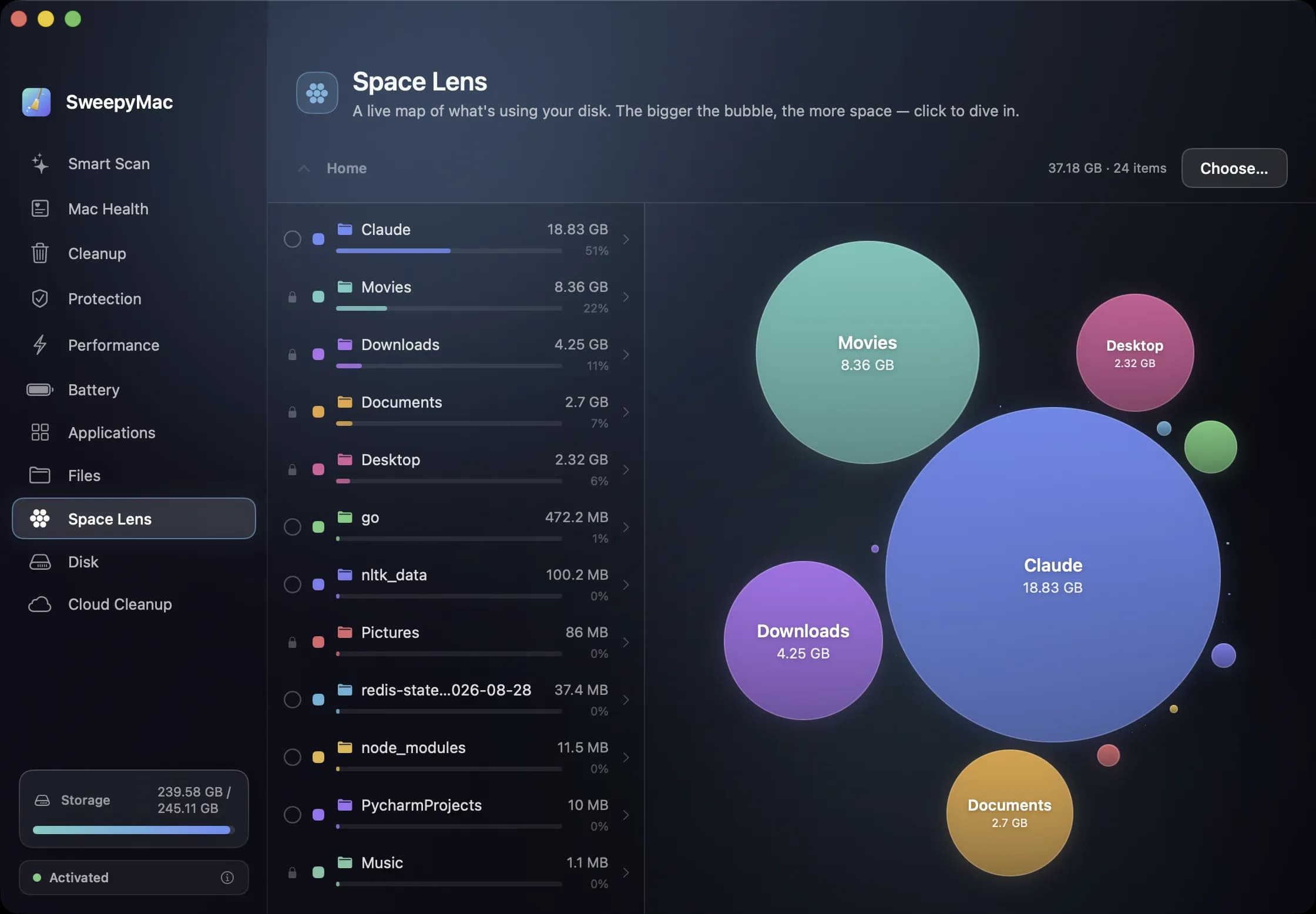
"My disk is full" is a diagnosis that needs two different pictures. The first is a map of the whole volume, to see whether the problem is photos, applications, downloads or the system. The second is a close-up of one folder, to find the specific things to remove. SweepyMac gives each its own module, and they are built with opposite rules: Disk is read-only, and Space Lens is where things get removed.
Disk: the whole volume, to scale
The Disk module draws a storage bar and a treemap of the boot volume, split into Applications, Photos, Movies, Music, Downloads, Documents, Desktop, App Data, which is your Library folder, and System & Other, which is everything else. Each tile is sized to its share, with a legend and hover tooltips giving the exact figure and percentage. Below it, "Your folders" lists each folder at scale; clicking one opens it in Finder.
Nothing can be deleted from Disk, and that is the point. It is the screen you look at to decide where to look next, and a screen that cannot remove anything is one you can leave open and click around in without a second thought.
The measurement is honest about its limits. A large photo library takes a moment. If some folders could not be measured, the split is marked approximate and the difference is folded into System & Other rather than guessed into the other categories. Rescan re-measures.
Space Lens: the close-up
Space Lens starts at your home folder and draws its contents as bubbles, the bigger the bubble the more space. Click a bubble to drill into it. The breadcrumb or the up-chevron takes you back; Choose… points it at another folder, an external drive included. It measures live, so the map fills in as the scan runs rather than making you wait for a total.
Right-click a bubble for Select for removal, Deselect, or Reveal in Finder. Your selection persists as you move around within the scan, and the bottom bar keeps count: "N selected across this scan", with Clear and Review & Remove. Review shows everything you have selected in one list before anything moves. Then it goes to the Trash, with the usual confirmation and an Undo.
Folders that could not be measured are called out, with a hint that Full Disk Access would let the scan see them.
What Space Lens refuses to remove
A bubble map makes it very easy to select something enormous, so the module has a list of things it will not remove as a whole, no matter how you ask. Your home folder. The standard folders inside it: Library, Applications, Desktop, Documents, Downloads, Movies, Music, Pictures, Public and Sites. System locations such as /System, /usr, /Applications and /Library. Everything under /Volumes, which is every external and backup drive. Other users' accounts. The root of the volume itself.
You can drill into any of them and remove individual items. What you cannot do is remove the container in one click. This is the single most important safety rule in the module, and it exists because of the obvious accident: a bubble labelled Documents is the biggest one on the screen, and "remove the biggest bubble" is exactly the instinct a space map encourages.
Using them together
Open Disk first and read the treemap. If Photos is the problem, the answer is Photos' own storage settings, not a cleaner, and Disk has told you that in ten seconds. If Downloads or Documents dominates, open Space Lens, point it at that folder, and the bubbles show the two or three things responsible. Most full disks come down to a handful of items: an old virtual machine image, a forgotten video export, a project folder duplicated for safety.
If App Data is large, that is your Library folder, and the better tools are Cleanup for caches and the Applications module for the support files of apps you no longer use. If System & Other is large and nothing explains it, the Trash is the first suspect; emptying it is the one permanent button in Cleanup.
Two modules, one habit
The habit both modules teach is: look before removing, and remove the item rather than the folder. Disk makes looking free. Space Lens makes removing specific, reviewable and reversible. Between them, "my disk is full" stops being a feeling and becomes a list.
Questions people ask
- Why can't I remove my Documents folder from Space Lens?
- Because whole standard folders are protected: your home folder, Desktop, Documents, Downloads, Library, Pictures and the rest, along with system locations and external volumes. Drill into the folder and remove the individual items instead.
- Why does Disk show a big System & Other?
- It is everything that is not Applications, Photos, Movies, Music, Downloads, Documents, Desktop or App Data, plus anything that could not be measured. If some folders were unreadable, the shortfall is folded in there rather than spread across the other categories.
- Which should I open first?
- Disk, to see which category is the problem. Then Space Lens pointed at that folder, to find the specific items and remove them.
Related reading
- A monthly Mac routine in fifteen minutes, from the keyboardEleven modules is a lot to remember. This is the order we use them in once a month, with the shortcut for each: scan, check health, look for threats, find the big files, hand space back to iCloud, and only then empty the Trash.
- Your first ten minutes with SweepyMacInstall, one permission, a three-day trial and a first scan. What happens at each step, what to say yes to, what you can safely skip, and how to read the screen that comes back before you press Clean.
- What a Mac cleaner should never doMost cleaning apps ask you to trust them. SweepyMac is built so you do not have to: everything it removes goes to the Trash, every clean has an Undo, and every group opens up before you press anything.
Have a question about any of this?
Write in. The person who built the apps reads every message and replies within two working days.